Test
Set up your law firm’s contact details, default billing rate, taxes and logos, and manage the firm’s offices and payment merchants.
Completing your firm information is one of the first things to do after your Maatdesk account is created. What you enter here is reused across the application: on invoices, payment requests, reports, downloaded PDFs and document templates.
Open the Firm window
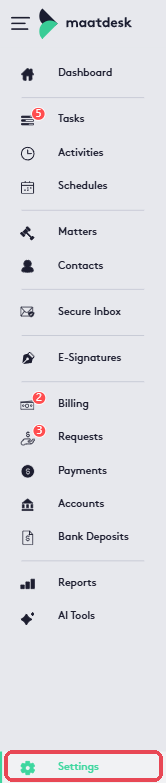
- Click Settings at the bottom of the left menu.
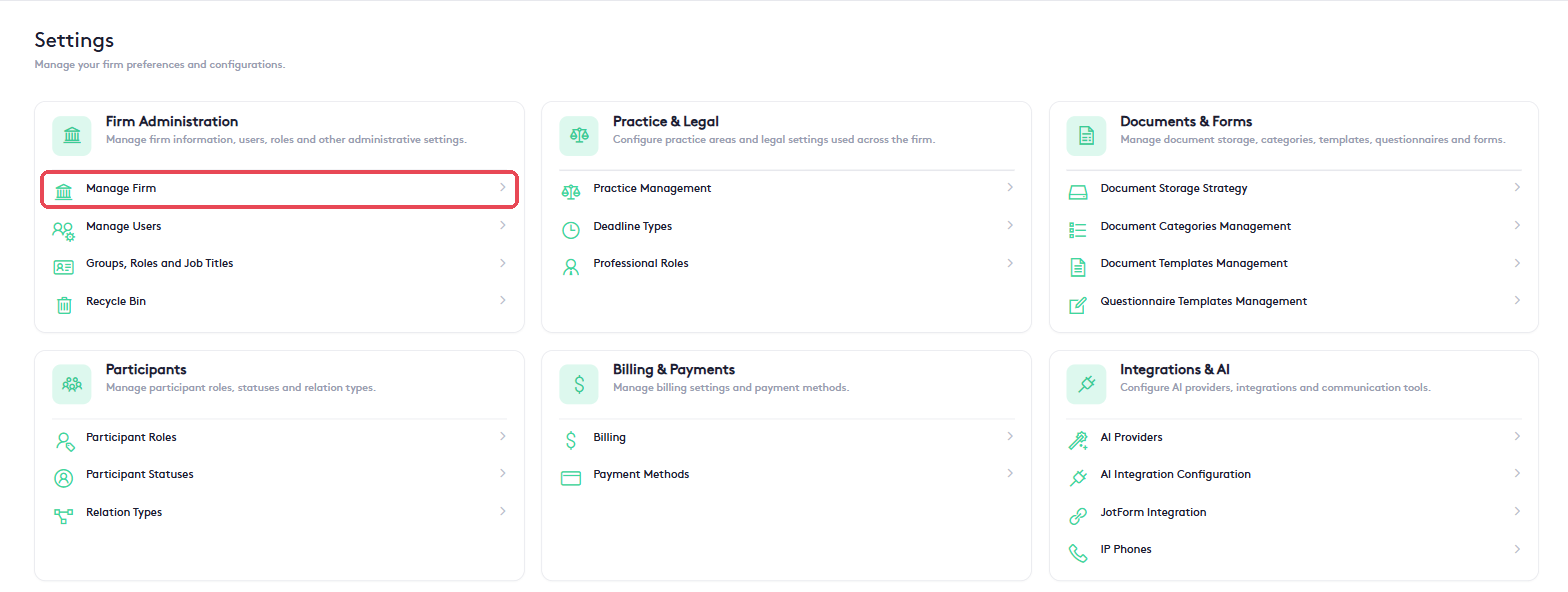
- In the Firm Administration section, click Manage Firm.
The Firm window opens with three tabs: Firm, Offices and Merchants. Use Back to Settings at the top left to return to the Settings page at any time.
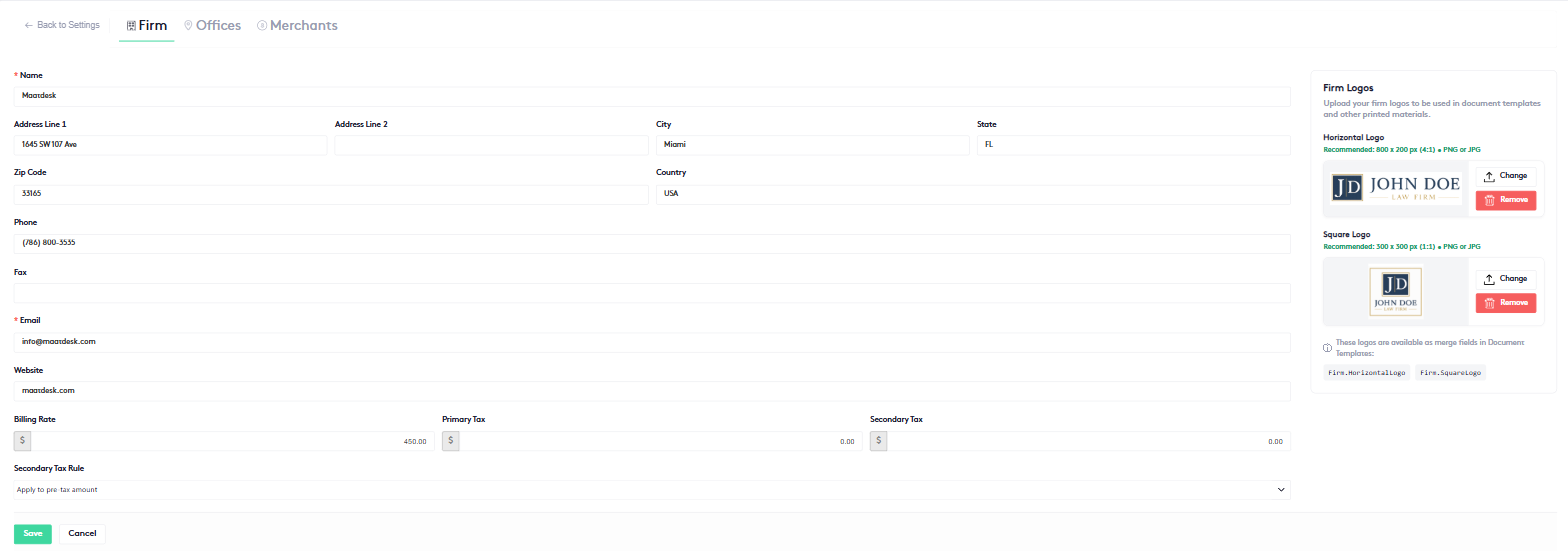
Firm tab
The Firm tab holds your firm’s contact information and financial defaults on the left, and the Firm Logos panel on the right.
Contact information
Fill in the fields from Name to Website. Name and Email are required (marked with a red asterisk); complete as many of the others as you need.
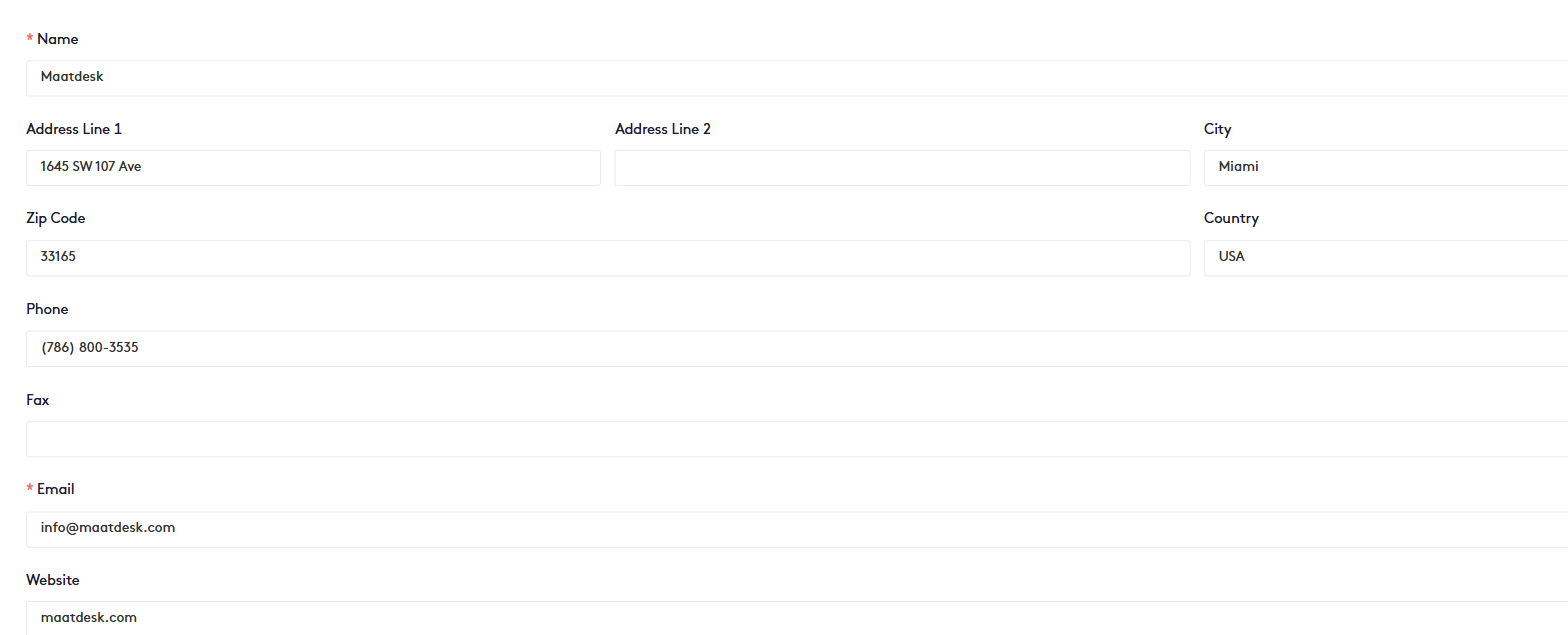
| Field | What to enter |
|---|---|
| Name * | The firm’s name as it should appear on invoices and reports. |
| Address Line 1 / 2 | Street address and suite or floor. |
| City, State, Zip Code, Country | The rest of the firm’s mailing address. |
| Phone, Fax | Main phone and fax numbers. |
| Email * | The firm’s main contact email. |
| Website | The firm’s website address. |
The firm’s Name and Address appear on invoices. Name, Address, Phone, Fax and Email appear on reports.
Financial information

| Field | What it does |
|---|---|
| Billing Rate | The firm’s default hourly rate. It is offered when you create time entries. |
| Primary Tax | The first tax applied when invoicing. |
| Secondary Tax | An additional tax applied when invoicing. |
| Secondary Tax Rule | How the secondary tax is calculated. Apply to pre-tax amount calculates it on the amount before the primary tax. |
Note. Taxes are only applied to a bill when the corresponding tax checkboxes are selected while creating or editing that bill.
Firm logos
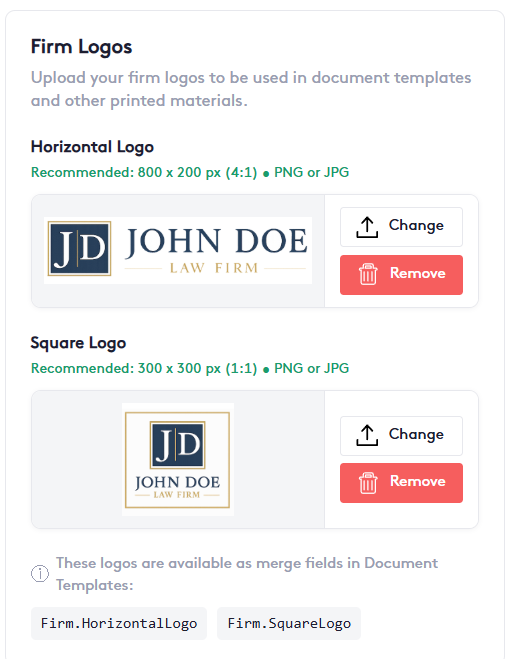
Upload your logos so they can be used in document templates and other printed materials.
- Horizontal Logo: recommended 800 × 200 px (4:1), PNG or JPG.
- Square Logo: recommended 300 × 300 px (1:1), PNG or JPG.
Click Change to upload or replace a logo, and Remove to delete it.
Both logos are available as merge fields in Document Templates: Firm.HorizontalLogo and Firm.SquareLogo.
Save your changes
Click Save at the bottom of the tab. Click Cancel to discard your edits.
Note. You can update firm information at any time. Changes apply to new bills and requests; bills and requests that already exist keep the information they were created with. Everywhere else in Maatdesk the new information is used right away.
Offices tab
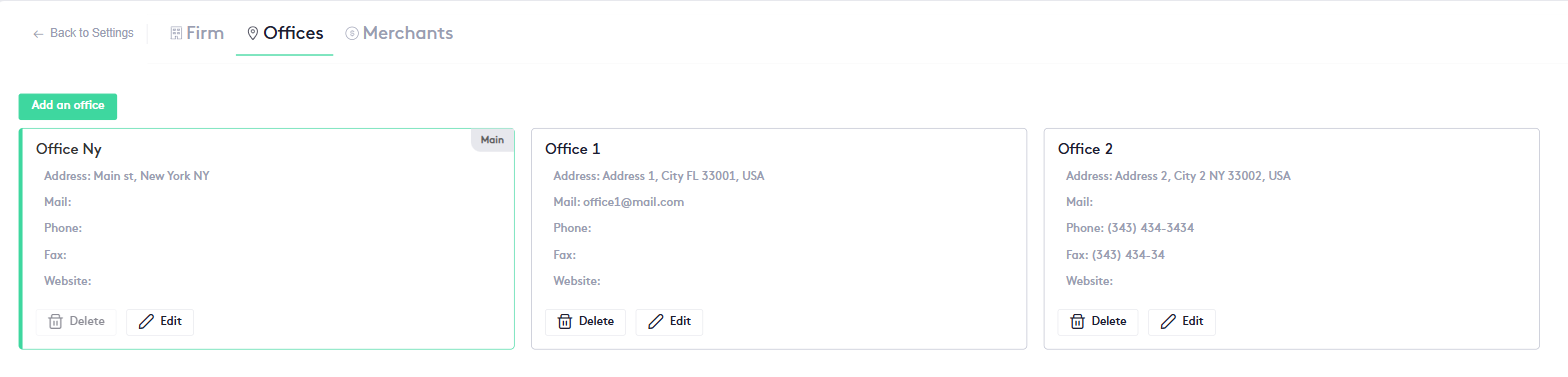
If your firm works from more than one location, list each one here. Every office is shown as a card with its address, mail, phone, fax and website. The firm’s primary location carries the Main badge.
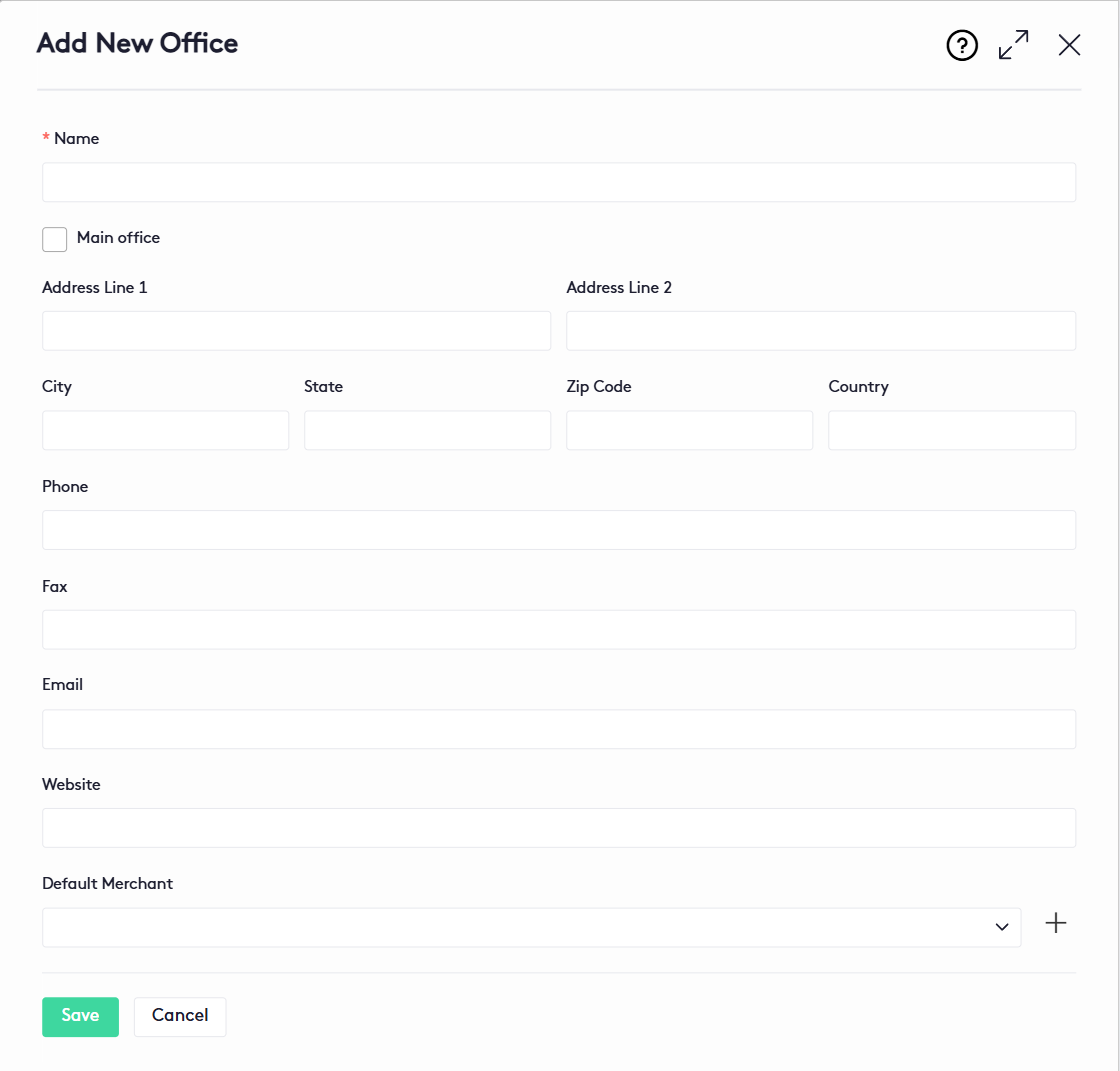
Add an office
- Click Add an office.
- Enter the office Name (required) and its address, phone, fax, email and website.
- Select Main office if this is the firm’s primary location.
- Optionally choose a Default Merchant for payments taken at this office. The + button next to the list lets you create a merchant without leaving the panel.
- Click Save.
Use Edit on a card to change an office, or Delete to remove it.
For more detail, see Managing your Offices.
Merchants tab
Merchants are the payment-processing accounts your firm uses to charge clients by card. Each merchant is shown as a card; the one in use carries the Active badge.
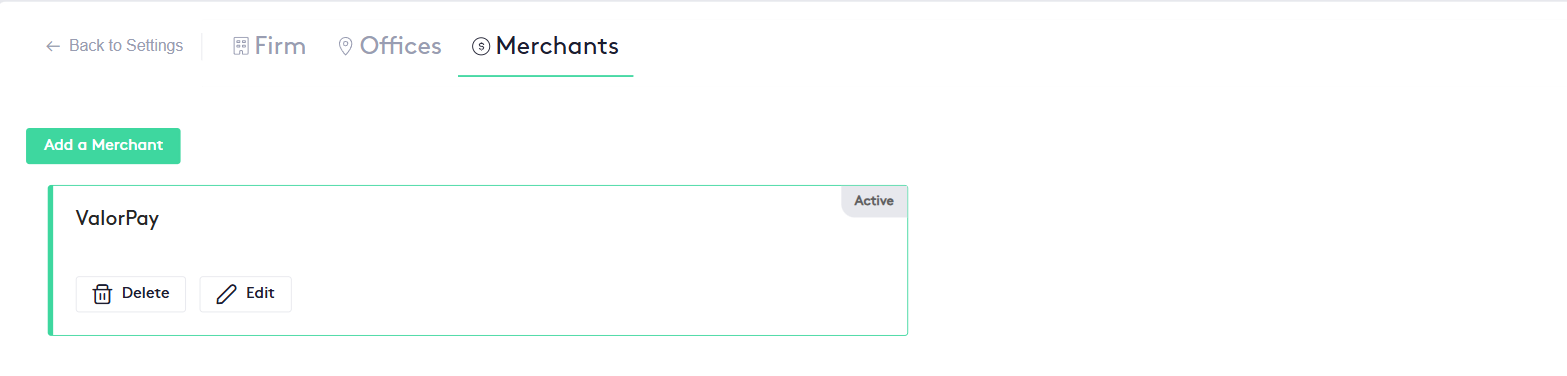
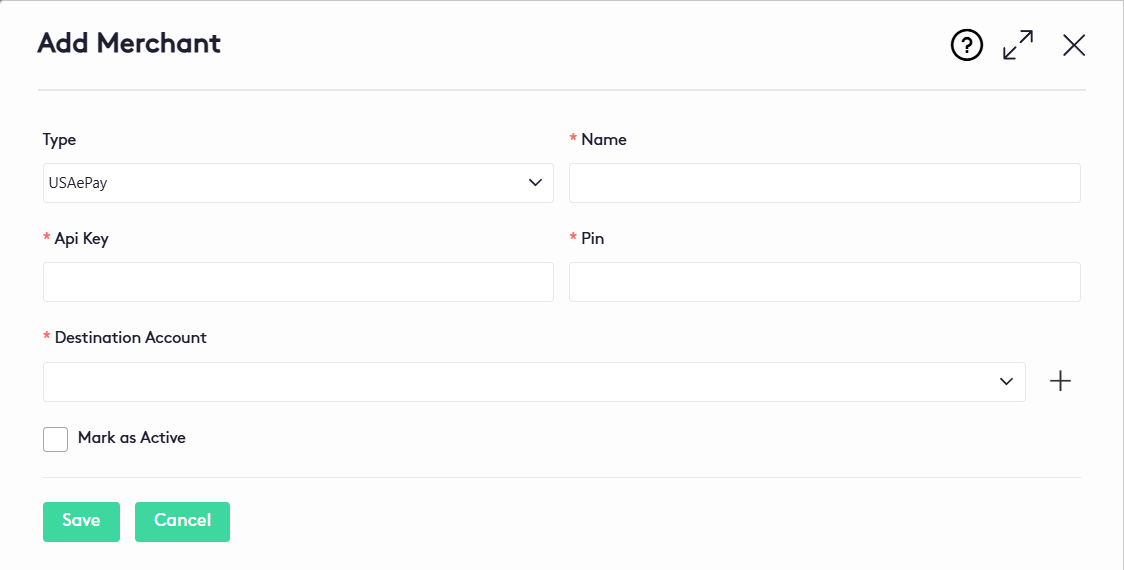
Add a merchant
- Click Add a Merchant.
- Choose the Type and enter a Name for the merchant.
- Enter the Api Key and Pin provided by your payment processor.
- Choose the Destination Account where the payments will be recorded. Use + to create an account on the spot.
- Select Mark as Active to start using this merchant, then click Save.
For more detail, see Managing Merchants.