
The Billing Details window shows everything about one bill: its status, payments, credit notes, installments and the invoice itself.
To open it, click the underlined invoice number in the Billing tab or in the Bills tab of a matter or contact.
Header, tabs and invoice
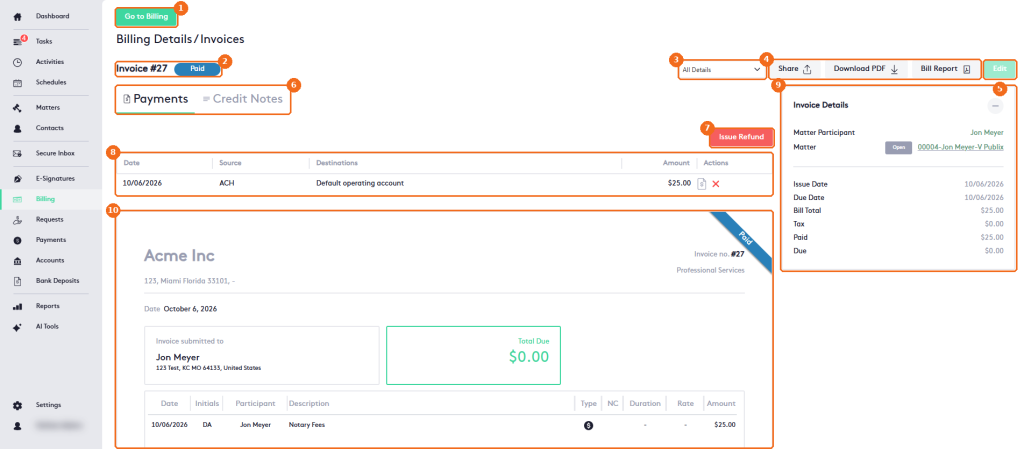
- Go to Billing returns to the Billing module.
- The invoice number and its status.
- The detail level: All Details or Summary.
- Share emails the invoice to the client of the matter. The client needs an email in their contact information; otherwise a red bar shows <client> has no email saved to contact information. Download PDF downloads the invoice (allow pop-ups in your browser). Bill Report opens a side panel: select the Template (required) and click Show report.
- Edit is enabled only for Draft and Pending Approval bills. On a Paid bill, Edit is grayed out and the status selector is hidden.
- The Payments and Credit Notes tabs, shown for Approved and Paid bills.
- Issue Refund refunds a payment of the bill.
- The payments of the bill: Date, Source, Destinations and Amount. Under Actions, get the receipt or delete the payment.
- Invoice Details: matter participant, matter, issue and due dates, bill total, tax, paid and due amounts. Click − to collapse it. When the bill has a payment plan, an Installments card below it lists each installment’s Date, Amount and Status, with Edit and Delete buttons.
- The invoice: your firm, the recipient, the date, the total due and the activities. The ribbon shows the status.
In the invoice, only time entries show Duration and Rate.
Approved bills
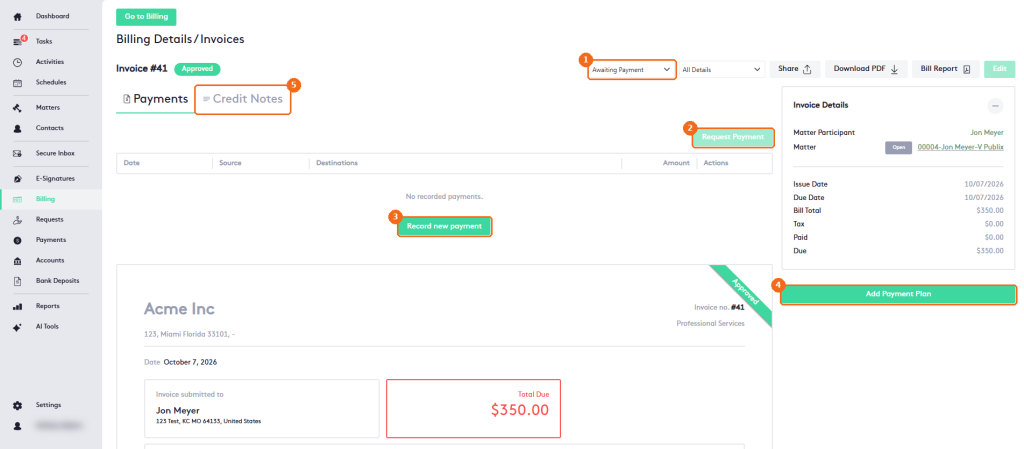
- The status selector. See Invoice statuses Overview.
- Request Payment requests a payment from the client. It requires a merchant: if none is configured, it’s grayed out and its tooltip says A merchant must be configured to request payments. See Managing Merchants.
- Record new payment records a payment for the bill.
- Add Payment Plan creates a payment plan. When you save a plan, the bill’s due date changes to the date of the first installment, and the Installments card appears under Invoice Details until the bill is paid. See Managing Payment Plans.
- The Credit Notes tab. See Managing Credit Notes.