
The matter timeline shows the history of each matter. Rebuild Timeline History reconstructs past timeline events from the records that already exist in your firm, for example after you import data or for matters created before the timeline was available.
Rebuild the timeline history
Click Settings in the left menu, then click Rebuild Timeline History..
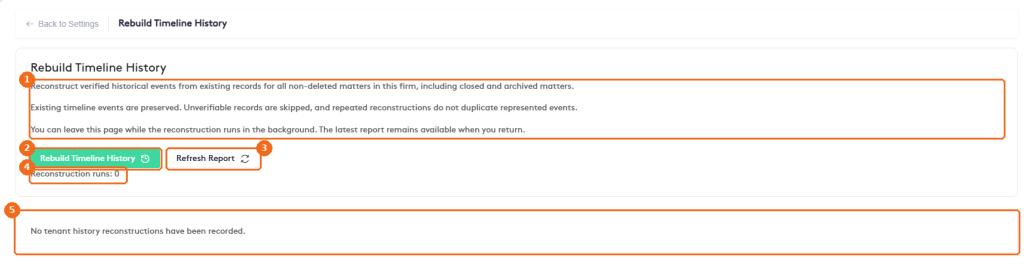
- How the rebuild works: it covers all non-deleted matters of the firm, including closed and archived matters. Existing events are kept, records that can’t be verified are skipped, and running it again does not duplicate events.
- Rebuild Timeline History starts the reconstruction. It runs in the background, so you can leave the page.
- Refresh Report updates the report of the latest run.
- Reconstruction runs: how many times the rebuild has run.
- The report of the latest run. It stays available when you come back.
Note. The rebuild affects every matter of the firm. Run it when needed, for example after a data import, and check the report when it finishes.
To see the result, open a matter and go to its timeline. See Matter Timeline Overview.
Note. Rebuilding the timeline history of all matters needs the Import Tenant History permission, meant for administrators. See Managing Groups, Roles and Job Titles.