
Alerts put important information where your team works: a banner at the top of a matter, of a contact, or of every page for the whole firm. Use them for things that must not be missed, such as a pending conflict check or a client who needs special handling.
Table of contents
- The Alerts list
- Create an alert
- Alerts on a matter or a contact
- Edit an alert
- Alert actions
- Alert history
- Filter the list
The Alerts list
Click Alerts in the left menu.
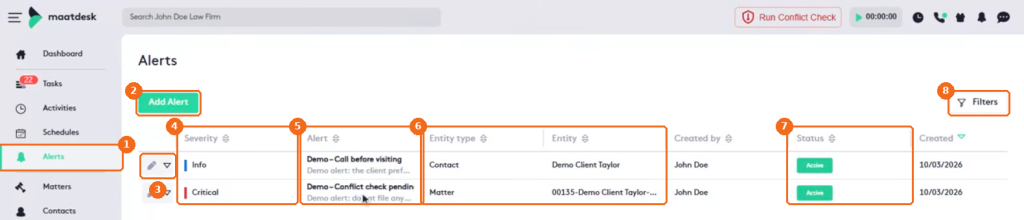
- Alerts in the left menu.
- Add Alert creates an alert.
- The edit button and the actions arrow of the alert.
- The Severity: Info, Warning or Critical.
- The Alert title and the start of its message.
- The Entity type (Matter, Contact or Firm) and the Entity the alert belongs to.
- The Status of the alert, for example Active.
- Filters narrows the list.
The list also shows who created each alert and when.
Create an alert
Click Add Alert.
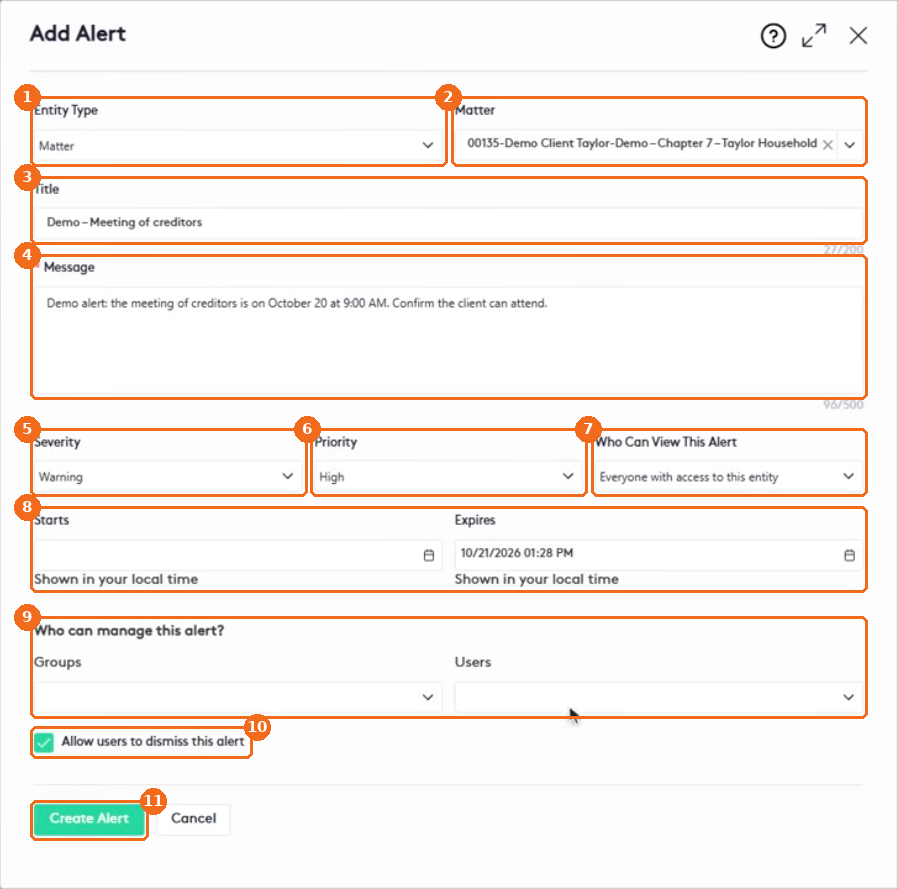
- Select the Entity Type: Matter, Contact or Firm. A firm alert shows on every screen for everyone in the firm.
- Search for the matter or contact.
- Enter a short Title.
- Enter the Message (required).
- Select the Severity. It sets the color of the banner.
- Select the Priority. It sets the order when several alerts show together.
- Select Who Can View This Alert: Everyone with access to this entity, or only selected users and groups.
- Set when the alert Starts and when it Expires. An expired alert is hidden automatically.
- In Who can manage this alert?, select other groups or users who can edit it.
- Check Allow users to dismiss this alert if people can close the banner after reading it.
- Click Create Alert.
Note. Creating an alert doesn’t send emails or notifications. People see the banner the next time they open the matter, the contact or, for a firm alert, any page.
Alerts on a matter or a contact
Open the matter. Its alerts appear as banners at the top, colored by severity.

- Add Alert creates an alert for this matter, with the matter already selected.
- A Critical alert. This one can’t be dismissed.
- A Warning alert.
- The three dots let alert managers edit the alert without leaving the page.
- Click x to dismiss an alert that allows it, once you have read it.
Contacts work the same way.

- Add Alert creates an alert for this contact, with the contact already selected.
- An Info alert.
- The three dots open the alert.
- x dismisses the alert.
Edit an alert
Click the three dots of a banner, or the edit button in the Alerts list. The panel has the same fields as when you create the alert.
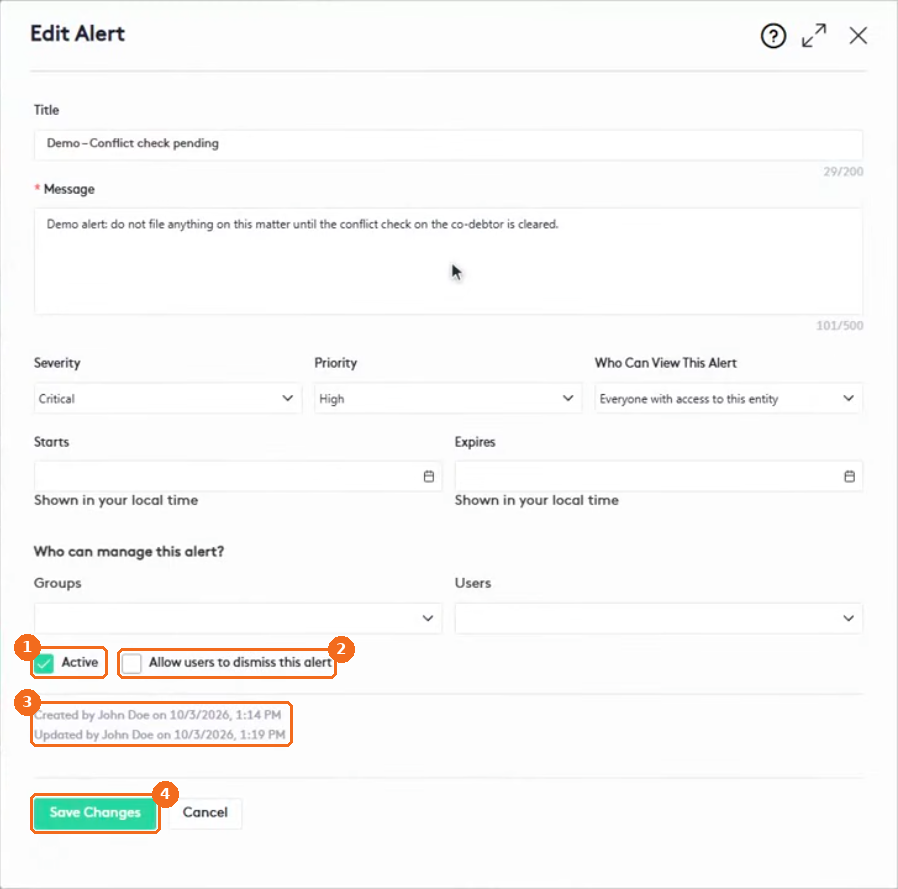
- Uncheck Active to stop showing the alert.
- Allow users to dismiss this alert.
- Who created and last updated the alert, and when.
- Click Save Changes.
Alert actions
In the Alerts list, click the actions arrow of an alert.
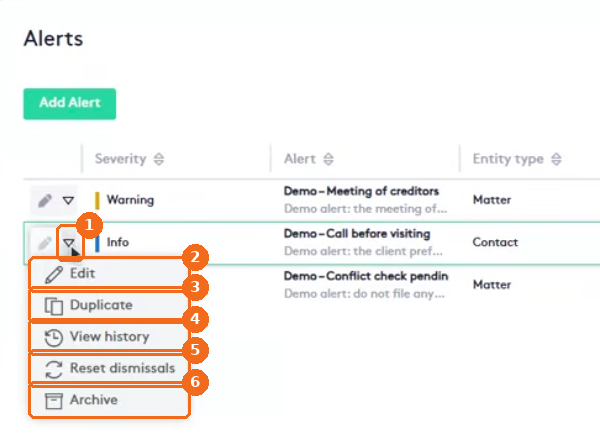
- The actions arrow.
- Edit opens the alert.
- Duplicate creates a copy.
- View history shows who viewed and dismissed the alert, and every change.
- Reset dismissals brings the banner back for everyone who closed it.
- Archive stops showing the alert. You can reactivate it at any time.
Alert history
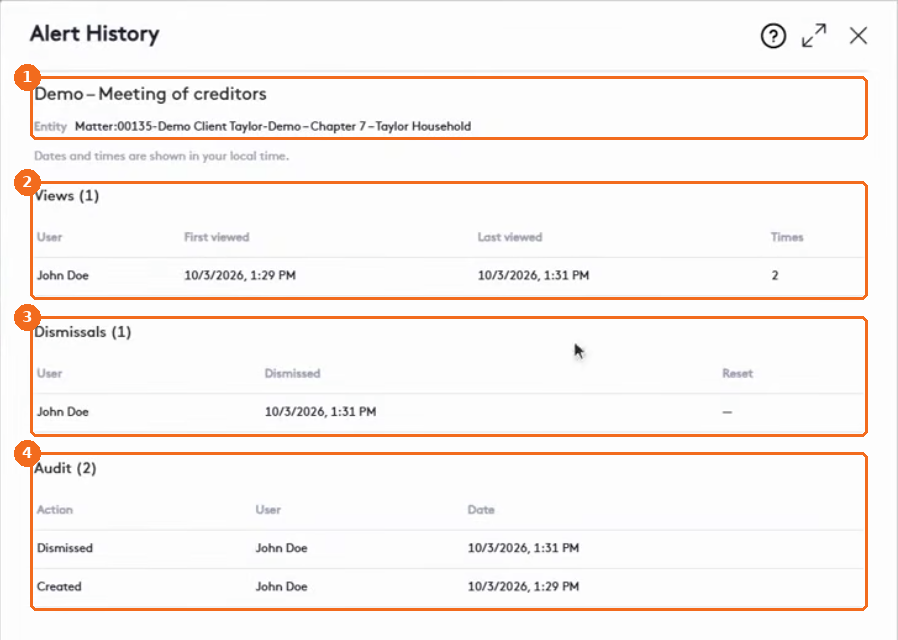
- The alert and the matter, contact or firm it belongs to. Dates and times are in your local time.
- Views: who saw the banner, when first and last, and how many times.
- Dismissals: who closed the banner, when, and whether it was reset.
- Audit: every action on the alert, by whom and when.
Filter the list
Click Filters.
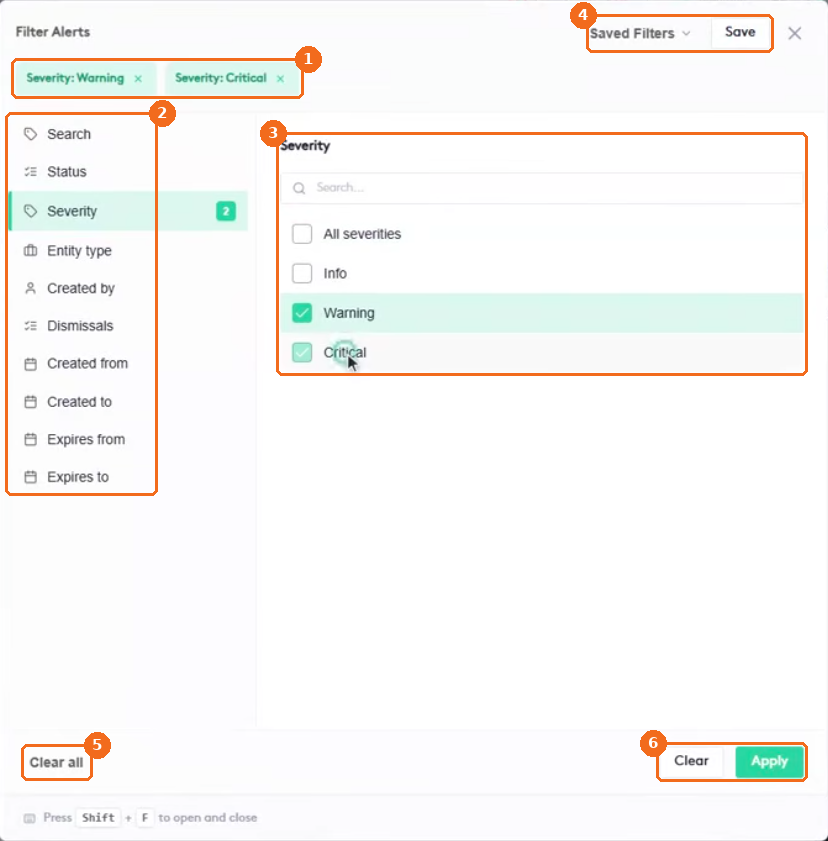
- The active filters. Click x on one to remove it.
- The filters: Search, Status, Severity, Entity type, Created by, Dismissals, and the created and expiry dates.
- The options of the selected filter.
- Saved Filters and Save keep a set of filters you use often.
- Clear all removes all filters.
- Clear resets the selected filter; Apply filters the list.
Note. Alerts depend on the Entity Alerts permissions of the user’s role: View Entity Alerts to see alerts, Manage Entity Alerts to create and manage them, and Manage Firm Alerts for alerts visible at the firm level. See Managing Groups, Roles and Job Titles.