How to Obtain an API Key for AI Tools
The first step to use AI tools in Maatdesk is to obtain an API key and add it to your integration settings within the App.
Maatdesk utilizes third-party AI engines like Google Gemini and OpenAI (via their GPT models) to help you improve your productivity.
Table of contents
How to Create a Google Gemini API Key
The fastest way to get a Gemini API key is through Google AI Studio. It is free to start and does not require an upfront credit card for the basic tier.
Step 1: Go to Google AI Studio
- Navigate to aistudio.google.com.
- Sign in with your Google Account.
- Note: You may need to accept the terms of service if this is your first time signing in.
Step 2: Generate the Key
- On the dashboard, look for the “Get API key” button (usually on the top-left sidebar).
- Click “Create API key”.
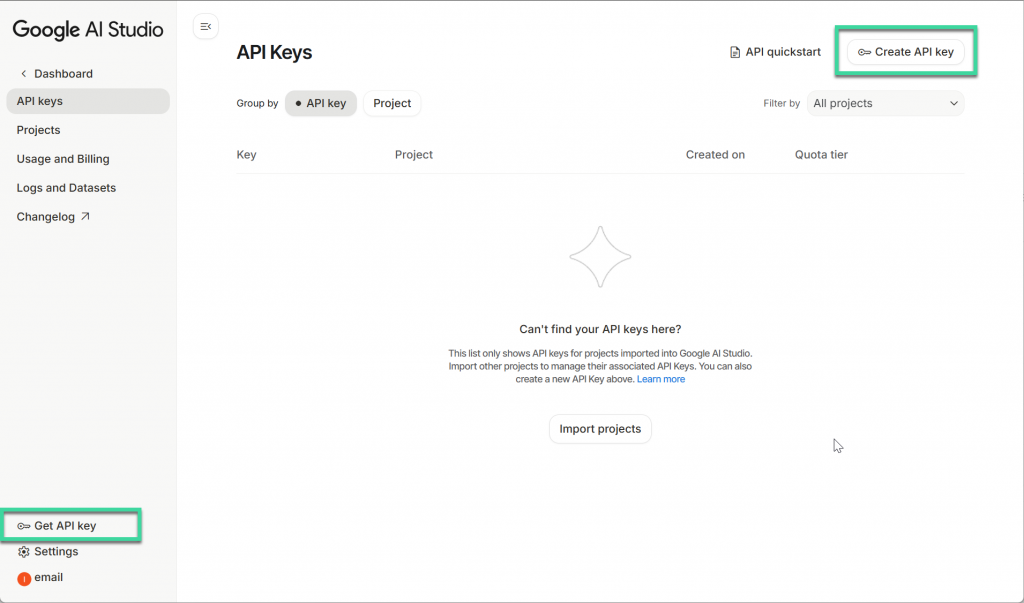
- You will see two options:
- Create API key in new project: Select this if you don’t have a Google Cloud project set up (recommended for beginners).
- Create API key in existing project: Select this if you already use Google Cloud and want to link it to an existing billing account.
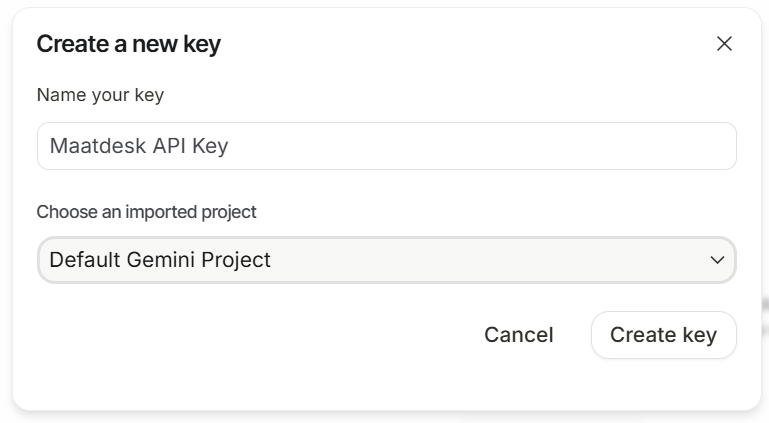
- The system will generate your key string (e.g.,
AIzaSy...).
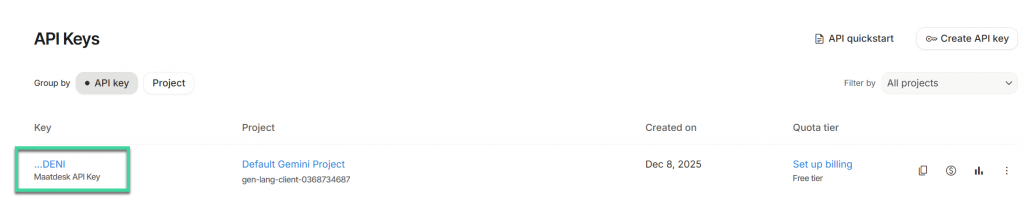
Step 3: Copy and Secure Your Key
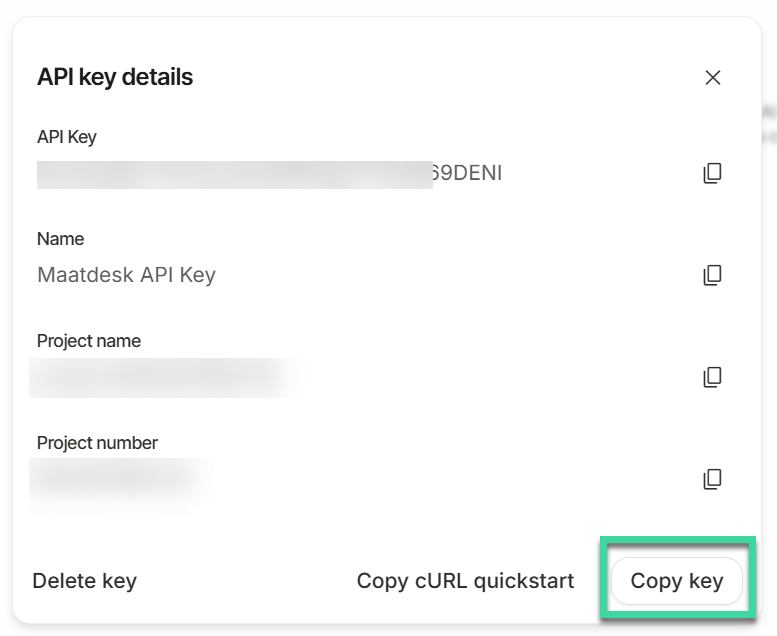
- Copy the key immediately. You will not be able to see the full key string again easily after closing the window.
- Do not share it publicly (e.g., in GitHub repositories or forum posts).
- If you lose it, you can always delete the old one and generate a new key in the same menu.
How to Create an OpenAI API Key
If you want to use OpenAI as your AI engine on Maatdesk App, you’ll need an API key. This key allows your system to authenticate with OpenAI and access the models securely. Follow the steps below to create your own API key.
Prerequisites
- A valid email address
- A mobile phone number (for verification)
- A credit or debit card (for billing setup)
Important: Create a Project in OpenAI
OpenAI now requires all API keys to be created inside a project. If you don’t have a project yet, you will not be able to access the API dashboard or generate an API key.
To create a project:
- Navigate to the OpenAI Platform.
- Sign in to your OpenAI account.
- Once logged in, open the Projects section from the left sidebar.
- Click New Project or Create Project.
- Enter a project name (for example “Maatdesk Integration”).
- Click Create.
After your project is created, you can access its API settings and continue with the steps below.
Step 1: Create or Log In to Your OpenAI Account
- Navigate to the OpenAI Platform.
- Click Sign Up to create a new account, or Log In if you already have one.
- Note: If you are creating a new account, you will need to verify your email address and provide a phone number for security verification.
Step 2: Access the API Dashboard
Once logged in, look at the sidebar on the left-hand side of the screen.
- Hover over the sidebar to expand the menu.
- Click on Dashboard to see your overview, or look directly for the API Keys section.
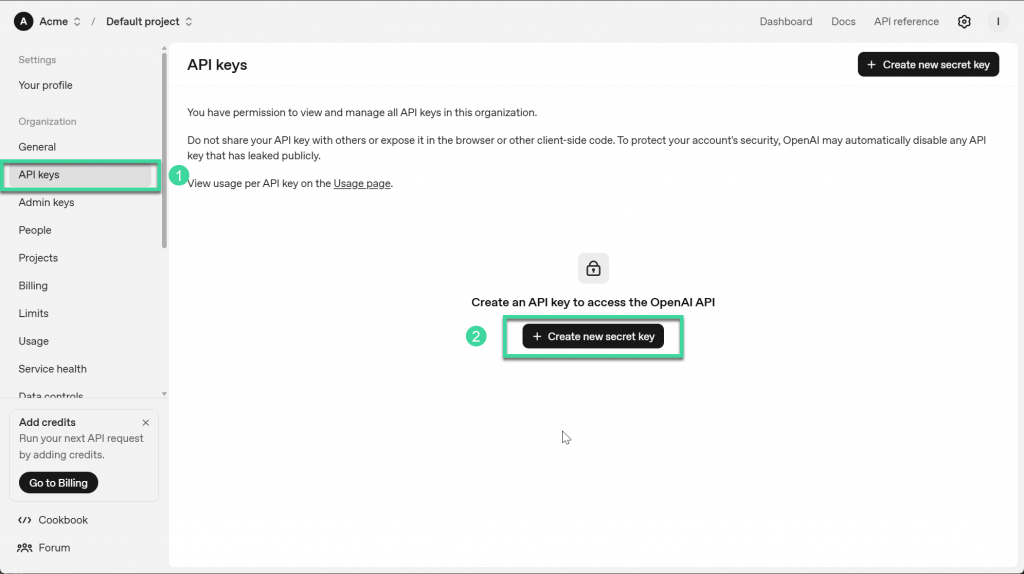
- Click API Keys in the navigation menu.
Step 3: Create a New Secret Key
- On the API Keys page, click the button labeled + Create new secret key.
- A dialog box will appear.
- Name (Optional): We recommend naming the key after the app you are using (e.g., “Maatdesk Integration” or “Maatdesk”) so you can easily identify it later.
- Project: If you have multiple projects, select the appropriate one (usually “Default project”).
- Permissions: You can typically leave this as “All” unless our specific instructions request restricted access.
- Click Create secret key.
Step 4: Copy and Save Your Key Immediately
This is the most critical step.
- A window will appear displaying your new key (it starts with
sk-...). - Copy this key immediately and paste it into a secure location (like a password manager) or directly into our application settings.
- Click Done.
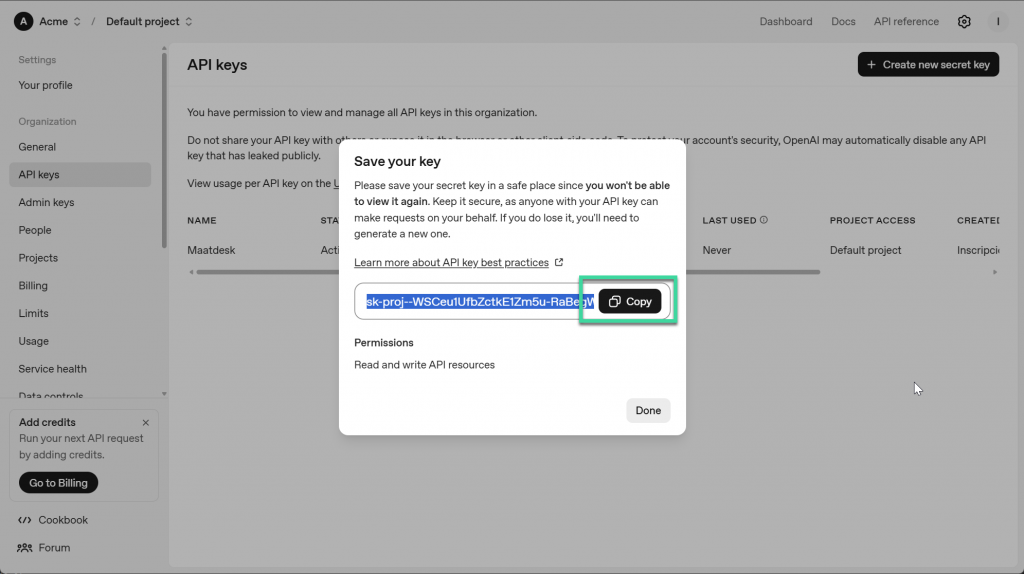
⚠️ Warning: For security reasons, OpenAI will never display this key again. If you lose it, you will have to generate a new one and update your application.
Step 5: Set Up Billing (Required for the Key to Work)
Even if you have a key, it will not work until you add credits or a payment method.
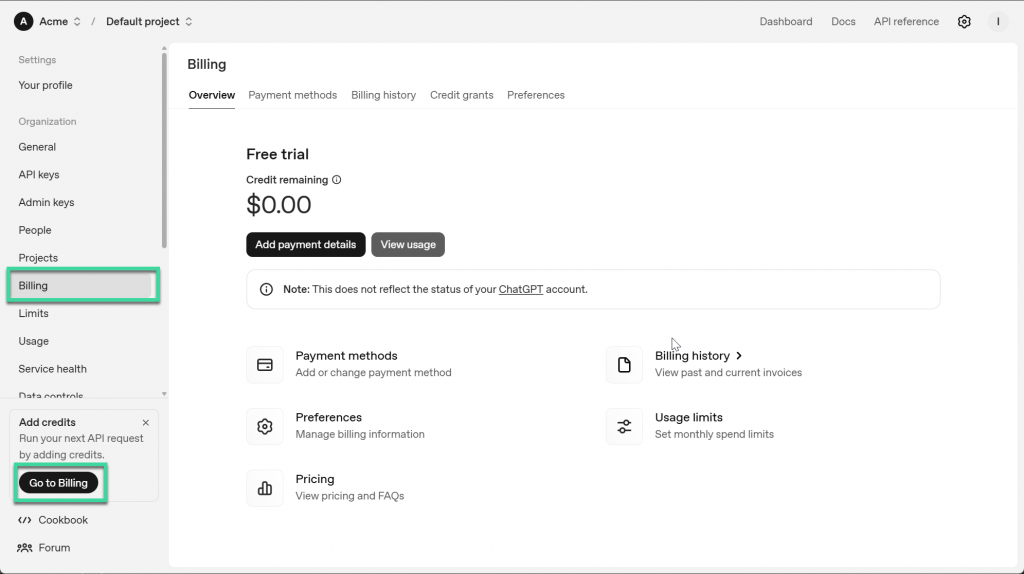
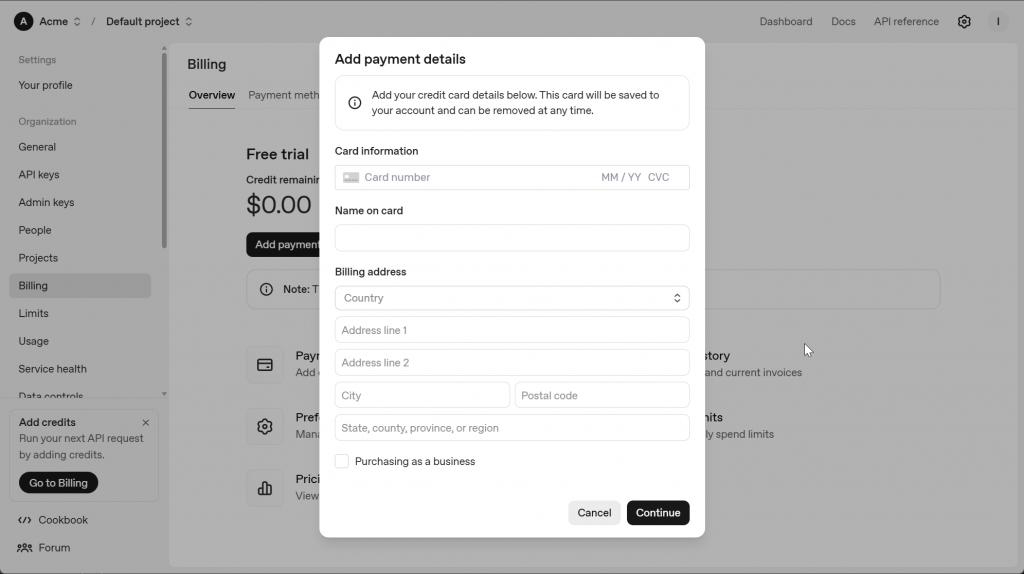
- In the left sidebar menu select Billing. (or click on “Go to Billing” button on the Add Credits frame in the bottom left).
- Click Add payment details.
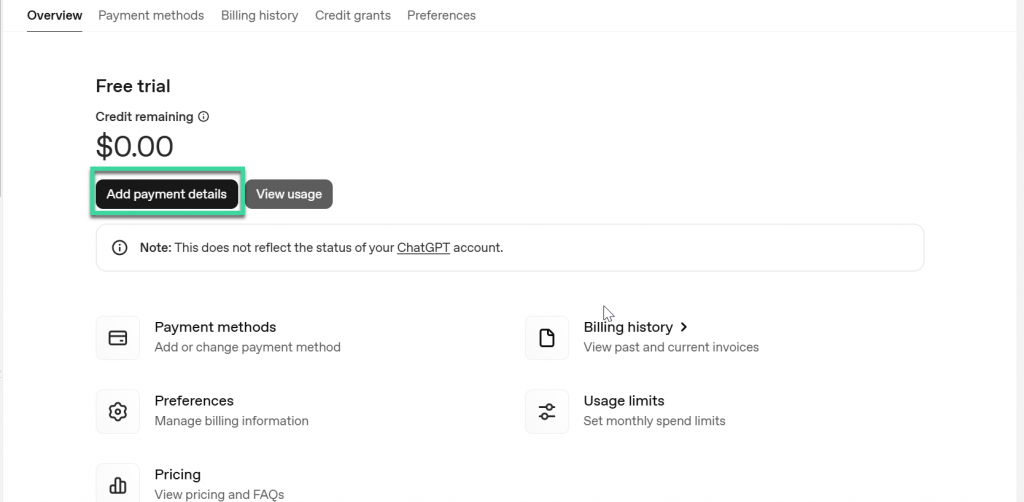
- Choose to purchase credits. OpenAI now largely operates on a prepaid model. You must load a small amount (e.g., $5 or $10) onto your account for the API key to become active.
- Note: It may take a few minutes after adding credits for the key to start working.
Now you can start working with Maatdesk AI Integrations.