
Each request has a status that shows where it is in its life cycle and what you can do with it.
Table of contents
Find requests by status
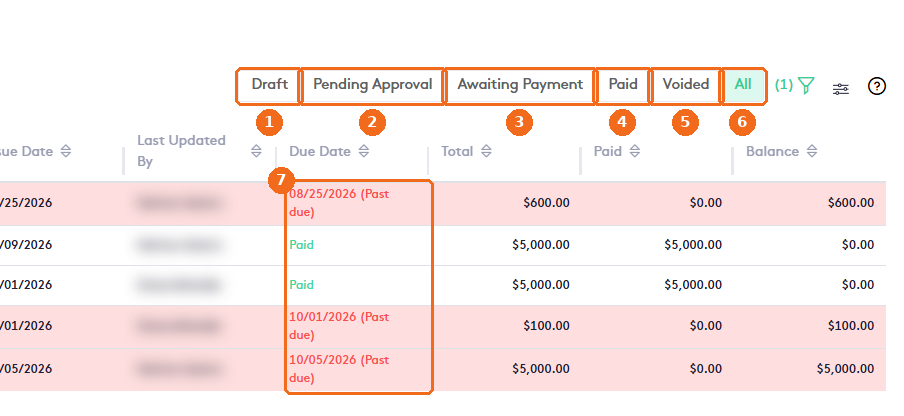
- Draft.
- Pending Approval.
- Awaiting Payment.
- Paid.
- Voided.
- All shows every request.
- The Due Date column shows how the payment is going: the due date, Paid, or the due date in red with Past due.
Statuses
| Status | What it means | What you can do |
|---|---|---|
| Draft | The request is being prepared. | Edit, delete, share and download. Move it to Pending Approval or approve it. |
| Pending Approval | The request waits for a firm user to approve it. The approver gets a notification. | Share and download. Approve it. |
| Awaiting Payment | The request is approved and sent to the client. In the request, the badge and ribbon show Approved; in the Requests list, the badge shows Unpaid. | Share and download, record payments, create a payment plan. Void it if it has no payments. |
| Paid | The request is paid in full. | Share and download, delete payments. If a payment is deleted, the request goes back to Awaiting Payment. |
| Voided | The request is canceled but kept in Maatdesk. | Share and download only. |
Note. A new request is saved as Draft. If you turn on Skip Approval when you create it, it goes straight to Awaiting Payment, and you are recorded as the approver. Only then can you use Save and Pay to record a payment right away.
Change the status
Open the request and use the status selector at the top right.

- The status badge next to the request number. For a request awaiting payment, it shows Approved.
- The status selector. It lists the current status and only the statuses the request can move to. For example, a request in Awaiting Payment shows Awaiting Payment and Void.
In the Requests list, the badge next to the request number shows whether it is Unpaid or Paid.