
The Deadlines tab of a matter lists its legal deadlines, such as the statute of limitations or a filing deadline. You can add deadlines one by one or apply the deadline template of the practice area, and get reminders before they are due.
Table of contents
The Deadlines tab
Open the matter and click the Deadlines tab.

- The Deadlines tab.
- Add Deadline adds a deadline.
- Apply Deadline Template adds the deadlines of the practice area template.
- The edit button and the actions arrow of each deadline.
- Urgency shows how close the due date is, or whether the deadline is satisfied or waived. See the table below.
- Criticality shows how important the deadline is: Low, Medium, High or Critical.
The table also shows the Deadline Type, the Due Date and the user the deadline is Assigned To.
| Urgency | Meaning |
|---|---|
| OVERDUE (red) | The due date has passed. |
| DUE SOON (orange) | Due in the next few days (up to about 3 days). |
| APPROACHING (yellow) | Due in about 4 to 14 days. |
| UPCOMING (teal) | Due in more than two weeks. |
| SATISFIED (dark gray) | The deadline was marked as satisfied. |
| WAIVED (dark gray) | The deadline was waived. |
Add a deadline
Click Add Deadline. The Add New Deadline window opens.
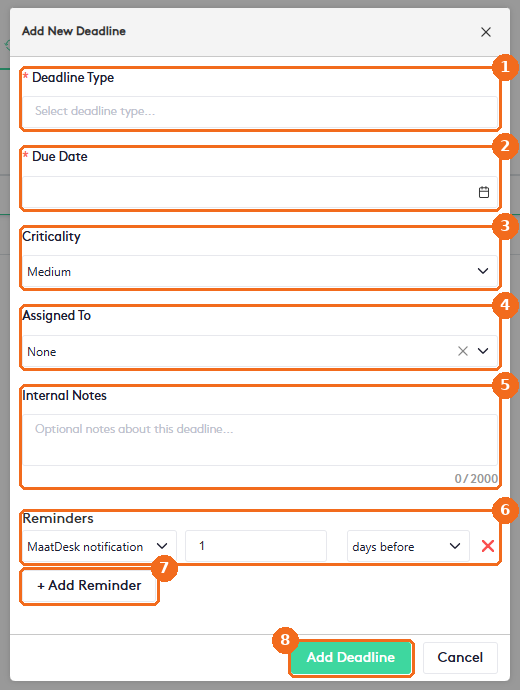
- Select the Deadline Type (required). The types are grouped by category, for example Administrative/General, Corporate/Transactional and Custom.
- Select the Due Date (required).
- Select the Criticality: Critical, High, Medium (the default) or Low.
- Select the user the deadline is Assigned To. The default is None.
- Add Internal Notes (up to 2,000 characters).
- Set the Reminders: the channel (MaatDesk notification or Email), a number and a unit (minutes before, hours before, days before or weeks before). The default reminder is 1 day before. Click the red X to remove a reminder.
- Click + Add Reminder to add more reminders.
- Click Add Deadline.
Deadline types are set up in Settings. See Managing Deadline Types.
Apply a deadline template
Click Apply Deadline Template. The window shows the deadlines of the matter’s practice area. The template is set up in the Templates tab of the practice area. See Managing Practice Areas.
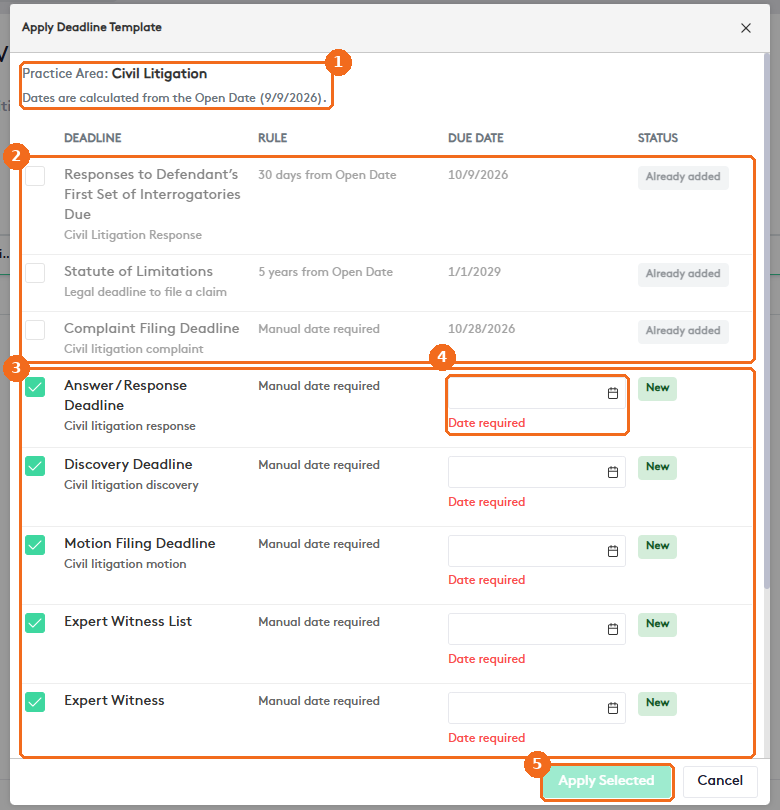
- The practice area of the matter. Rule-based dates are calculated from the matter’s Open Date.
- Deadlines already on the matter are marked Already added and can’t be selected.
- New deadlines are selected by default. Clear the check box of the ones you don’t need.
- For deadlines with Manual date required, select the Due Date.
- Click Apply Selected.
Update a deadline
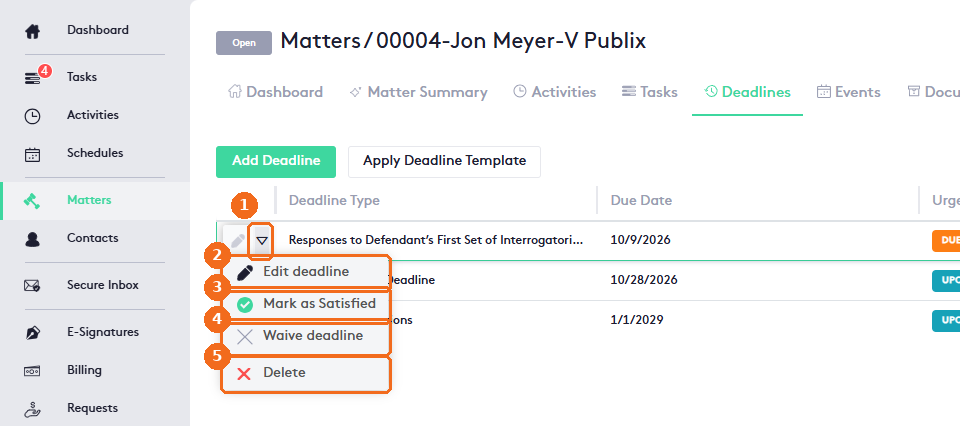
- Click the actions arrow of the deadline.
- Edit deadline opens the deadline form. It also has a Satisfied check box. Click Save Changes.
- Mark as Satisfied marks the deadline obligation as met. Click Confirm. The deadline stays in the list with the urgency SATISFIED.
- Waive deadline marks it as no longer needed. Enter the Reason For Waiving (required). The urgency changes to WAIVED.
- Delete removes the deadline.
On a satisfied or waived deadline, the actions are Edit deadline, Reopen deadline and Delete. Reopen deadline returns the deadline to Active status.
Upcoming deadlines also appear on the Timeline tab of the matter and in the Deadlines card of your Dashboard.