
The Request Details window shows everything about one request: its status, payments, details and the request sheet sent to the client.
To open it, click the underlined request number in the Requests module, or in the Requests tab of a matter or contact.
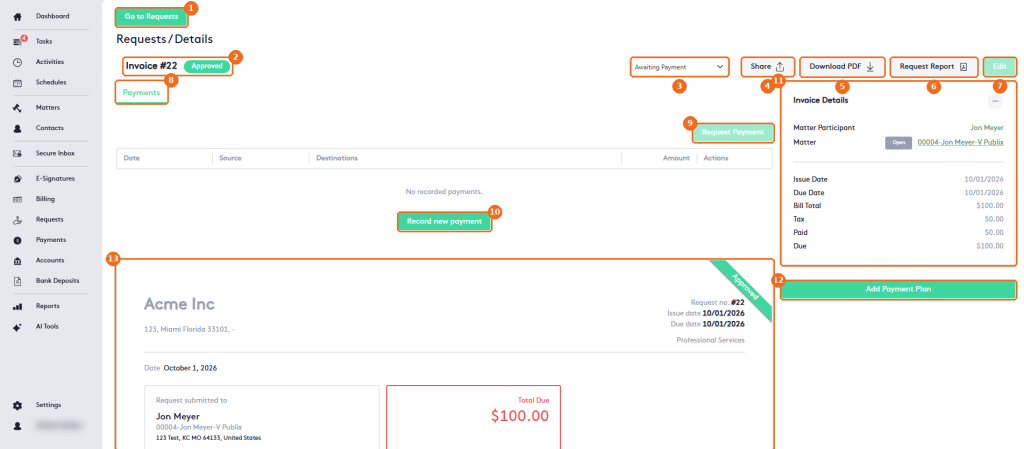
- Go to Requests returns to the Requests list.
- The request number and its status.
- The status selector changes the status. See Request status Overview.
- Share sends the request by email to the contacts you select.
- Download PDF saves or prints the request. Allow pop-up windows in your browser.
- Request Report creates a report of the request from a document template: select the Template and click Show report.
- Edit changes the request. Available only in the Draft status.
- The Payments tab lists the payments and refunds of the request, with receipt and delete buttons in the Actions column.
- Request Payment sends the client a request to pay.
- Record new payment records a payment. See Getting started with Payments.
- Invoice Details: the matter participant and the matter (click it to open the Matter dashboard), the dates and the totals. Click – to collapse it.
- Add Payment Plan splits the balance into installments. When a plan exists, its installments appear here. See Managing Payment Plans.
- The request sheet: your firm, the request number and dates, the client, the Total Due and the request lines.