Questionnaires Overview
The Questionnaires module offers a streamlined solution for creating, managing, and distributing digital forms to clients and contacts. By integrating with external forms from Jotform, this module enables your firm to efficiently collect necessary information and import it directly into the platform.
This article details how to access the main Questionnaires screen, create a new Questionnaire Templates, and distribute it from within a specific matter.
Table of contents
- Accessing the Questionnaires Templates module
- Creating a New Questionnaire Template
- Sending a Questionnaire from a Matter
Accessing the Questionnaires Templates Module
In order to send Questionnaires you first have to create Questionnaires Templates.
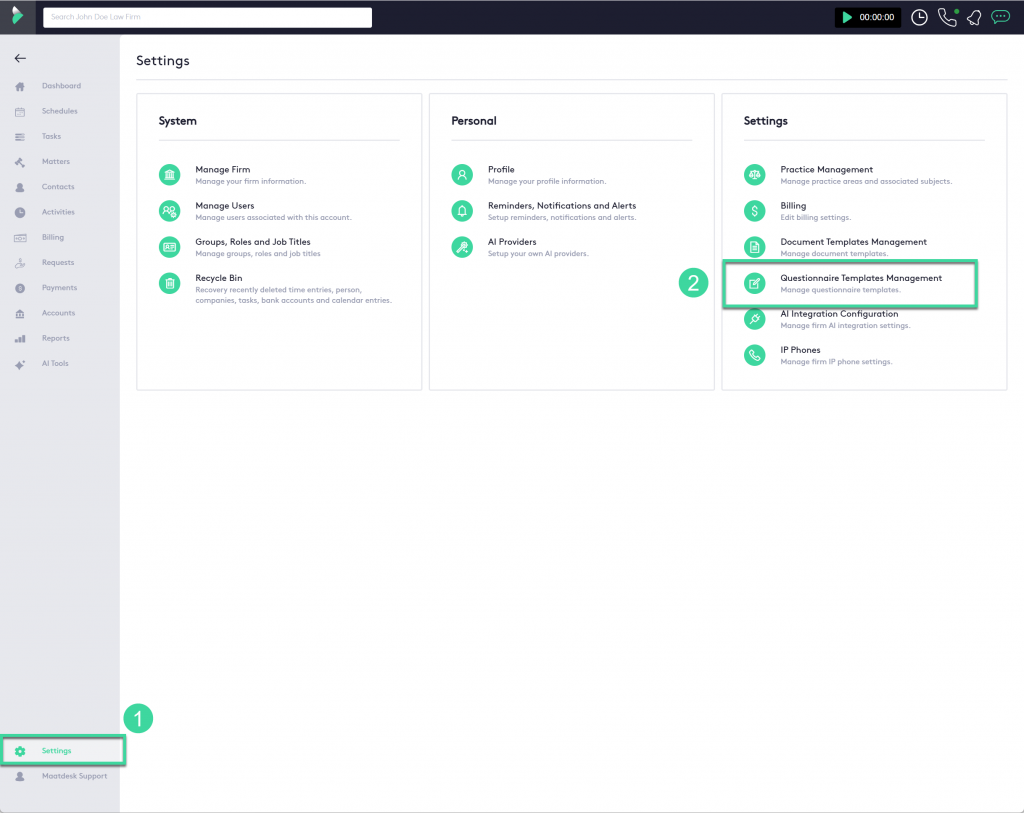
The main Questionnaires Templates management screen is accessible from the Settings main page.
- Click in Settings > Questionnaire Templates Management
The main Questionnaires page have a list of Questionnaire templates:
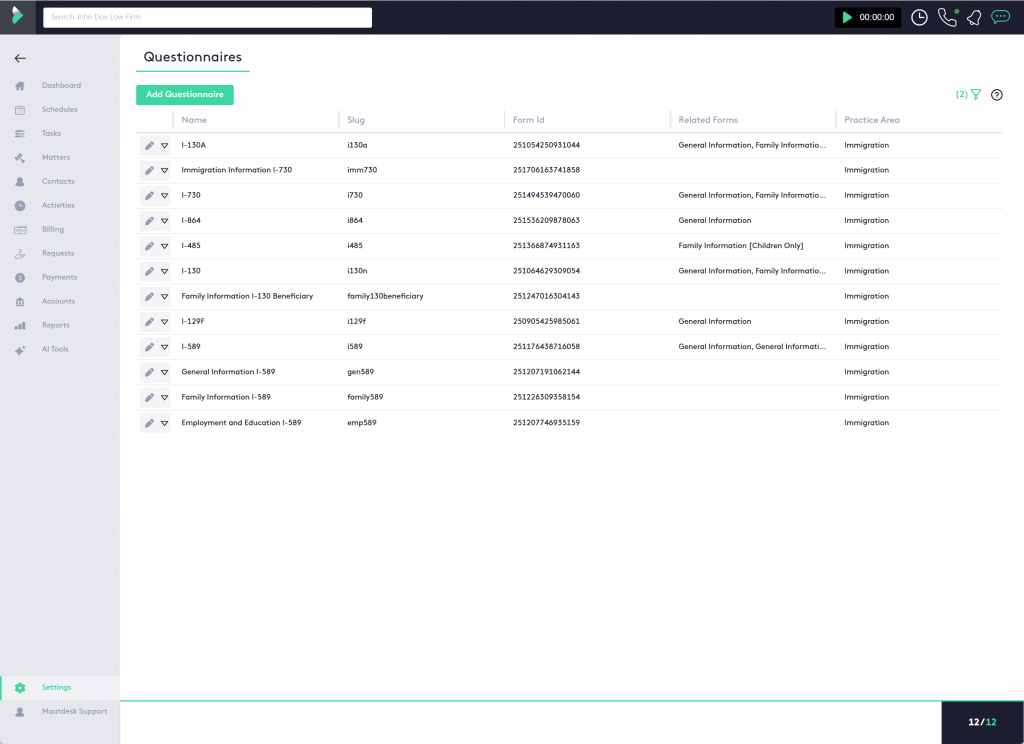
Creating a new Questionnaire Template
From the main Questionnaires screen, you can create a new Template. This process links the platform record to your external form, such as a Jotform document, using a unique Form ID.
You will first need the unique Jotform ID. This ID is an essential requirement to successfully link the external form to our platform.
Click here to read the brief description on how to do it.
-
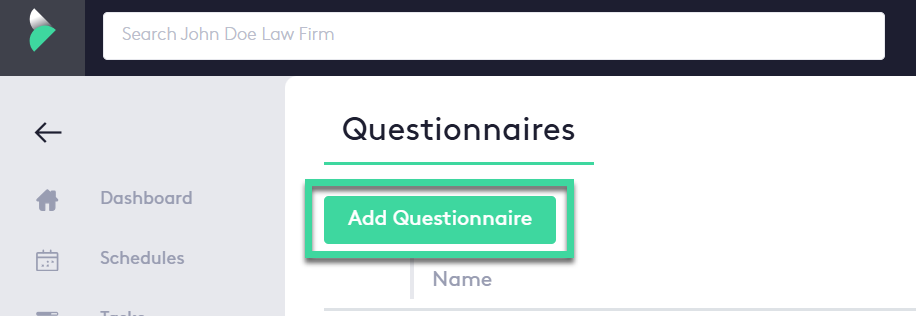
From the main Questionnaires screen, click the Add Questionnaire button.
-
The Add New Questionnaire panel will appear. Complete the required fields to create the record:
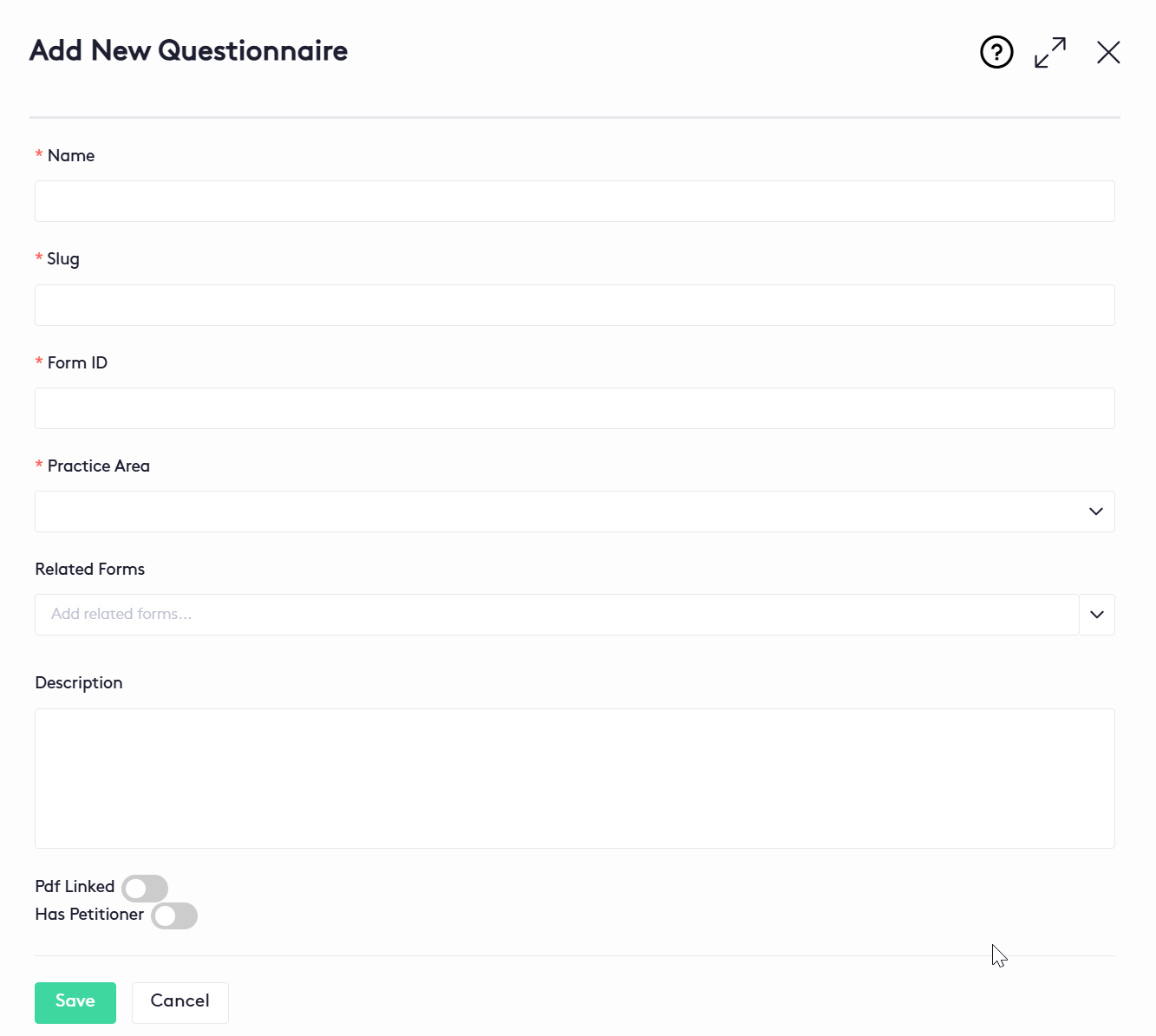
- *Name: Enter a descriptive name for the questionnaire (e.g., “Client Intake Form”).
- *Slug: Enter a unique, URL-friendly identifier.
- *Form ID: Enter the ID of your external form (e.g., the Jotform ID). This ID establishes the link to the live form.
- Practice Area: Select the relevant practice area this form is used for.
- Related Forms: Select any other forms that are associated with this one.
- Description: Provide any internal notes about the form.
- Click Save to finalize the creation of the questionnaire record.
Sending a Questionnaire from a Matter
Questionnaires are distributed to clients or contacts directly from the relevant Matter dashboard.
A. Accessing the Matter’s Questionnaires Tab
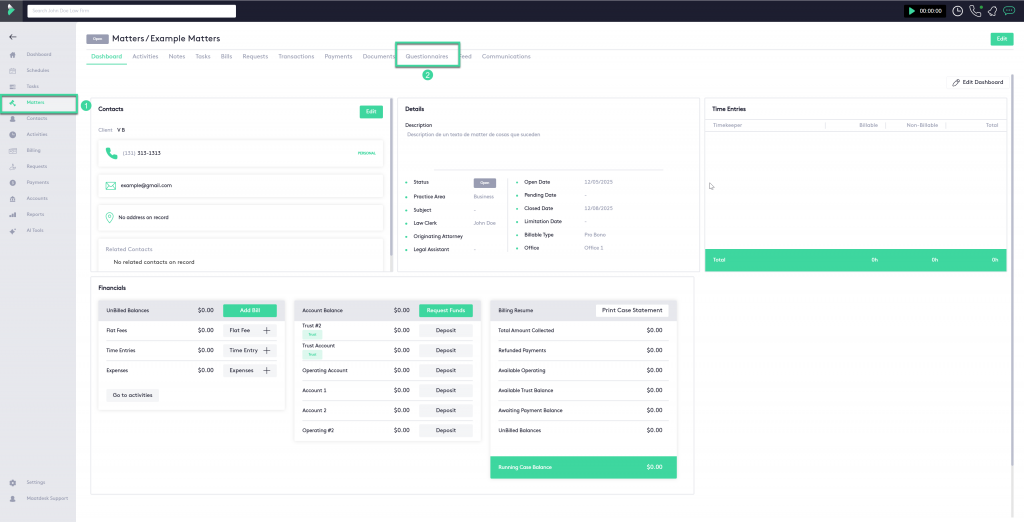
- Navigate to the specific matter you wish to send the questionnaire for (e.g., Matters/00076-example-matter).
* Matters > Click on a specific Matter. - In the Matter dashboard’s horizontal menu, click the Questionnaires tab.
B. Distributing the Questionnaire
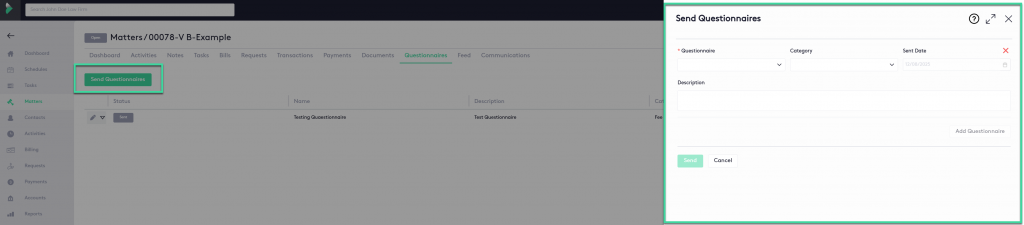
- In the Questionnaires tab of the Matter dashboard, click the Send Questionnaires button.
- The Send Questionnaires panel will appear. Fill in the required details:
- *Questionnaire: Select the questionnaire you wish to send from the dropdown list (this list contains the forms you created in Section II).
- Category: Select the category for the form being sent.
- Sent Date: The date the questionnaire is being sent (defaults to the current date).
- Description: Add any specific instructions or context for the client regarding this mailing.
- Click Send to distribute the questionnaire to the matter’s associated contact(s).
Jotform Form Creation & Integration
- Create and Design: Log in to Jotform and use the builder to create and customize your digital form to your exact specifications.
- Publish and Share: Once complete, publish the form within Jotform to make it active and available for use.
- Get the Form ID: Locate the unique numerical Form ID (found in the form URL or settings) that is necessary to connect the form to your platform’s Questionnaires module.