
Participant roles label the external people on a matter, such as a client, a witness or opposing counsel, so everyone can see each person’s part in the case.
Table of contents
- Open the Participant Roles page
- Predefined participant roles
- Add a participant role
- Edit a participant role
- Delete a participant role
- Assign a role to a participant on a matter
Open the Participant Roles page
- In the left menu, click Settings.
- Under Participants, click Participant Roles.
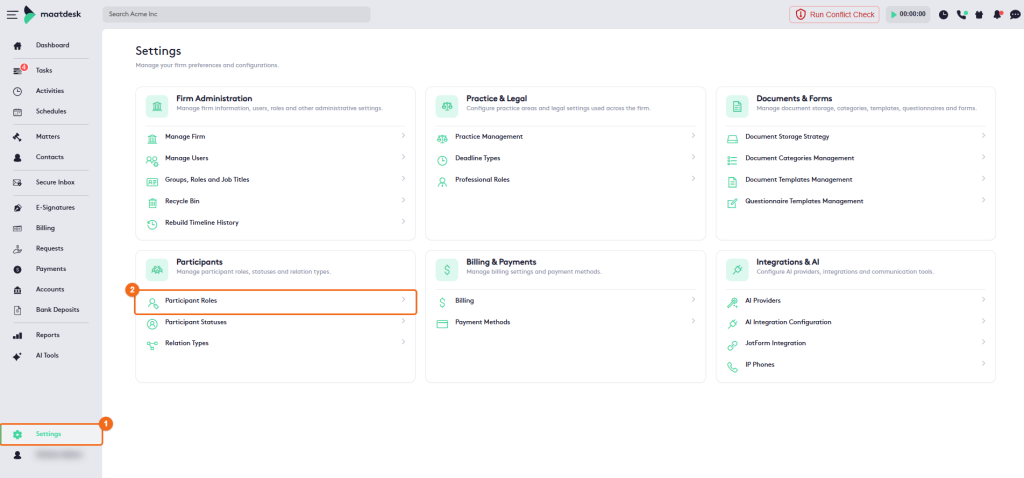
The Participant Roles page lists every role with its Name and Status.
Predefined participant roles
Maatdesk includes a set of predefined roles. You can’t edit or delete them. In the list, their Edit icon is grayed out and they have no action menu:
- Class Member
- Client
- Defendant
- Expert Witness
- Group Member
- Investigator
- Opposing Counsel
- Other
- Referring Attorney
- Witness
Roles your firm adds show an active Edit icon and an arrow that opens more actions.
Add a participant role
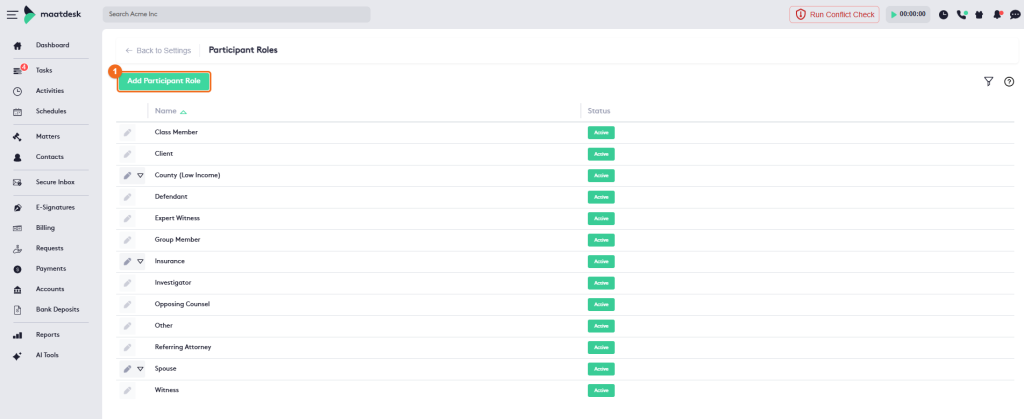
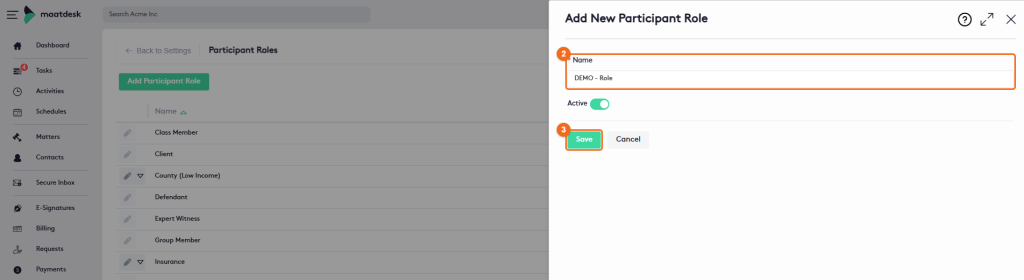
- On the Participant Roles page, click Add Participant Role.
- In Name, enter the role name, for example “Adjuster.” Leave Active turned on so the role can be used.
- Click Save. The new role appears in the list.
Edit a participant role
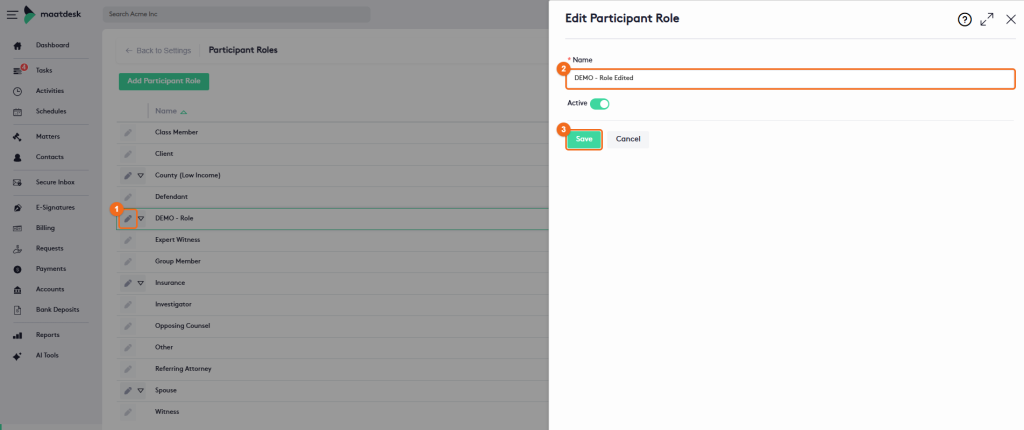
- In the list, click the Edit (pencil) icon next to the role you want to change.
- In the Edit Participant Role panel, update the Name.
- Click Save. The message Participant Role <name> updated successfully. appears.
Note. When you rename a role, the new name appears for every participant who already has that role.
Deactivate a role
To stop using a role without deleting it, open it with the Edit icon, turn off Active and click Save. The role shows an Inactive badge in the list and no longer appears in the Participant Role list when you add a participant to a matter. Participants who already have the role keep it.
Delete a participant role
- In the list, click the arrow next to the Edit icon of the role you want to remove.
- Click Delete.
- In the Delete Participant Role window, click Yes to confirm, or No to cancel.
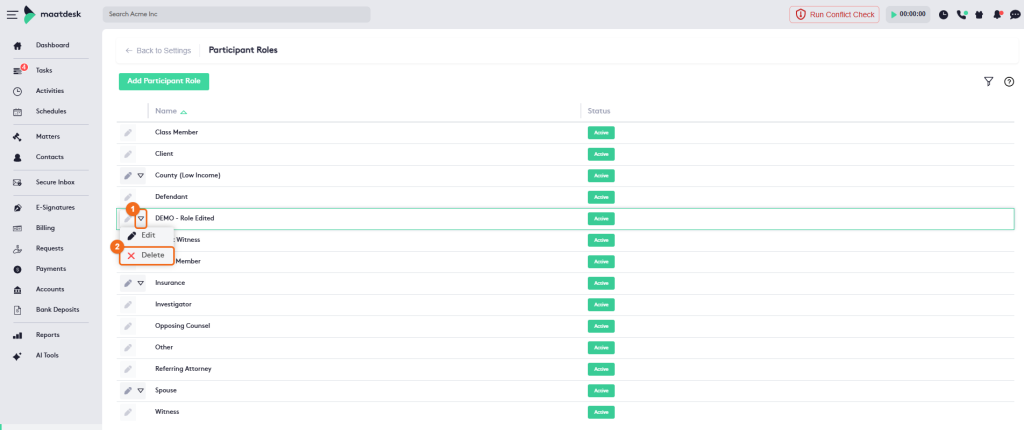
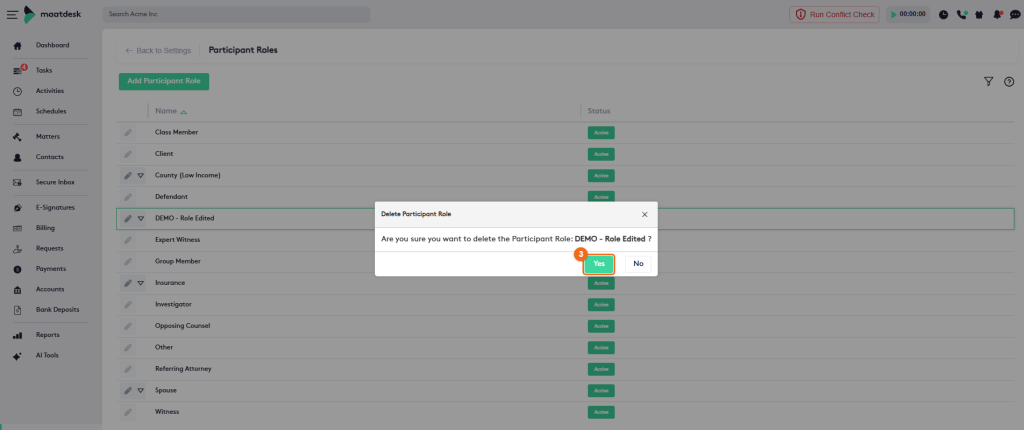
Warning. You can’t delete a role that is assigned to a participant on any matter. For these roles, Delete is grayed out in the action menu; you can still edit or deactivate them. Deleted roles are removed permanently and don’t go to the Recycle Bin.
Assign a role to a participant on a matter
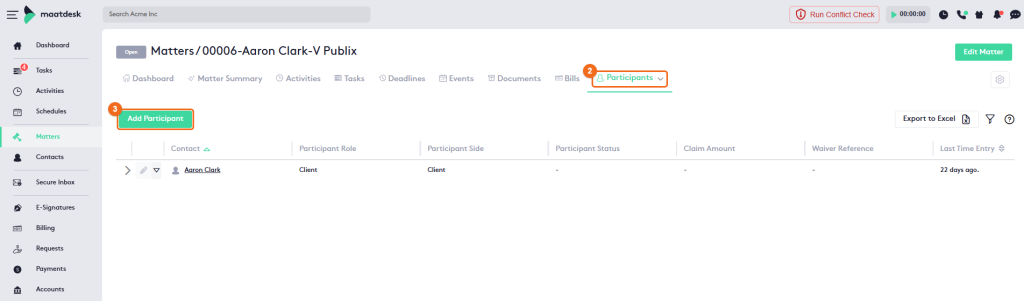
- In the left menu, click Matters and open the matter.
- In the matter tabs, click More > Participants. While the tab is open, the tab label shows Participants instead of More.
- Click Add Participant.
- In Participant Role, select the role.
- Complete Participant Side and Contact. Both are required. You can also add Notes.
- Click Save.
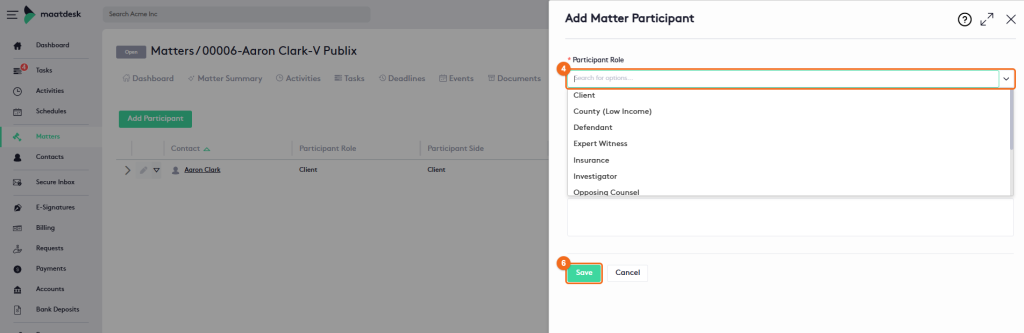
Note. The Participant Role list depends on the matter type and shows only active roles. For example, Class Member is available only on matters whose Matter Type is Class Action, and it doesn’t appear on Standard matters.
The Participants tab shows each participant’s Participant Role, Participant Side and Participant Status.
Note. To manage participant roles, a user needs the Manage Participant Roles permission in their role. See Managing Groups, Roles and Job Titles.