
The Settlement Ledger tab tracks the settlement of a contingency fee matter: the gross amount received, the case costs, medical liens and client advances to pay from it, the attorney fees, and the net amount for the client.
Table of contents
- Open the Settlement Ledger
- Register the settlement
- Add case costs
- Add medical liens and client advances
- Pay out and close the settlement
Open the Settlement Ledger
Open a matter with the Contingency Fee billable type, click More and select Settlement Ledger.
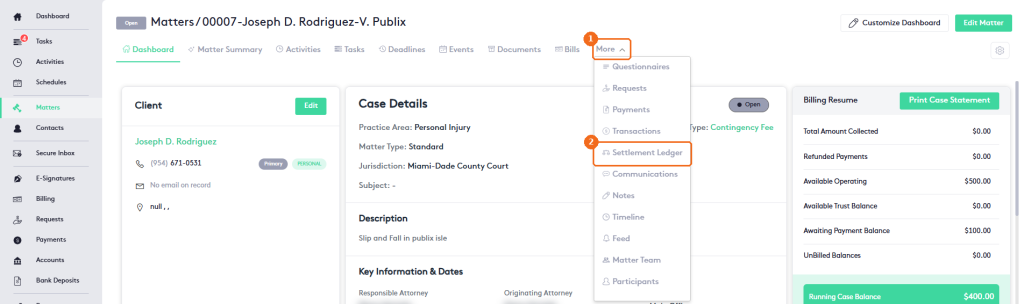
- Click More.
- Select Settlement Ledger.
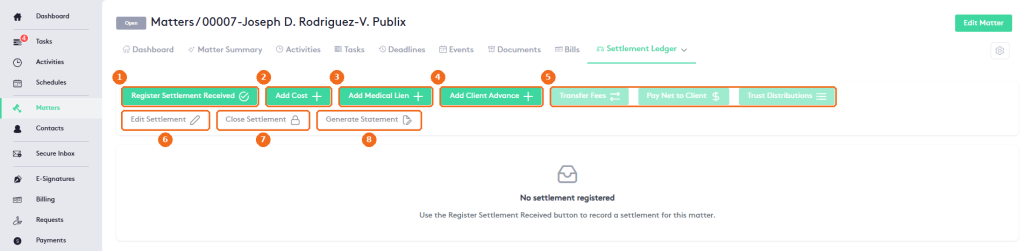
- Register Settlement Received records the settlement amount.
- Add Cost records a case cost.
- Add Medical Lien records a lien from a medical provider.
- Add Client Advance records money advanced to the client.
- Transfer Fees, Pay Net to Client and Trust Distributions handle the payouts. They become available after the settlement is registered.
- Edit Settlement changes the registered settlement.
- Close Settlement closes the ledger when all payouts are done.
- Generate Statement creates the settlement statement for the client.
Register the settlement
Until you register a settlement, the ledger shows “No settlement registered”. Click Register Settlement Received. The Register Settlement Received panel opens.
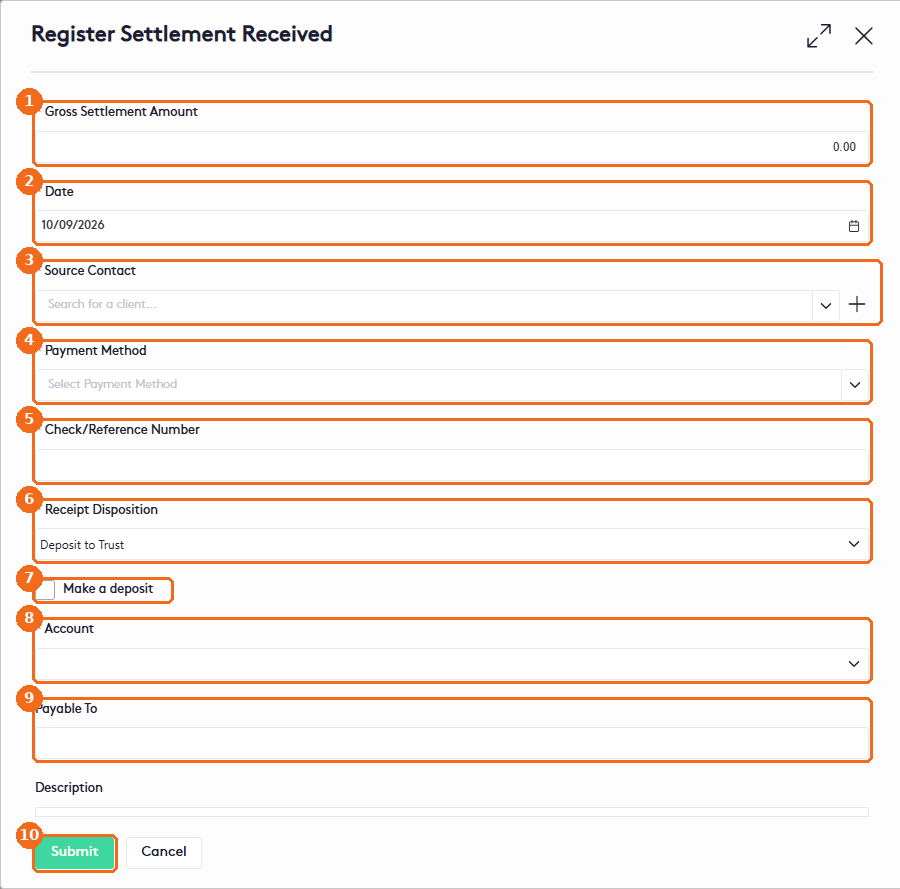
- Enter the Gross Settlement Amount (required).
- Check the Date (required). It defaults to today.
- Select the Source Contact, for example the insurance company (required). Click + to create a contact.
- Select the Payment Method (required).
- Enter the Check/Reference Number (required).
- Select the Receipt Disposition (required): Deposit to Trust, Deposit to Operating, Hand to Client or Hand to Third Party.
- Check Make a deposit to record the deposit at the same time, and enter its Deposit Date. The settlement then shows the status DEPOSITED.
- Select the Account that receives the money (required).
- Enter who the check is Payable To and, optionally, a Description.
- Click Submit.
Add case costs
Click Add Cost. The Add Case Cost panel opens.
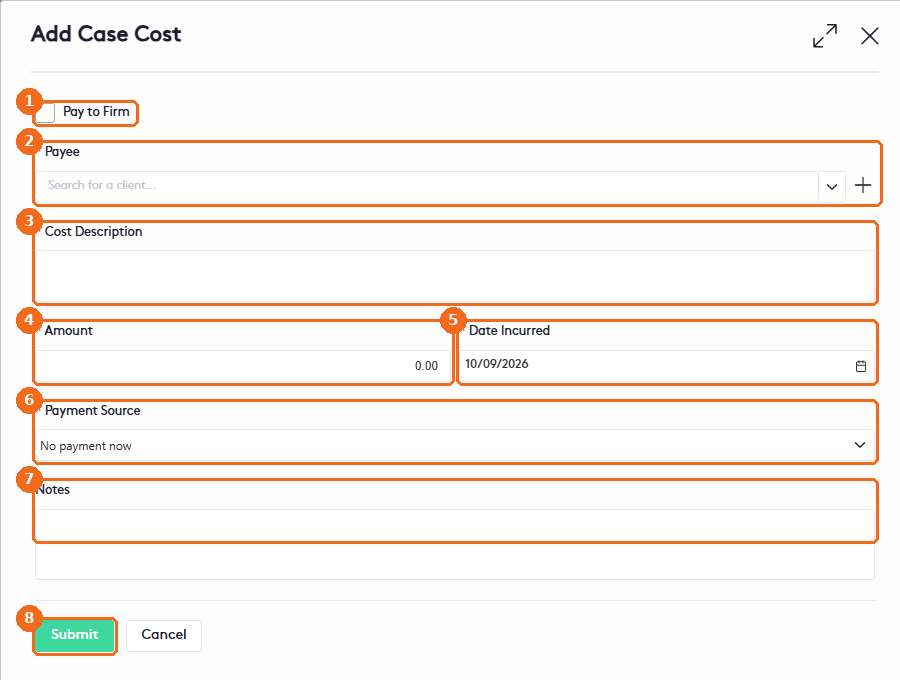
- Check Pay to Firm if the cost was paid by your firm and must be reimbursed to it. The Payee is then set to your firm.
- Select the Payee (required). Click + to create a contact.
- Enter the Cost Description (required).
- Enter the Amount (required).
- Check the Date Incurred (required).
- Select the Payment Source. Keep No payment now to pay it later from the settlement. When the matter has no trust funds and no settlement yet, No payment now is the only option.
- Add Notes if needed.
- Click Submit.
Add medical liens and client advances
Add Medical Lien and Add Client Advance open similar panels:
| Panel | Fields |
|---|---|
| Add Medical Lien | Provider, Service Description, Amount, Date Incurred, Payment Source and Notes. |
| Add Client Advance | Payee, Description, Amount, Date Incurred and Notes. |
Pay out and close the settlement
Paying out a settlement has two steps: first you record each amount to pay in the ledger, then you pay it from the trust account with a trust distribution. Until it is paid, an item shows the status REGISTERED; after the distribution is posted, it shows PAID and the distribution number.
- Transfer Fees records the attorney fee. Maatdesk calculates it from the contingency rate of the matter, for example $1,000.00 × 33.00% = $330.00. To use another rate or amount for this transfer, check Override contingency for this transfer. Enter the Transfer Date and a Description, then click Submit.
- Pay Net to Client records the net amount for the client. The panel shows the Projected Net to Client. Enter the Payment Amount/Net Amount and click Submit.
- Trust Distributions pays the recorded items. Click New Trust Distribution, select the Trust Account and the Payee, and check the Settlement Items to pay in full. Select the Payment Method, enter the Reference and the Payment Date. When the payee is your firm (attorney fees and costs with Pay to Firm), also select the Operating Account that receives the money. Click Save and Post to pay now, or Save Draft to post it later.
Note. Only payment methods allowed for payments can be used in a trust distribution. Otherwise Maatdesk shows “The selected Payment Method cannot be used for payments.” See Managing Payment Methods.
Generate Statement creates the settlement statement from a document template, such as Settlement Statement. Select the Template, check the Document Name and click Preview to open the statement as a PDF in a new browser tab. Check Save to also keep it in the matter documents.
When everything is paid and the trust balance of the settlement is $0.00, Close Settlement becomes available. Click it and confirm with Yes. A closed settlement can’t get new receipts, costs, liens, advances, fee transfers or payments to the client. You can still open its trust distributions, edit the settlement and generate the statement. To make changes, click Reopen Settlement.
Note. The Settlement Ledger option appears only on matters with the Contingency Fee billable type.
Note. The Settlement Ledger permissions of the user’s role control what they can do: view the ledger, edit settlement items, view financial data such as fees and balances, manage settlement funds (deposits, payments, transfers and overrides) and close or reopen a settlement. See Managing Groups, Roles and Job Titles.