
The Timeline tab shows the history of a matter in date order: participants added, bills created, documents, payments and other events. Next to it you see the upcoming deadlines, the pending items and a snapshot of the matter.
Open the Timeline
Open the matter, click More and select Timeline.
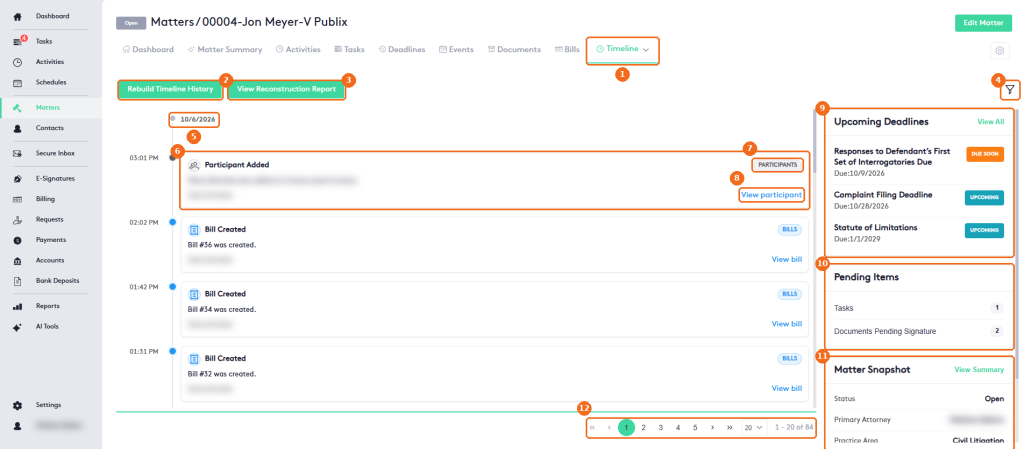
- The Timeline tab.
- Rebuild Timeline History rebuilds the timeline from the matter records. See Managing Timeline History.
- View Reconstruction Report opens the Timeline History Reconstruction panel with the rebuilds of the matter. If the timeline was never rebuilt, it shows No history reconstructions have been recorded for this matter.
- The filter button opens the timeline filters.
- The date of the events below it.
- An event, with its time, title and details.
- The category of the event, for example Participants or Bills.
- A link to open the related record, for example View matter, View deadlines, View participant or View bill.
- Upcoming Deadlines of the matter. View All opens the Deadlines tab.
- Pending Items: open tasks and documents pending signature.
- Matter Snapshot: Status, Primary Attorney, Practice Area, Opened Date, Days Open and Client. View Summary opens the Matter Summary.
- The page controls. The timeline shows 20 events per page.
Note. Rebuilding the timeline recreates its events from the matter records. Use it only when the timeline is missing events.
Examples of events: Matter Created, Matter Assigned, Matter Hold, Matter Closed, Matter Reopened, Note Added, and Deadline Created, Deadline Modified, Deadline Completed, Deadline Reopened or Deadline Cancelled (for a waived deadline). Each event shows the user who made the change, and a description such as the status change or the fields that changed.
Filter the timeline
Click the filter button.

- Search finds events by text.
- User shows the events of a user.
- Category shows one type of event: Matter, Tasks, Deadlines, Events, Documents, Questionnaires, Requests, Bills, Payments, Settlement, Communications, Notes, Participants, Matter Team or Matter Stages. Select All to see every category.
- Date Range limits the events to a period.
- Clear resets the filters.
Note. The View Matter Timeline permission shows the timeline, and Import Matter History lets a user import the past activity of a matter into its timeline. Importing the history of all matters is a separate permission, Import Tenant History. See Managing Groups, Roles and Job Titles.