
Questionnaire templates are the forms you send to clients to collect information for a matter. Each template is linked to a JotForm form by its Form ID.
Table of contents
The Questionnaires list
Click Settings in the left menu, then click Questionnaire Templates.

- Add Questionnaire creates a template.
- The edit button and the actions arrow of the template.
- The Form Id of the JotForm form.
- The Practice Area of the template.
- The filter button: filter by Name or Practice Area. The button shows (1) by default, because Practice Area is set to All; it stays after you click Clear.
Add a questionnaire
Create the form in JotForm first and copy its Form ID. Then click Add Questionnaire.
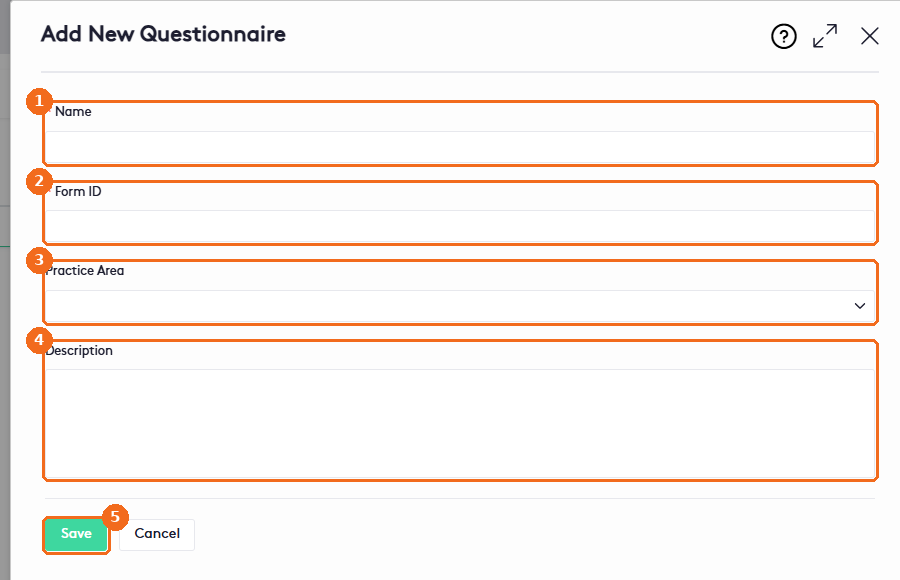
- Enter the Name (required).
- Enter the Form ID of the JotForm form (required).
- Select the Practice Area.
- Enter a Description.
- Click Save.
The template can now be sent from a matter. See Questionnaires Overview.
Edit or delete a questionnaire
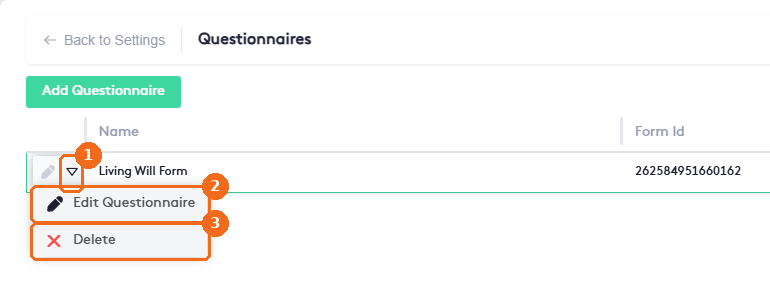
- Click the actions arrow of the template.
- Edit Questionnaire opens the template. Make your changes and click Save.
- Delete removes the template.