
The Secure Inbox lets your firm exchange secure messages with clients through the Client Portal. Each conversation belongs to a matter, so the messages stay with the matter’s records.
Table of contents
The Secure Inbox
To open it, click Secure Inbox in the left menu.
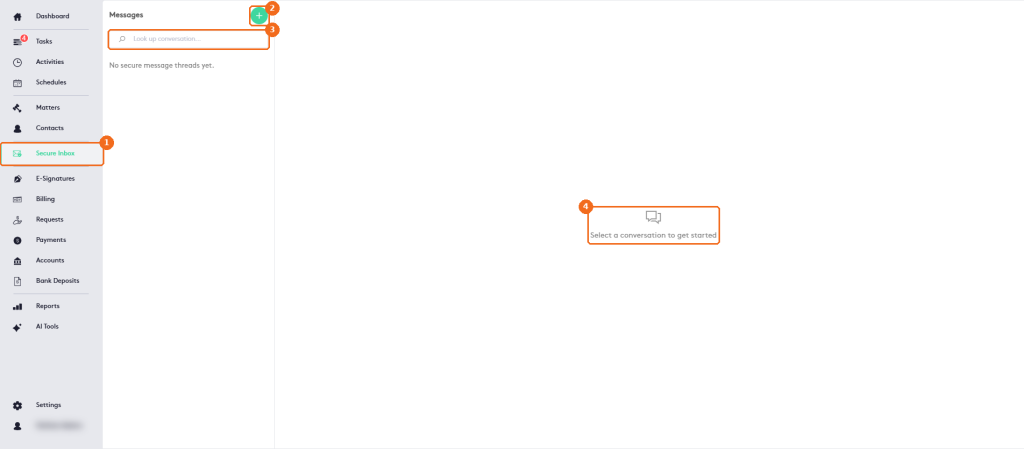
- Secure Inbox in the left menu.
- Click + to start a new conversation.
- Search the conversations with Look up conversation.
- Select a conversation to read it and reply.
Start a conversation
Click +.
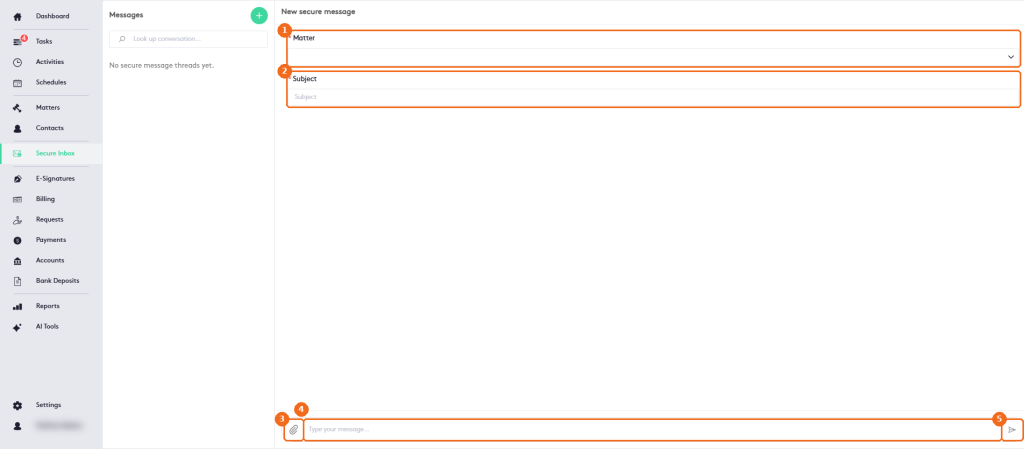
- Select the Matter (required).
- Enter the Subject (required).
- Click the clip button to attach a file.
- Type your message.
- Click the send button.
Note. The client receives the message in the Client Portal. Make sure the client has portal access before you write. Portal access is set per email address: edit the contact and select Portal on the email row the client uses. The contact dashboard shows Portal Yes or No under Additional Info, and Resend Invitation in the row menu of the Contacts list sends the portal invitation again.
Secure messages of a matter
You can also see and start the conversations of one matter from the matter itself: open the matter and click More > Communications > Secure Inbox.
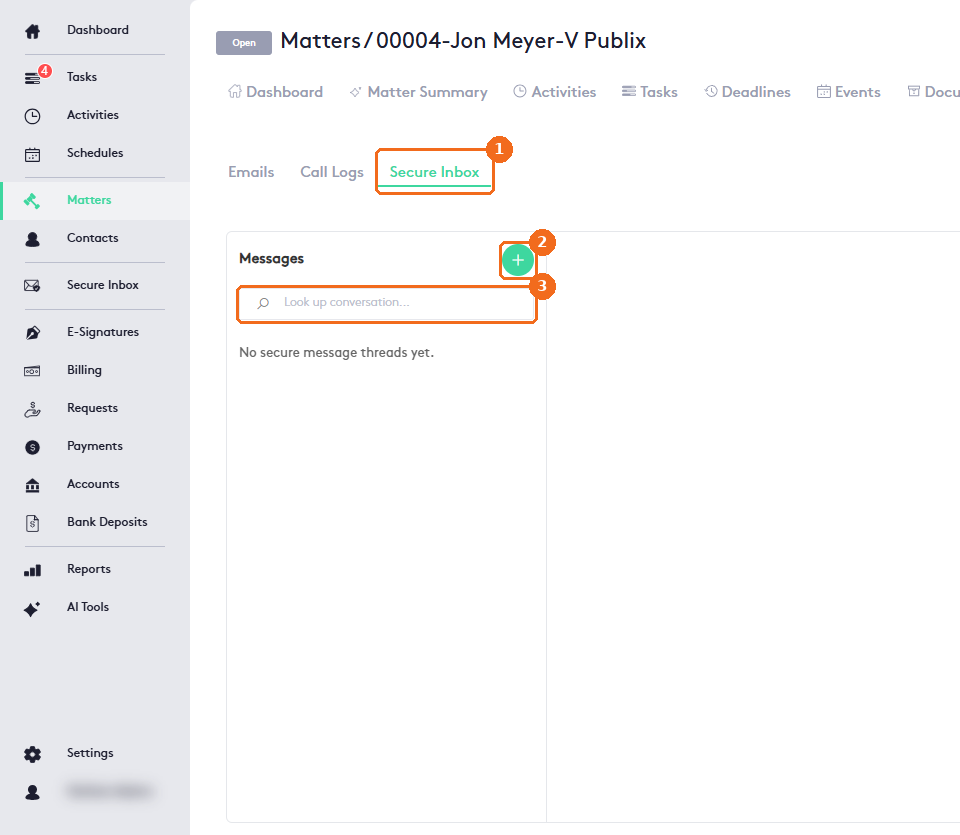
- The Secure Inbox sub-tab of the matter.
- Click + to start a conversation. The matter is already selected, so you only enter the subject and the message.
- Search the conversations of the matter.