
When Maatdesk migrates your contacts from another system, you review them on a secure page before anything is imported into your firm’s database. You decide how each contact is handled, and you can import in stages: you don’t need to resolve every conflict before you import the contacts that are already ready.
Table of contents
- Open the review page
- Understand the review page
- Resolve duplicate contacts
- Split a row with two people
- Correct a contact
- Import the ready contacts
- Check the imported contacts
Open the review page
- Open the email Review your Maatdesk contact migration and click the one-time link.
- Maatdesk sends a six-digit verification code by email. Open the email Your Maatdesk migration review code.
- On the Check your email page, enter the code in Verification code and click Continue securely.
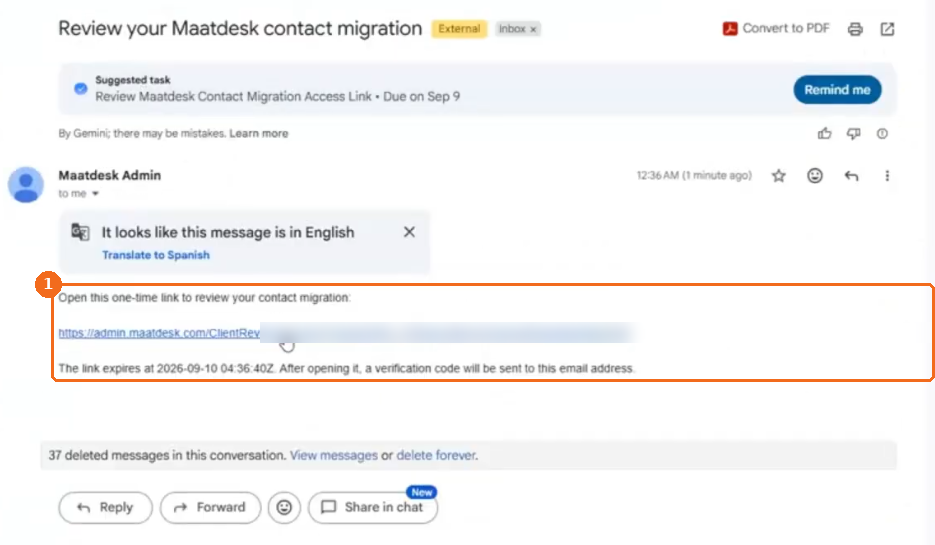
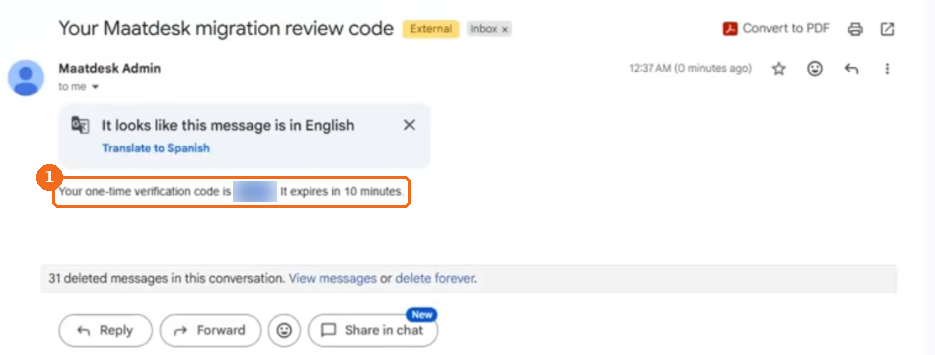
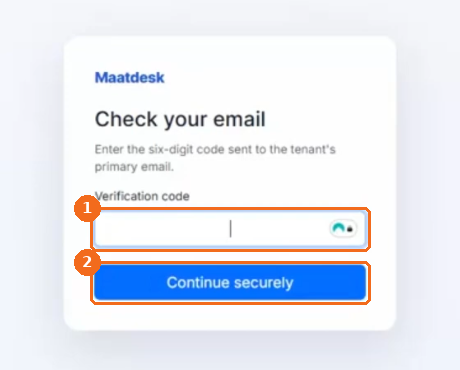
Note. The review link expires at the date and time shown in the email. The verification code expires in 10 minutes.
Understand the review page
- Review progress shows how many contacts are complete and the migration totals: total, ready, conflicts, errors, resolved, imported and failed.
- Show rows filters the list, for example Conflicts or All contacts.
- Review and import ready starts an import of the contacts that are ready.
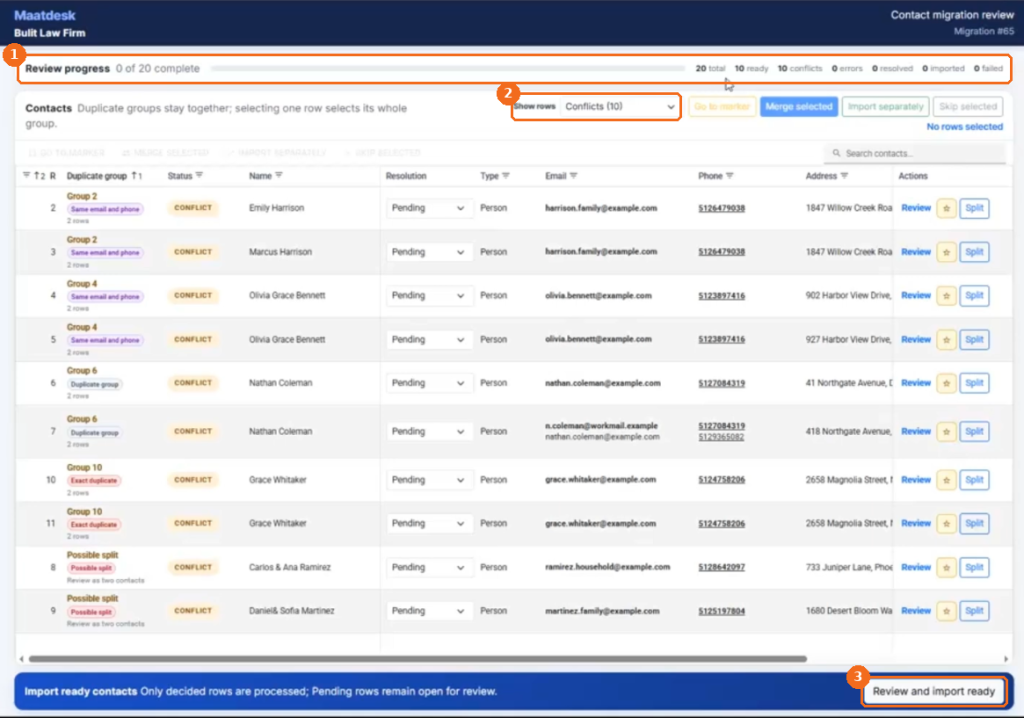
Each row is one contact from your file. The Duplicate group column groups rows that may be the same contact and labels them, for example Same email and phone, Duplicate group, Exact duplicate or Possible split. The Status column shows Conflict, Ready or Resolved, and you choose how to handle each row in the Resolution column.
Resolve duplicate contacts
Click a row to select it. The whole duplicate group is highlighted.
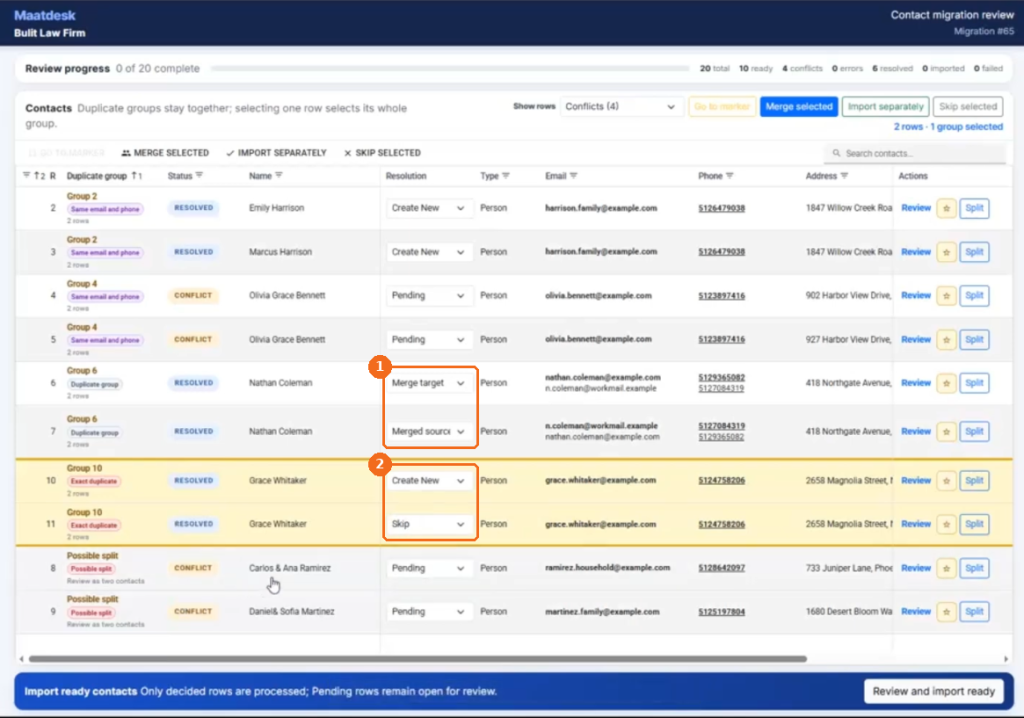
- Different people with the same details, for example two family members who share an email and a phone number: in Resolution, select Create New for each row.
- Exact duplicates, the same contact listed twice: select Create New for one row and Skip for the other.
- The same person with different details, for example two addresses: merge the rows, as described below.

Merge contacts
- Select the duplicate group and click Merge selected.
- In Use name from, select the row whose name to keep.
- In Emails to keep, select the emails to keep and mark one as Primary.
- In Phones to keep, select the phone numbers to keep and mark one as Primary.
- In Address to keep, select the address.
- Click Merge into one contact.
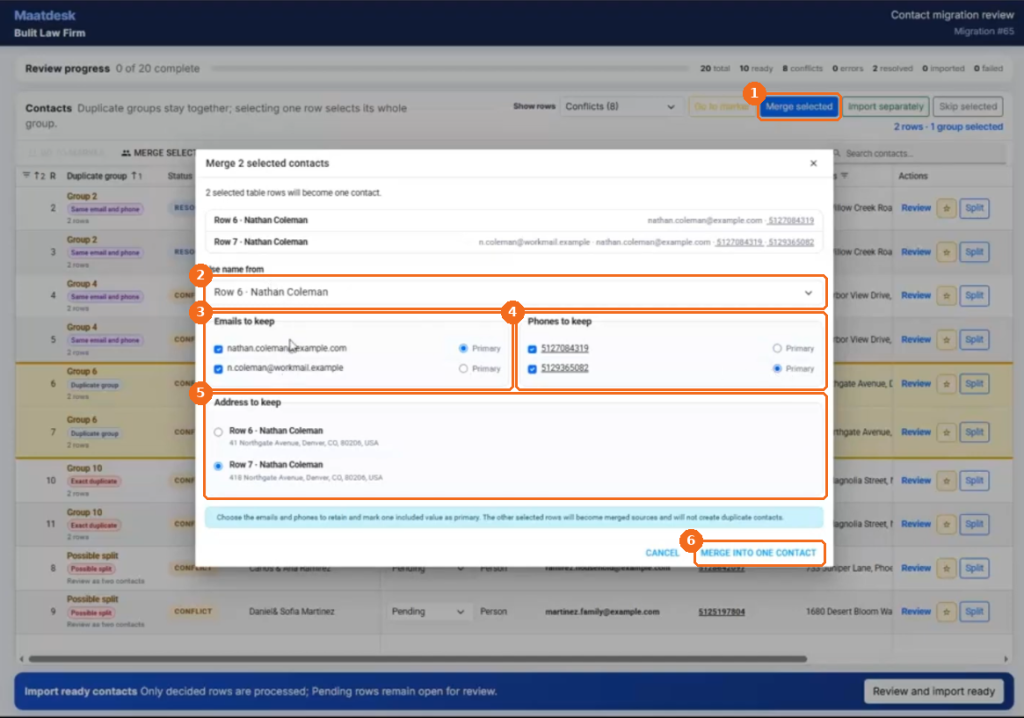
Merging also combines complementary details, for example a primary email from one row and an additional email or phone number from another. After the merge, one row shows Merge target and the other Merged source. The merged source does not create a duplicate contact.
Split a row with two people
Use this when one row contains two people, such as spouses.
- In the row, click Split.
- Complete Contact 1: first name, middle name (optional), last name, email and phone.
- Complete Contact 2 the same way.
- To give contact 2 the same address, leave Copy the original address to contact 2 selected.
- Click Split row.
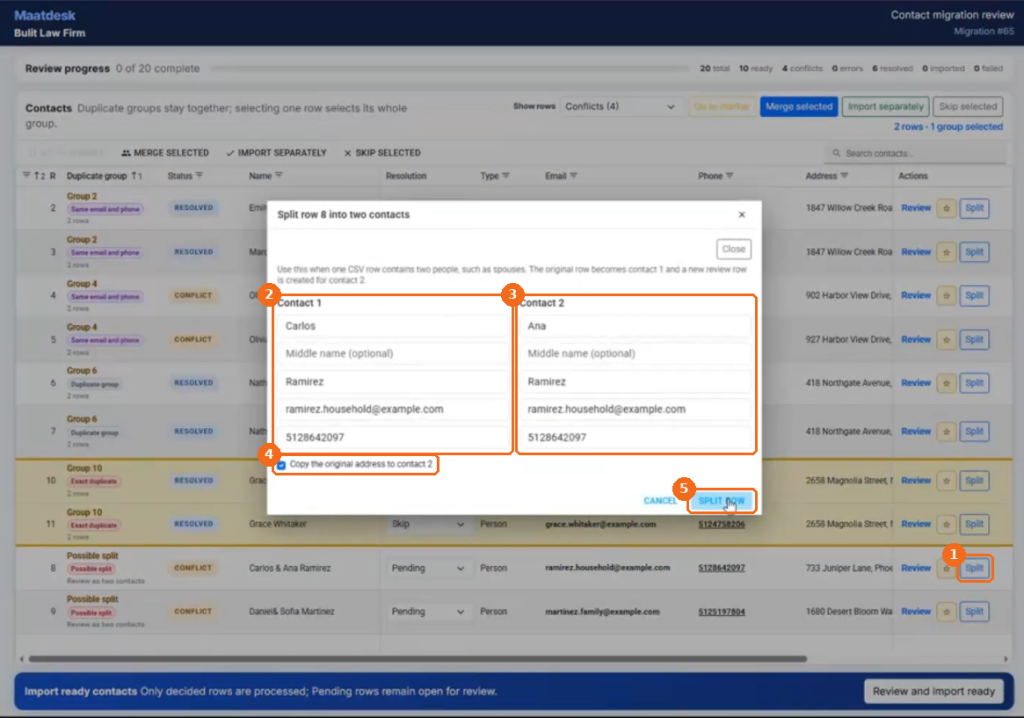
The original row becomes contact 1, and a new review row is created for contact 2.
Correct a contact
- In the row, click Review. The contact details open.
- In Decision, choose a resolution.
- Expand Edit contact fields.
- Correct the information, for example the First name. For a company, select Company contact and use the company name.
- Click Save now.

After you save, the contact is validated again.
Import the ready contacts
- Click Review and import ready.
- In the Confirm contact import window, check the totals (Rows to process, Create contacts, Merge / update, Skip rows and Retry failures) and the planned action for each row.
- Select I reviewed this list and confirm these contact actions.
- Click Import these contacts.

Only ready, resolved and retriable contacts are processed. Pending conflicts and errors stay open for later review, and contacts already imported are not processed twice. The import shows its progress while it runs.
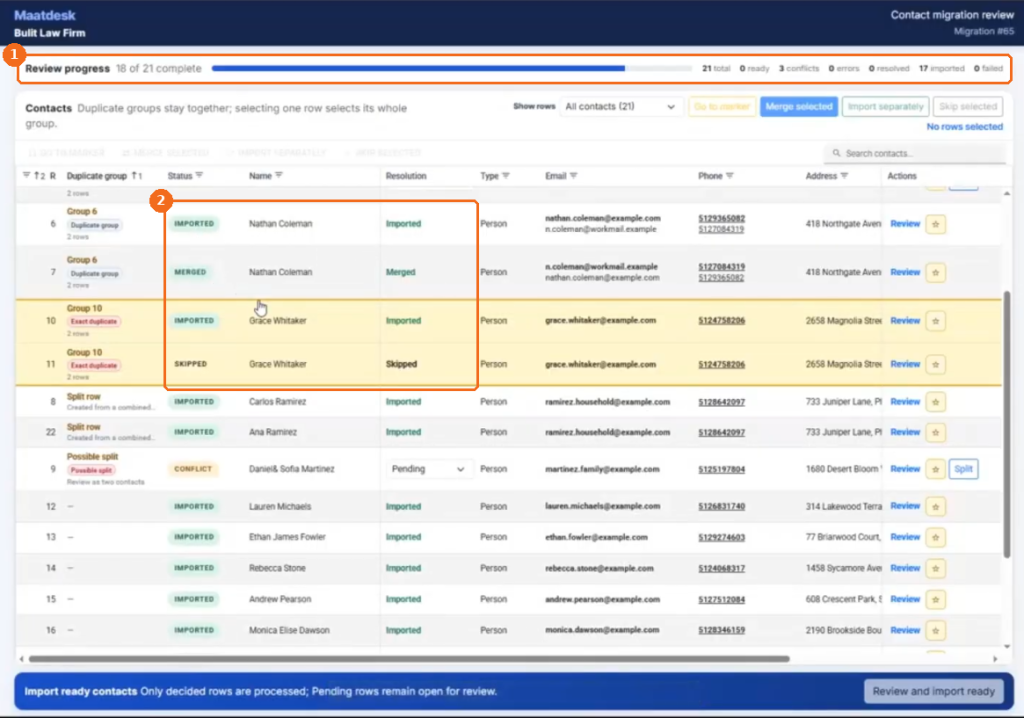
When the import is complete, imported contacts show Imported and can no longer be edited. You can come back later, resolve the remaining conflicts and import again.
Check the imported contacts
- Sign in to Maatdesk and, in the left menu, click Contacts.
- Confirm that the imported contacts are listed with their emails, phone numbers and addresses.
