
The Conflict Check Wizard searches your matters for potential conflicts of interest before you take on a new client or add a party to a matter.
Table of contents
Run a conflict check
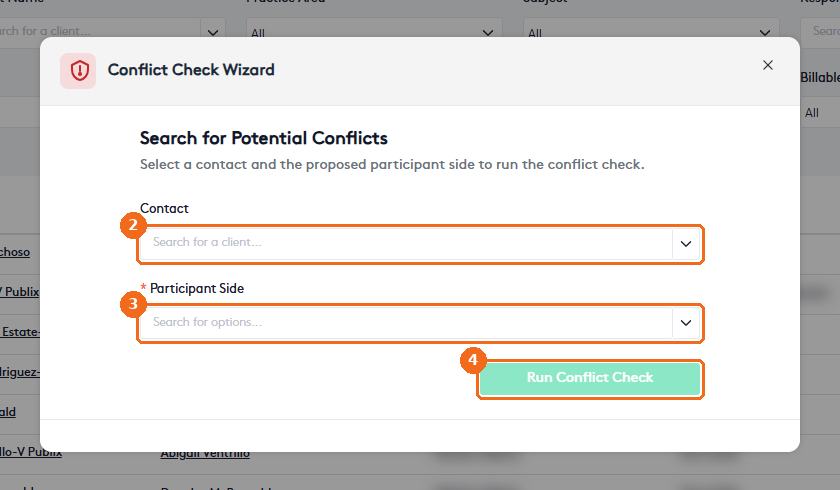
- In the top bar, click Run Conflict Check. The Conflict Check Wizard opens.
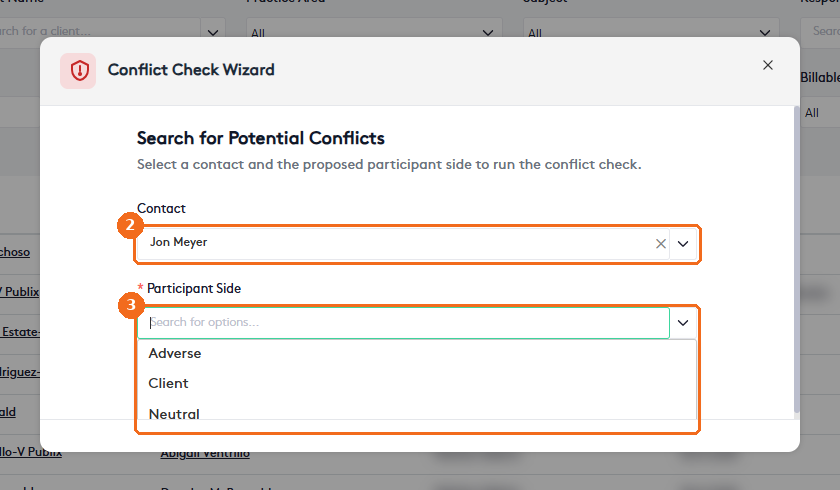
- In Contact, start typing the name and select the contact. The list shows each contact’s name, email and phone. Only existing contacts appear, so add the person as a contact first if needed.
- In Participant Side, select the side the contact would take: Adverse, Client or Neutral.
- Click Run Conflict Check. The button is enabled only when you select both a contact and a side.
Review the results
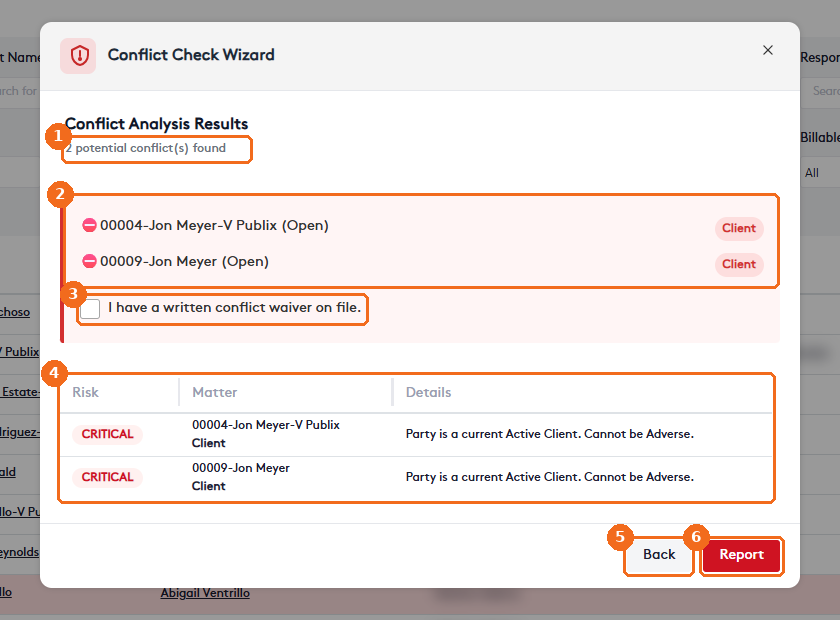
The Conflict Analysis Results step shows:
- The number of potential conflicts found.
- The matters where the contact already takes part, with their status and the contact’s side.
- I have a written conflict waiver on file. This option appears only for CRITICAL results. Select it when you have a signed waiver, and enter the waiver reference in WAIVER JUSTIFICATION/REFERENCE. The reference is recorded in the audit report.
- A table with the Risk level, the Matter and the Details of each conflict.
- Back returns to the search so you can change the contact or the side.
- Report creates a report of the conflict check.
Examples of risk levels and their details:
- CRITICAL: the contact is an active client and you propose them as Adverse (“Party is a current Active Client. Cannot be Adverse.”).
- LOW: the contact is already a client in other matters and you propose them as Client (“Party is already a Client in other matters.”).
When there are no conflicts, the results show 0 potential conflict(s) found with the Back and Report buttons. The wizard ends at the results; it doesn’t create a matter or a participant.
Create the audit report
Every conflict check is logged. On the results, click Report to open the CONFLICT CHECK AUDIT. It shows the firm name, the generation date, the SEARCH QUERY, the PROPOSED SIDE, the result (for example CRITICAL CONFLICT FOUND or NONE CONFLICT FOUND), the Audit Details (Audit ID, Performed By and Waiver Reference) and the matches found for the contact.
- Click Print to print the report, or Export PDF to save it as a PDF.
- Click Back to return to the results.
Important. The conflict check helps you find potential conflicts recorded in Maatdesk. Review the results and apply your firm’s conflict policies before you accept the matter.