
Document categories organize the documents of your matters, for example Petition, Evidence or Fee Agreement. You can add, rename, merge and delete categories.
Table of contents
The Document Categories list
Click Settings in the left menu, then click Document Categories.
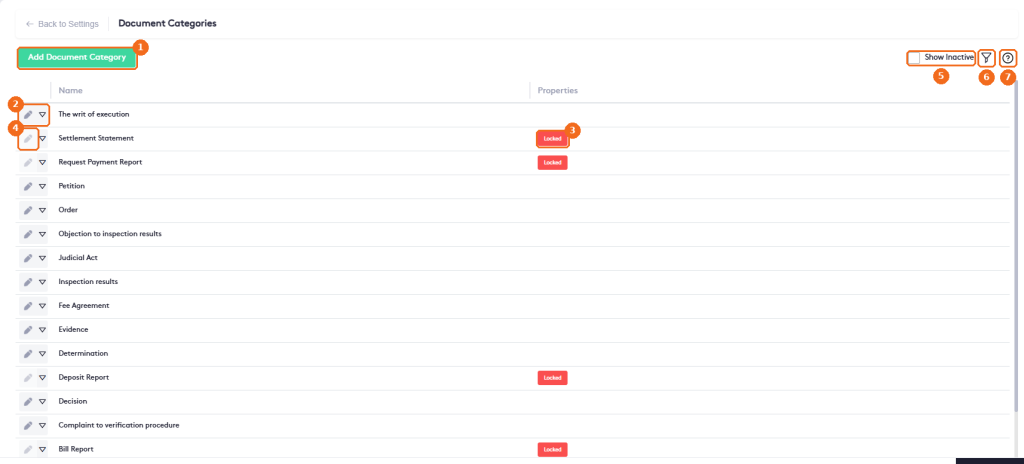
- Add Document Category creates a category.
- The edit button and the actions arrow of the category.
- Locked marks a category used by Maatdesk for the documents it creates, such as bill and deposit reports.
- Locked categories can’t be edited, merged or deleted: their edit button is grayed out.
- Show Inactive also lists inactive categories, such as categories you merged into another one.
- The filter button filters the list by Name. Click Clear to remove the filter.
- Help.
Add a category
Click Add Document Category.
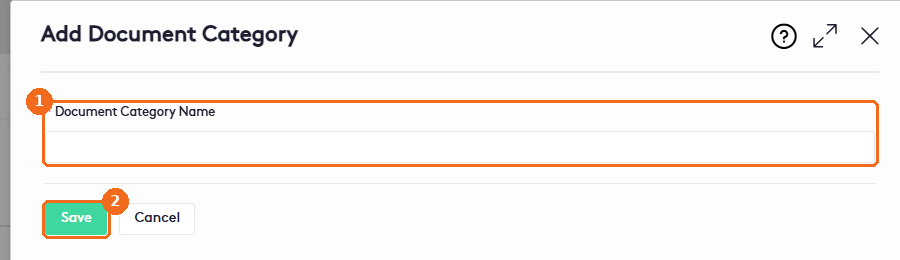
- Enter the Document Category Name (required).
- Click Save.
To rename a category, click its edit button, change the name and click Save.
Category actions
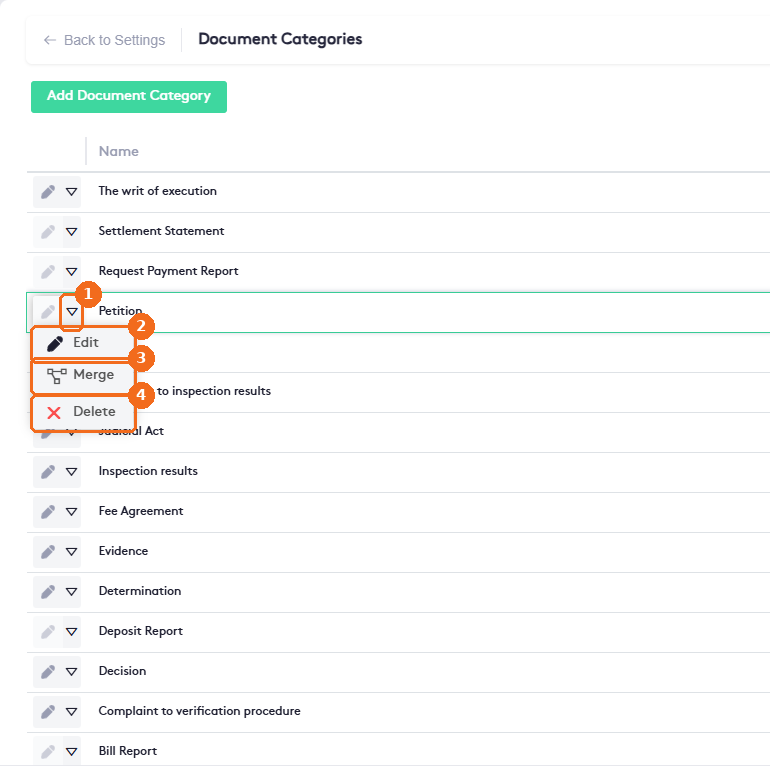
- Click the actions arrow of the category.
- Edit renames the category.
- Merge moves the category into another one.
- Delete removes the category. It’s disabled for locked categories.
Merge two categories
Use Merge when two categories mean the same thing. In the actions menu of the category you want to remove, select Merge. The Merge Document Category dialog asks into which document category you want to merge it.
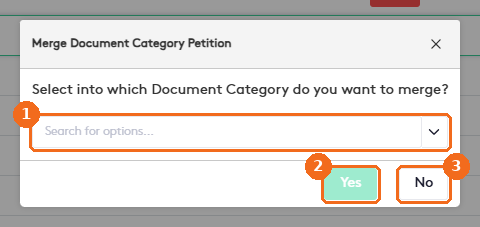
- Search for and select the category to merge into.
- Click Yes to merge. The message “Document category merged successfully” confirms it.
- Or click No to close without changes.
Note. The merged category becomes inactive and disappears from the list. To see it, select Show Inactive: it appears as <name> (Merge into: <target>) with a Merged badge. A category has no Active option of its own; merging is what makes it inactive.