
The E-Signatures module lists the documents of your firm that were prepared for electronic signature, with their signature status, the matter they belong to and a full audit log of the signing process.
Documents are prepared for signature from the Documents tab of a matter. See Document Management. E-signatures are built into Maatdesk, so you don’t need a separate e-signature account. To send a document for signature, the matter needs a responsible attorney and the client needs a primary email address. The signer gets a secure link by email and can sign from any device.
Table of contents
- The Signature Documents list
- Signature statuses
- Follow the signing activity
- Document actions
- Audit logs
- Filter the list
The Signature Documents list
Click E-Signatures in the left menu.
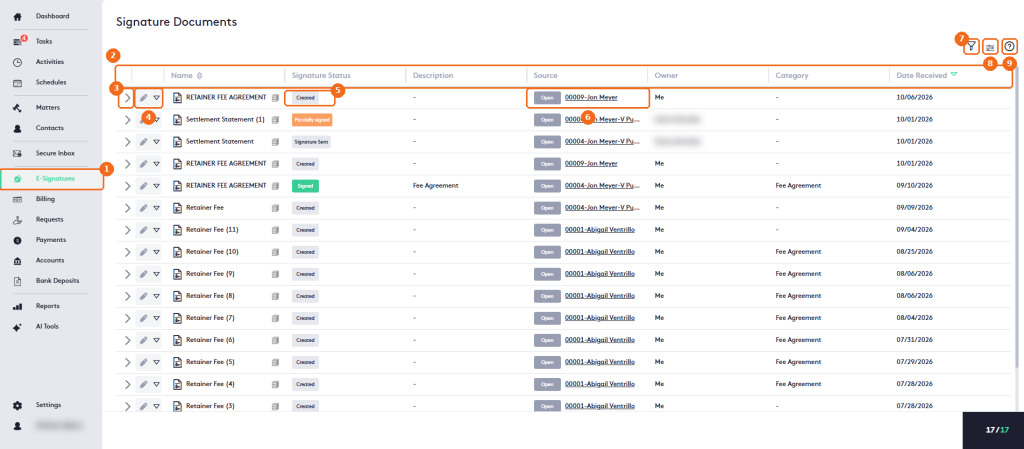
- E-Signatures in the left menu.
- The columns: Name, Signature Status, Description, Source, Owner, Category and Date Received.
- The expand arrow shows the signing activity of the document.
- The edit button and the actions arrow of each document.
- The signature status of the document.
- The matter the document belongs to, with its status. Click the matter name to open it.
- The filter button.
- The column selector.
- Help.
Signature statuses
| Status | Meaning |
|---|---|
| Created | The document is ready, but no signature was requested yet. |
| Sent | The signature request was sent to the signers. In the list, the badge reads Signature Sent. |
| Viewed | A signer opened the document. |
| Partially signed | Some signers have signed; others are still pending. |
| Waiting for verification | The signing is on hold until a signer completes the verification step. |
| Completed | All signers have signed the document. In the list, the badge reads Signed. |
| Declined | A signer declined to sign the document. |
Use these statuses in the Signature Status filter to find documents at each stage.
Follow the signing activity
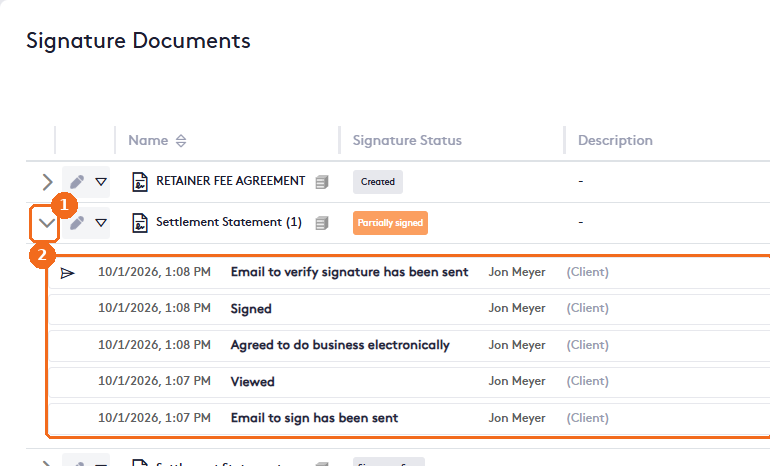
- Click the expand arrow of the document.
- The activity, newest first: emails sent, document viewed, consent to do business electronically, signed, with the date, time and signer.
Document actions
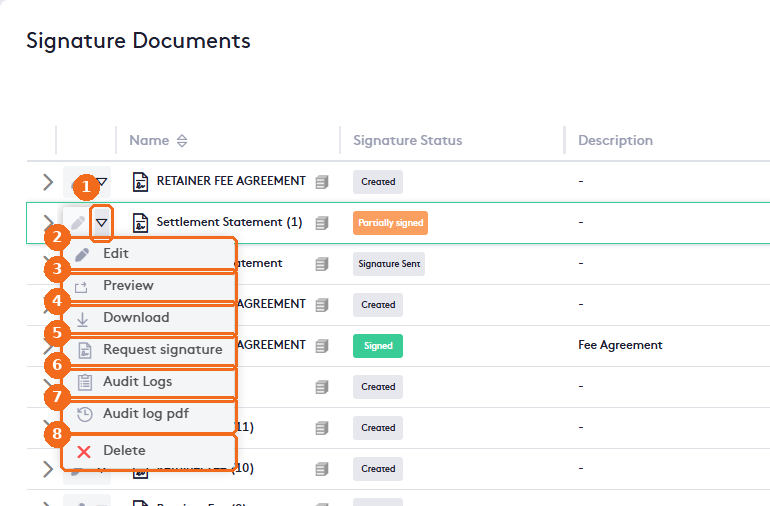
- Click the actions arrow of the document.
- Edit opens Edit Document, where you change the File Name, Date Received, Category and Description. You can’t change the signers or the signature fields here.
- Preview opens the document.
- Download downloads the document.
- Request signature sends the signature request to the signers right away.
- Audit Logs opens the full audit log.
- Audit log pdf downloads the audit log as a PDF.
- Delete removes the document.
Note. Request signature sends the request without a confirmation step. If a signer still needs to verify their signature, Maatdesk shows a message and the request is not completed until they do.
Audit logs
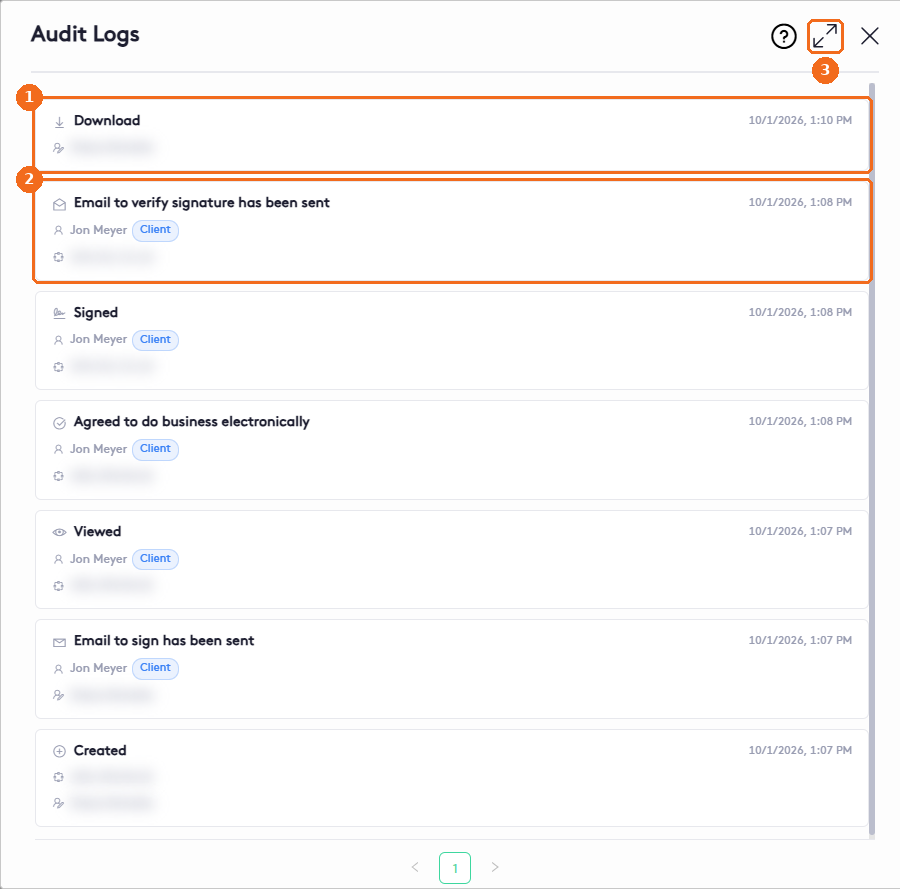
- Each event shows what happened, when, and who did it.
- Signer events also show the signer’s role, for example Client, and the IP address.
- Click the expand button to view the panel in full screen.
Filter the list
Click the filter button.

- Name of the document.
- Description.
- Owner: the user who created the document.
- Category of the document.
- Signature Status.
- Date range.
- Clear resets the filters.