Dashboard Overview
The Maatdesk Dashboard is your centralized control panel, designed to give you an immediate and comprehensive overview of your workload, scheduled events, and key operational metrics. It is the first screen you see upon logging in and serves as your main hub for monitoring and managing your daily activities.
This guide will walk you through the key sections of the Dashboard, explaining what information is displayed and how to use it to prioritize your tasks and track progress.
Table of contents
Dashboard Tab
This tab contains a series of widgets that show relevant information pertaining to a user or Firm. The view will vary depending on the level of access you have in Maatdesk.
These widgets can be rearranged or hidden to suit you:
- Click the Edit () button in the upper right corner of the tab.
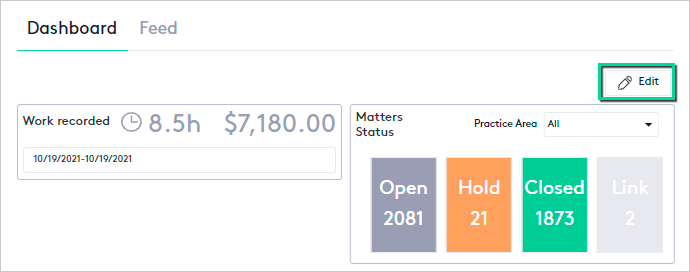
- Move or resize the widgets as you see fit.
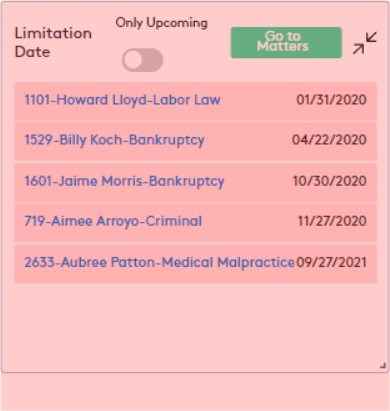
- Click the Collapse () icon on the widget to hide it, or on the widget block available at the top to show it.

- Click the Save Changes button in the upper right corner of the tab, or click Cancel to undo the changes.

Below you will find a detailed explanation of each widget:
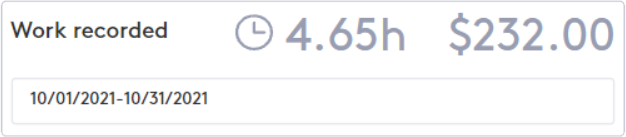
- Work recorded widget: Shows the hours and amount collected by the current user in a certain period of time using the calendar filter available through the date field.
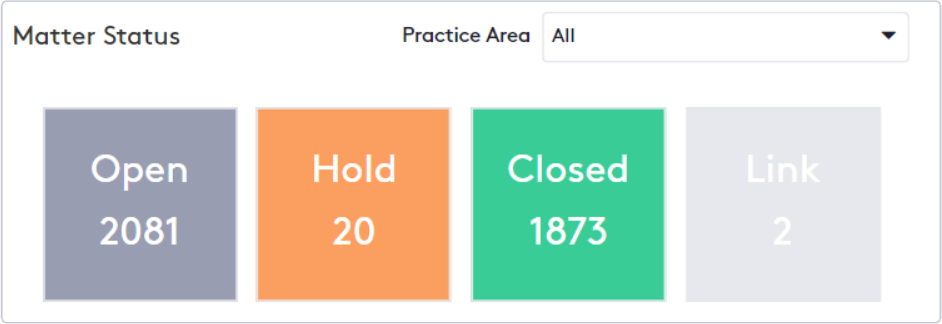
- Matter Status widget: This widget shows an overview of the current status of matters in Maatdesk and allows filtering by practice area.
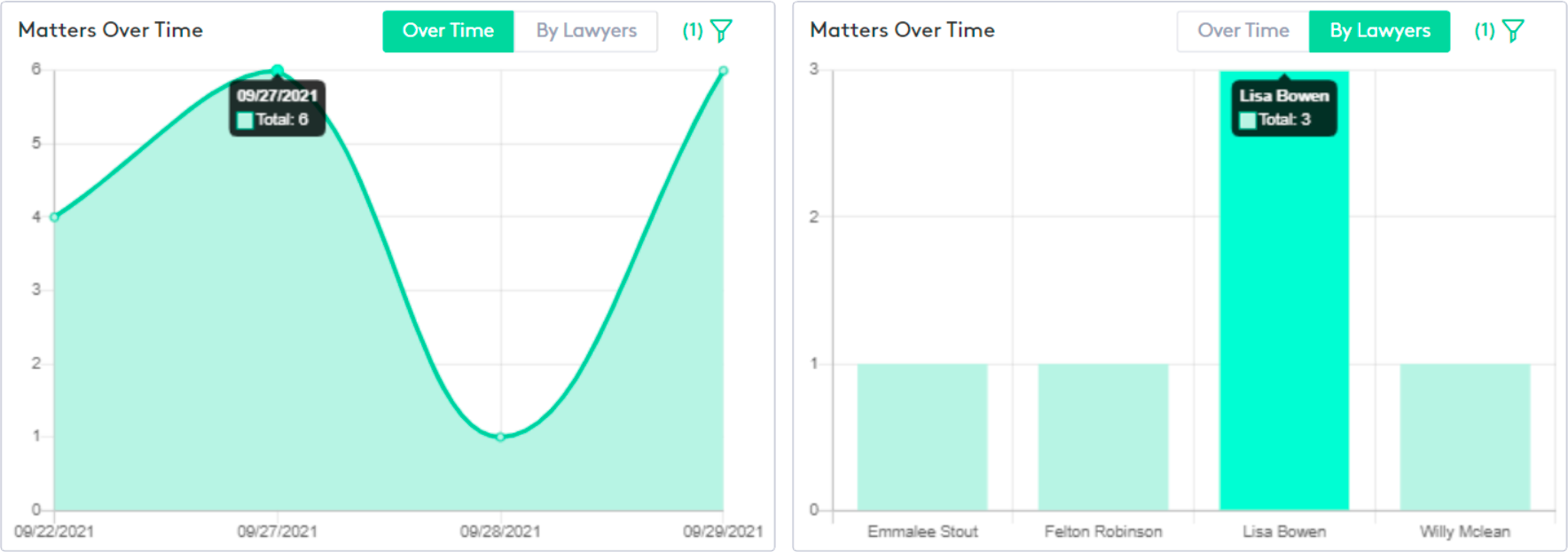
- Matters Over Time widget: Show matters created either over time or by lawyers. This widget contains a filter panel for advanced searches.More information can be found in the Matters Over Time report.
- Activities Over Time widget: Shows a financial summary of the activities created in the current week.More information can be found in the Activities Over Time report.

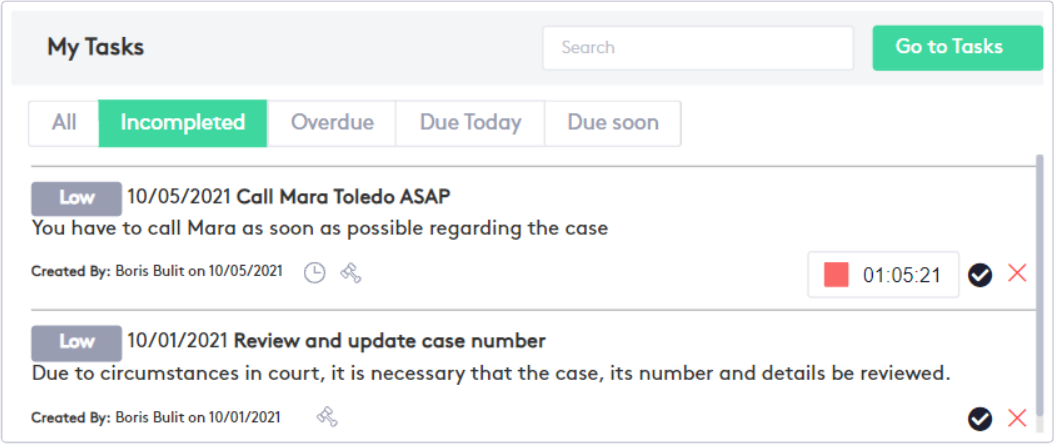
- My Tasks widget: Shows all tasks related to the current user. This widget allows you to filter tasks by status, search for specific tasks, mark them as complete or incomplete, and start timekeepers on tasks that have associated time entries.
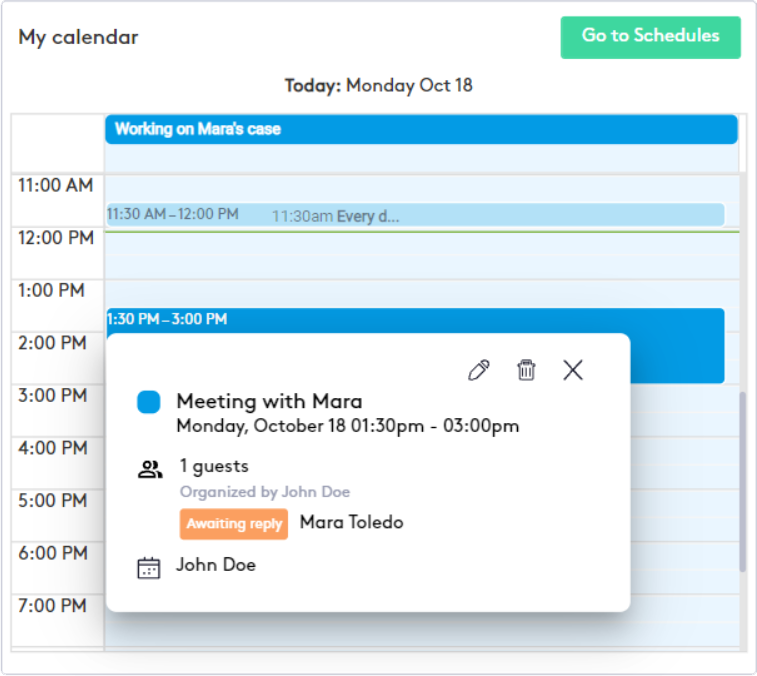
- My Calendar widget: Shows the daily scheduled events of the current user. This widget allows you to edit or delete events.Read the following guides or tutorials for more information about the Schedules module:
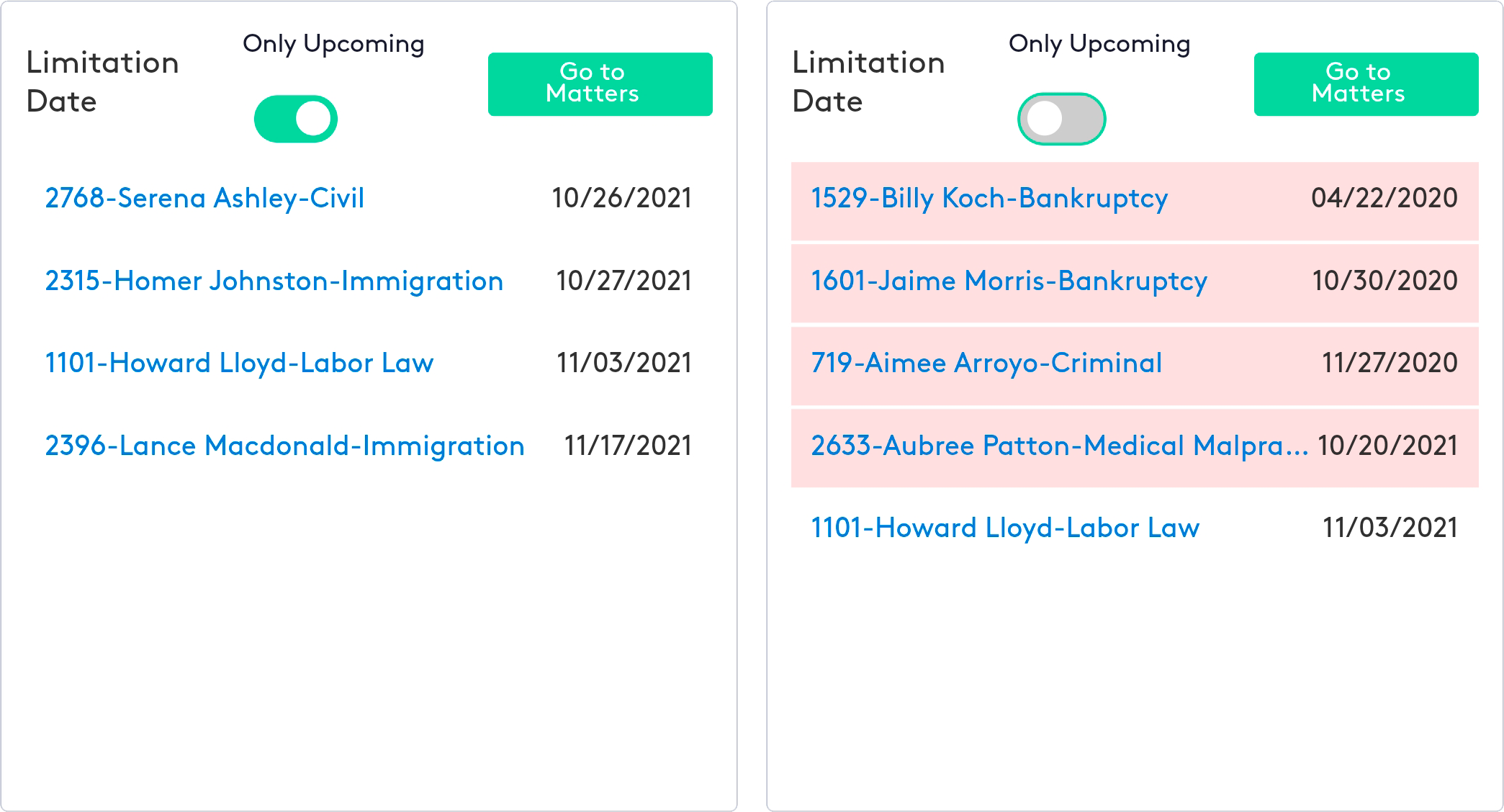
- Limitation Date widget: Shows matters with overdue or upcoming limitation dates that have not been marked as satisfied. It also provides access to the Matters module window or the dashboard for each of the matters displayed.
Feed tab
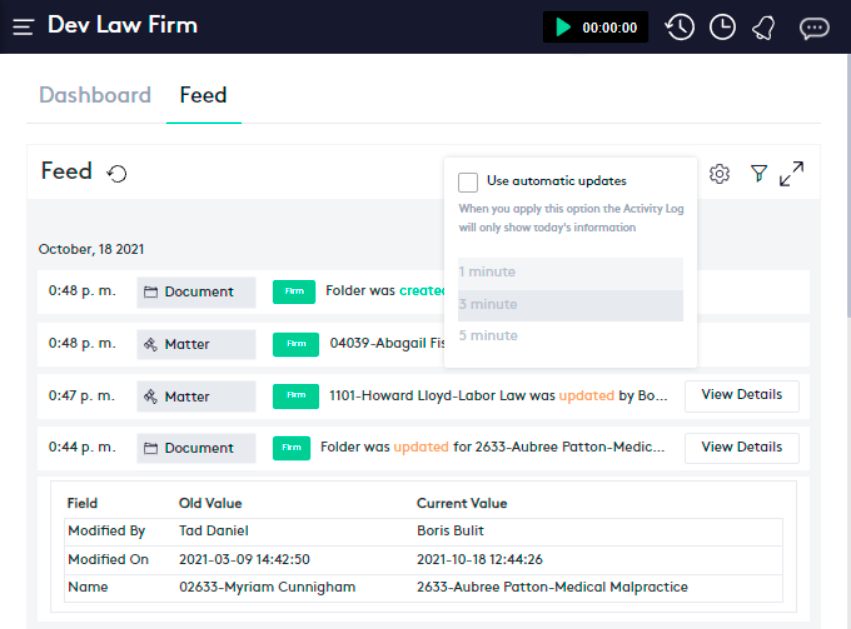
This tab keeps a record of all operations on entities carried out in Maatdesk. You can view a detailed report by clicking the View Details button. You can also configure the frequency of automatic feed updates and filter events.