
The Dashboard is the first screen you see when you sign in to Maatdesk: it gives you an overview of your work, your schedule and key firm metrics, and a feed of recent activity.
Table of contents
Open the Dashboard
- In the left menu, click Dashboard.
- The Dashboard tab shows your widgets.
- The Feed tab shows recent activity in the firm.
- Customize Dashboard lets you move, resize and hide widgets.
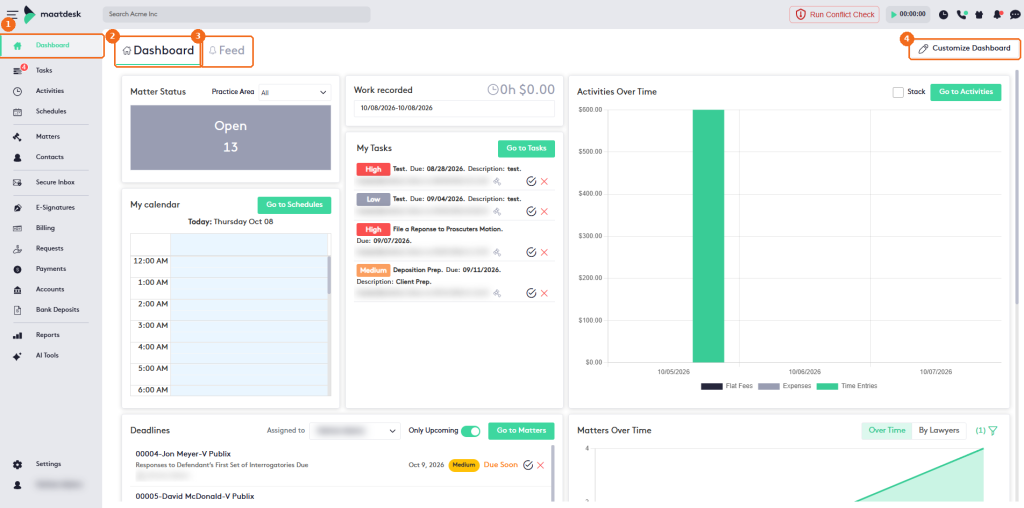
Dashboard widgets
The Dashboard tab shows these widgets. What you see depends on your access level in Maatdesk.
| Widget | What it shows |
|---|---|
| Matter Status | The number of matters by status. Use Practice Area to filter it. |
| Work recorded | Your own time (hours) and its billable amount for the period selected in the date field (today by default). Entries recorded by other users aren’t included. |
| My Tasks | Your tasks, with priority, name, due date and who created them and when. Point to the gavel icon to see the task’s matter. Click the check icon to complete a task, or the X icon to delete it (click Yes to confirm). Go to Tasks opens the Tasks module. |
| Activities Over Time | A chart of flat fees, expenses and time entries by date. Select Stack to stack the values. Go to Activities opens the Activities module. |
| My calendar | Your events for today. Click an event to see its date, calendar, matter and who created it, and to edit or delete it. Go to Schedules opens the Schedules module. |
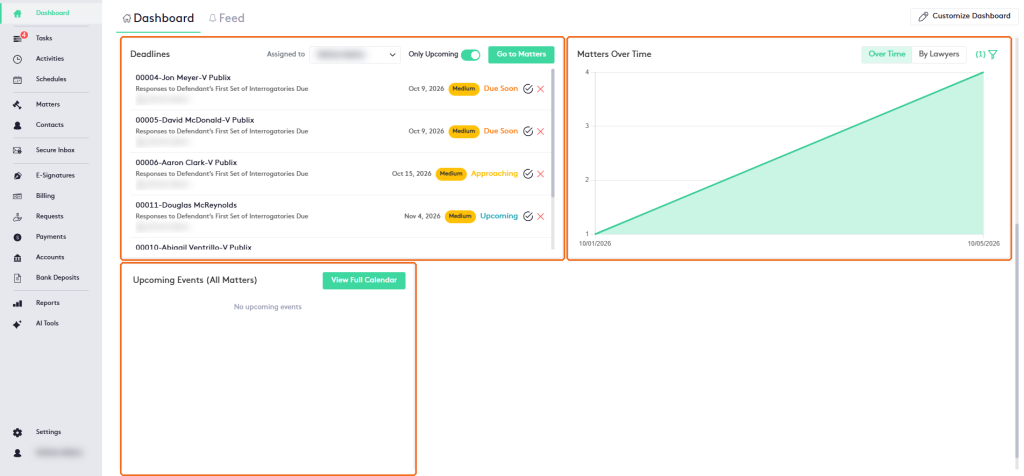
| Deadlines | Matter deadlines with their matter, date, criticality and urgency, such as Due Soon, Approaching or Upcoming. Use Assigned to and Only Upcoming to filter the list. Go to Matters opens the Matters module. |
| Matters Over Time | Matters created Over Time or By Lawyers, with a filter panel. |
| Upcoming Events (All Matters) | Upcoming events across all matters. View Full Calendar opens the calendar. |
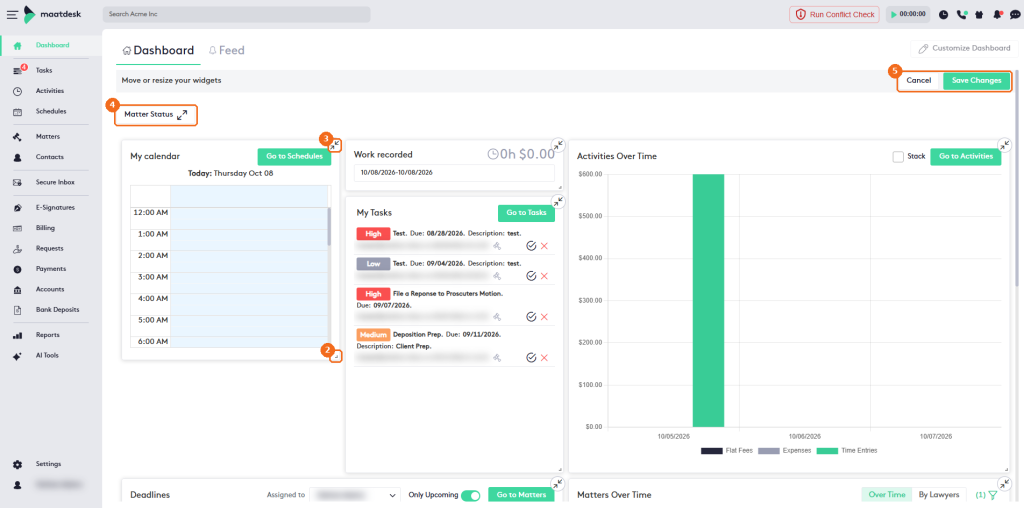
Customize the Dashboard
- Click Customize Dashboard.
- Drag a widget to move it, or drag its lower-right corner to resize it.
- To hide a widget, click the collapse icon in its upper-right corner.
- Hidden widgets appear as buttons at the top. To show a widget again, click its button.
- Click Save Changes, or click Cancel to discard your changes.
You can arrange the widgets listed above, but you can’t add other widgets to the Dashboard.
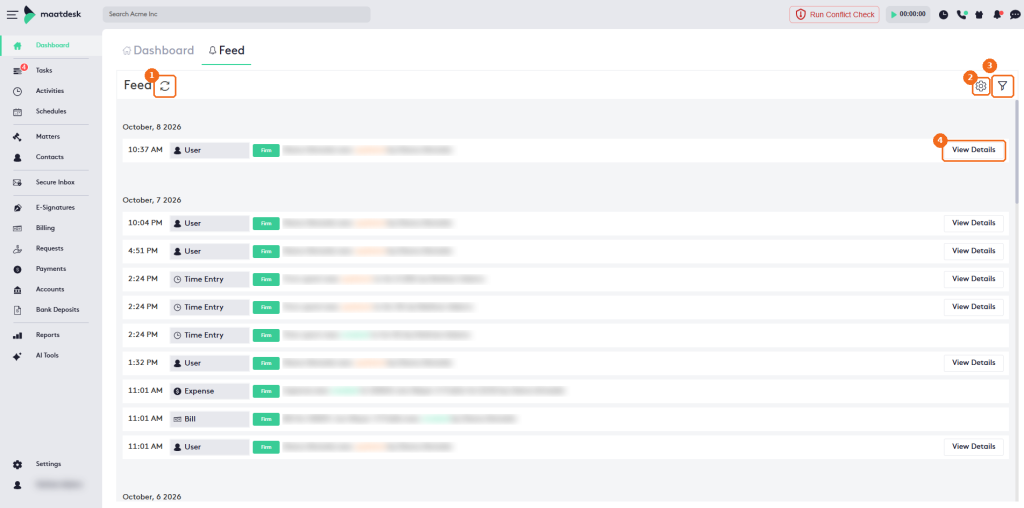
Feed tab
The Feed tab is a log of the operations on records in Maatdesk, grouped by date. Each entry shows the time, the type of record (for example User, Time Entry, Expense or Bill) and what changed.
- Click the refresh icon next to Feed to update the list.
- Click the settings icon to turn on Use automatic updates and choose how often the feed updates: 1 minute, 3 minute or 5 minute.
- Click the filter icon to filter the feed by Matter, Client, Users or Date. Click More for other filters, or Clear to remove them.
- Click View Details on an entry to see the details of the change.
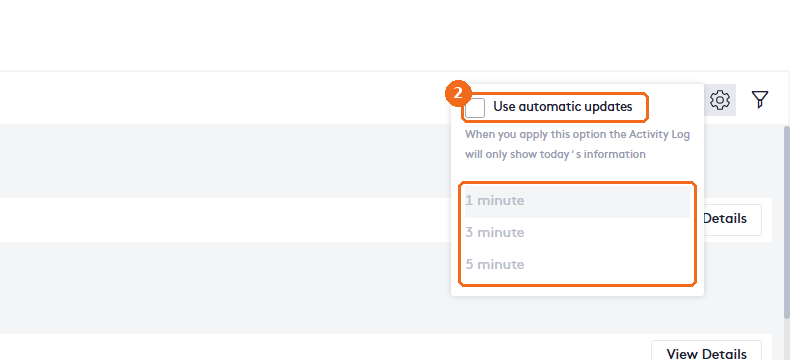
Note. When automatic updates are on, the feed shows only today’s information.