
Filters help you find records faster: most lists in Maatdesk have a filter panel, date filters, a status filter and a column selector, and you can combine them to narrow your results.
Results update as soon as you apply a filter. The examples below use the Matters list. Most lists work the same way, but the layout varies by module: for example, Billing lists add status buttons next to the filter button, and some lists show only the filter button and the column selector.
Table of contents
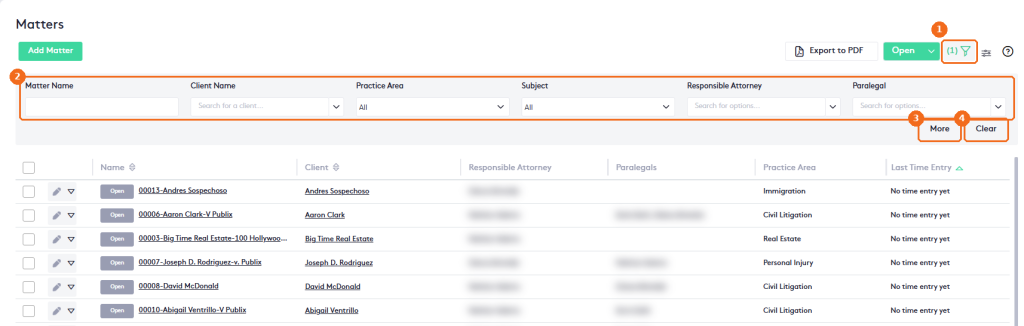
Use the filter panel
- Click the filter button (funnel icon) to show or hide the filters. When filters are active, the button shows how many in parentheses, for example (1). Default filters count too: in the Matters list, the status counts as one filter; in Activities, the current month and the Unbilled status count as two.
- Enter or select values in the filters. For matters, these include Matter Name, Client Name, Practice Area, Subject, Responsible Attorney and Paralegal.
- Click More to show additional filters. Click Less to hide them again.
- Click Clear to remove all filters and show all records again.
Filter by date
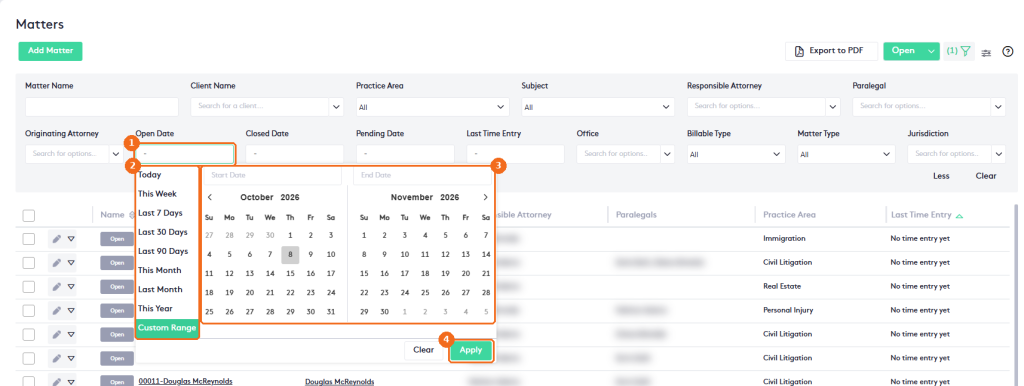
- Click a date filter, for example Open Date.
- Select a predefined range: Today, This Week, Last 7 Days, Last 30 Days, Last 90 Days, This Month, Last Month or This Year.
- Or select Custom Range and choose the start and end dates in the calendar.
- Click Apply. Click Clear to remove the dates.
Filter by status
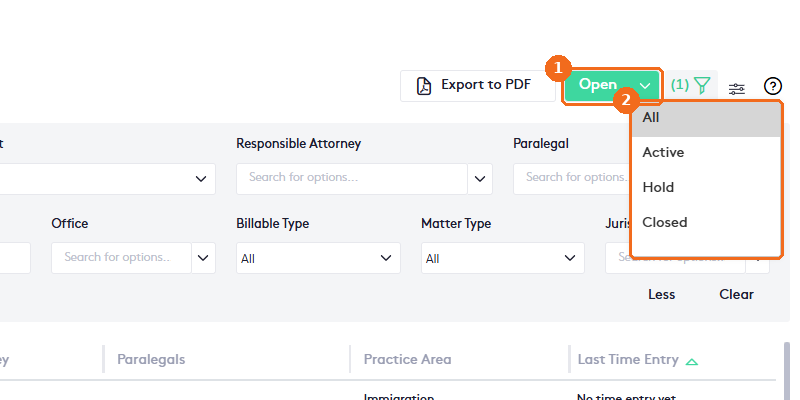
- Click the arrow on the status button. It shows the current status. In the Matters list it shows Open by default, which lists the same matters as Active.
- Select a status. For matters: All, Active, Hold or Closed.
Other modules have their own status filters, for example paid or voided bills.
Note. Filters aren’t kept when you leave a list. When you return, the list shows its default filters again.
Show or hide columns
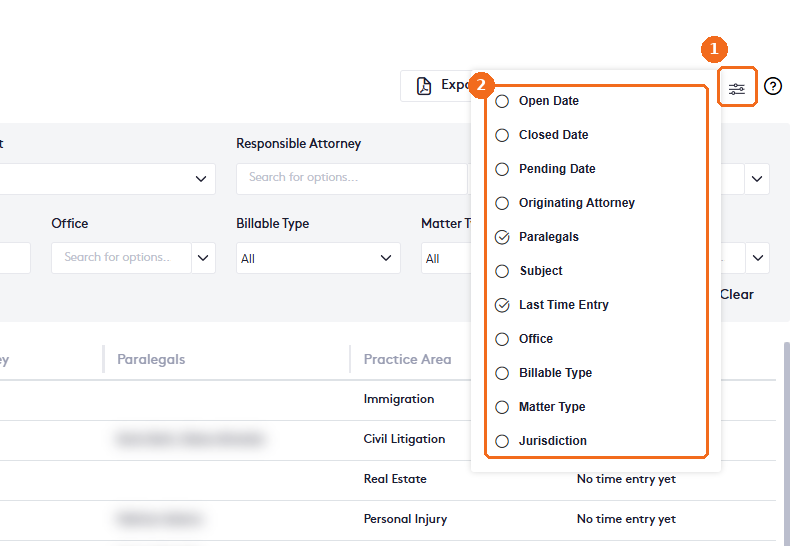
- Click the columns button (≡) next to the filter button. It is available in most lists, such as Matters, Billing, Activities and Contacts.
- Select the columns you want to see and clear the ones you want to hide. The table resizes to fit the selected columns.
Search fields in forms
Many fields in add and edit forms are search fields, for example Search for a client… or Search for options…. Start typing and select the matching item from the list.
Note. You can combine filters. The more filters you use, the narrower your results.