
From a bank account you can record deposits as transactions, transfer funds between accounts or between matters, and disburse unearned funds from a trust account.
In the left menu, click Accounts and click the name of the account. The buttons are in the Transactions tab. New Transaction and Transfer Funds are also in the Transactions tab of matter and contact dashboards. On a matter dashboard, the Account Balance card lists each account with its balance and a Deposit button that opens New Transaction with the Account, Client and Matter already filled in and locked.
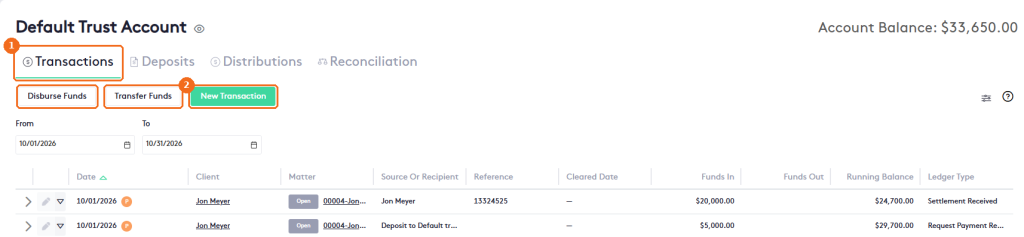
Table of contents
Record a transaction
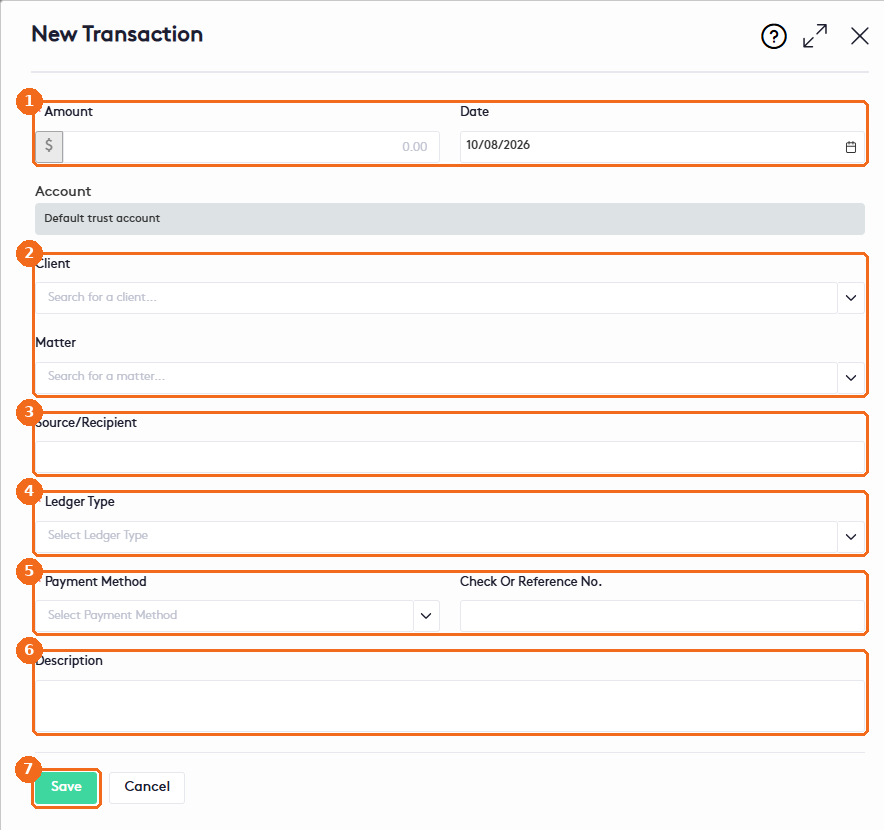
Click New Transaction. The Account is the account you opened. Then:
- Enter the Amount (required, positive values only) and the Date (today by default).
- Optionally, select a Client to make the funds available to that client, and a Matter to make them available to that matter only.
- In Source/Recipient, enter who the funds came from.
- Select the Ledger Type (required). On an operating account, the options are Bank Adjustment, Bank Disbursement, Bank Fee, Bank Interest and Opening Balance.
- Select the Payment Method (required) and, if you have one, enter a Check Or Reference No. to help you reconcile with your bank statement.
- In Description, enter the reason for the transaction.
- Click Save.
The transaction is recorded as a deposit in the account, at the level you selected. Maatdesk can use these funds to pay the client’s or matter’s bills, and uses matter-level funds first. To withdraw money, issue a refund or disburse funds instead.
Transfer funds
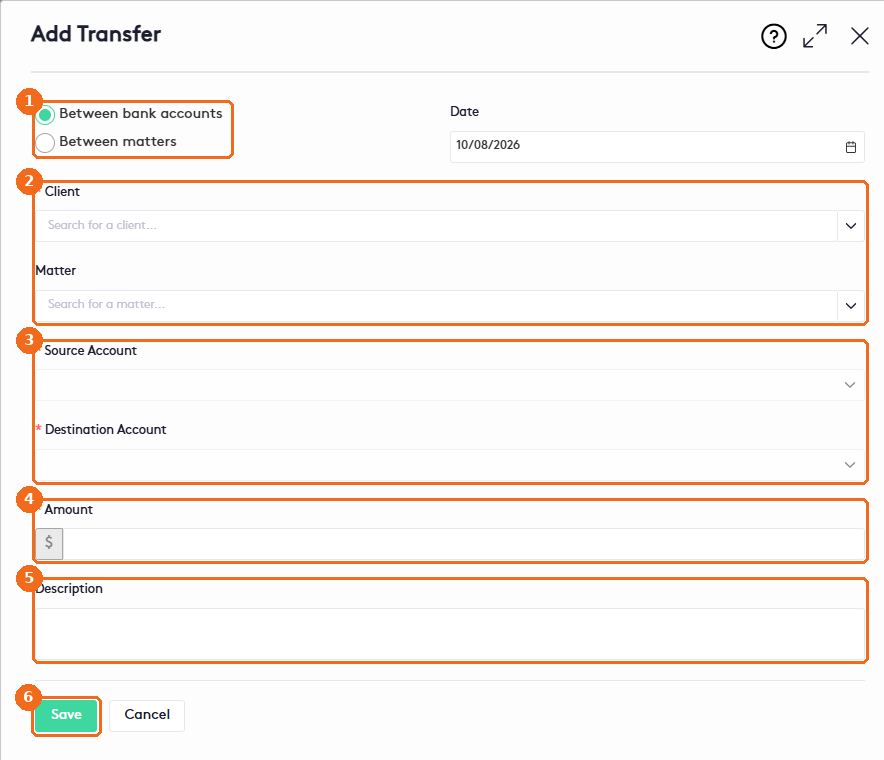
A transfer moves funds internally, between bank accounts or between matters. Click Transfer Funds. In the Add Transfer panel:
- Select the transfer type: Between bank accounts (default) or Between matters. Change the Date if needed.
- Select the Client (required) and, optionally, the Matter.
- Select the Source Account and the Destination Account. Only accounts with funds for the selected client or matter appear as source accounts.
- Enter the Amount. It can’t be more than the funds available in the source.
- In Description, enter the reason for the transfer.
- Click Save.
For a transfer Between matters, the panel shows Client, Source Account (filled in with the account you opened), Destination Account, Source Matter, Destination Matter, Amount and Description. The source and destination accounts can be the same. Maatdesk records two transactions: a withdrawal from the source and a deposit in the destination.
Note. You can’t transfer funds when the client or matter has no funds in any account, or when the firm has fewer than two bank accounts. A matter’s balances by account appear in the Account Balance card of the matter dashboard.
Disburse funds from a trust account
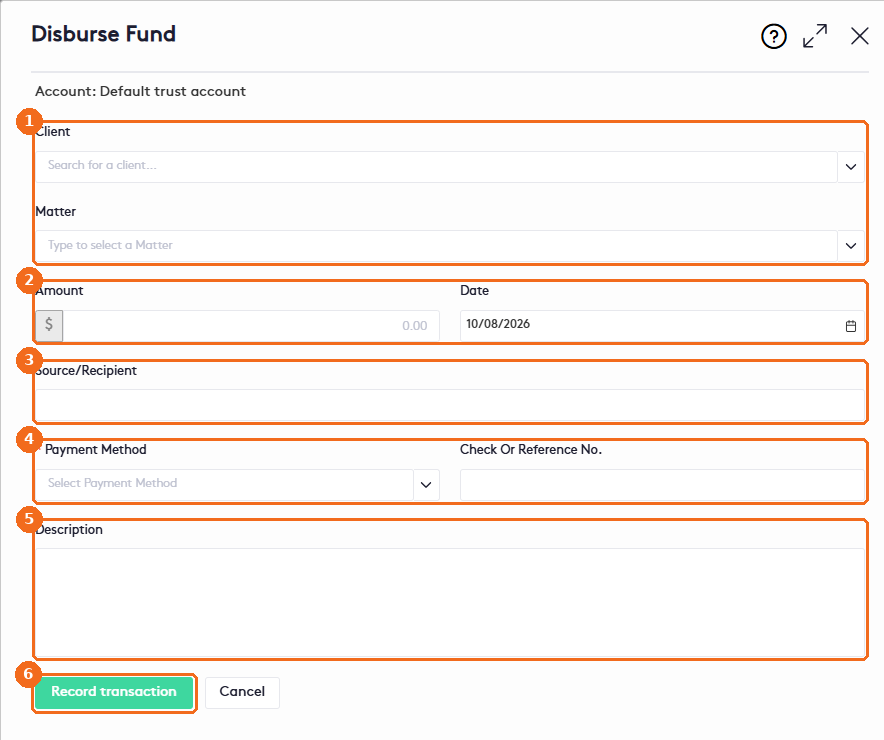
A disbursement returns unearned funds to a client or a third party. It’s available only on trust accounts. Open a trust account and click Disburse Funds. In the Disburse Fund panel:
- Optionally, select the Client and the Matter the funds are withdrawn for.
- Enter the Amount, which can’t be more than the funds available, and the Date.
- In Source/Recipient, enter who receives the funds.
- Select the Payment Method (required) and enter the Check Or Reference No., if any.
- In Description, enter the reason the funds are returned.
- Click Record transaction.
The disbursement is recorded as a withdrawal from the trust account, at the level you selected.