Trust reconciliation lets you compare the transactions recorded in a trust account in Maatdesk with your bank statement for the same period, and keeps a history of each reconciliation.
Table of contents
- Open the Reconciliation tab
- Start a reconciliation
- Clear the transactions
- Review and finish the reconciliation
- Resume or discard a draft
Open the Reconciliation tab
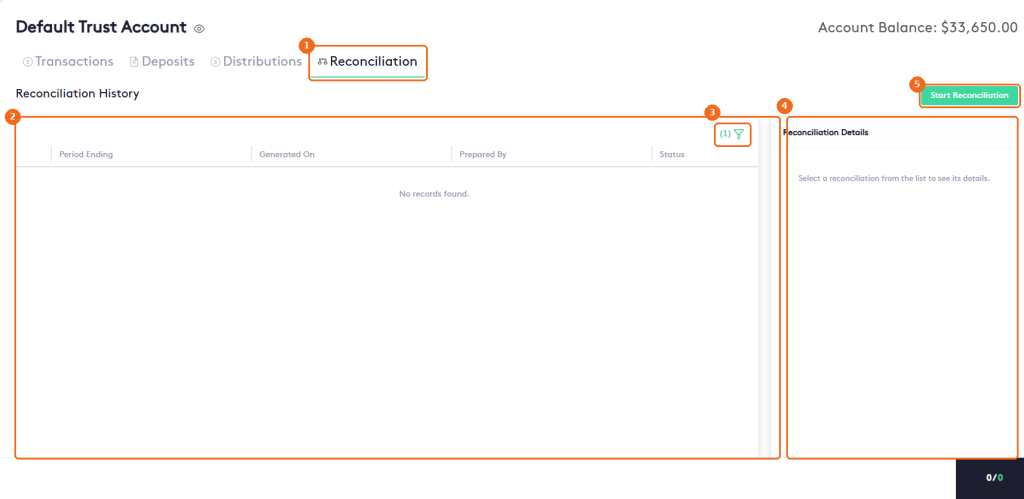
In the left menu, click Accounts and click the name of a trust account. Then:
- Click the Reconciliation tab.
- Reconciliation History lists the account’s reconciliations with their Period Ending, Generated On, Prepared By and Status.
- Use the filter button to filter the history. By default, the history is filtered by the current Year.
- Select a reconciliation in the list to see its Reconciliation Details.
- Click Start Reconciliation to start a new reconciliation.
Note. The Reconciliation tab is available on trust accounts only. Operating accounts don’t have it.
Start a reconciliation
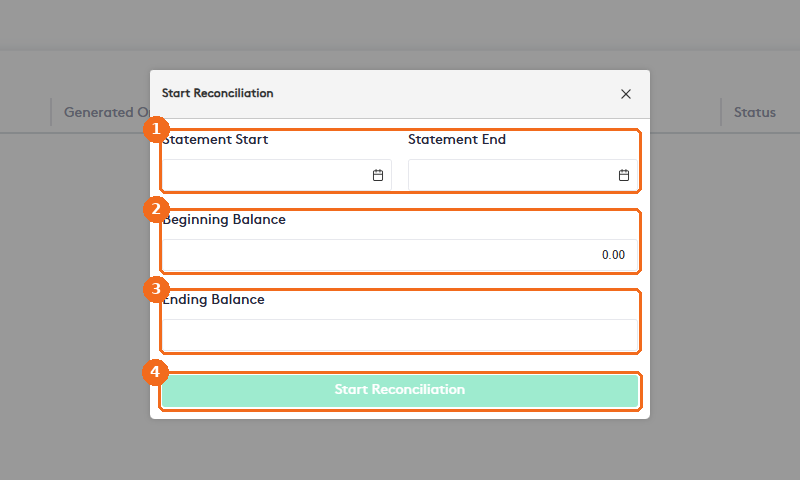
Have your bank statement for the period at hand. Click Start Reconciliation and, in the Start Reconciliation window:
- Select the Statement Start and Statement End dates of the bank statement.
- In Beginning Balance, enter the opening balance shown on the statement. For the first reconciliation of an account, it starts at 0.00.
- In Ending Balance, enter the closing balance shown on the statement.
- Click Start Reconciliation. The message Reconciliation started successfully. appears.
Clear the transactions
Maatdesk opens the reconciliation. Compare each transaction with your bank statement:
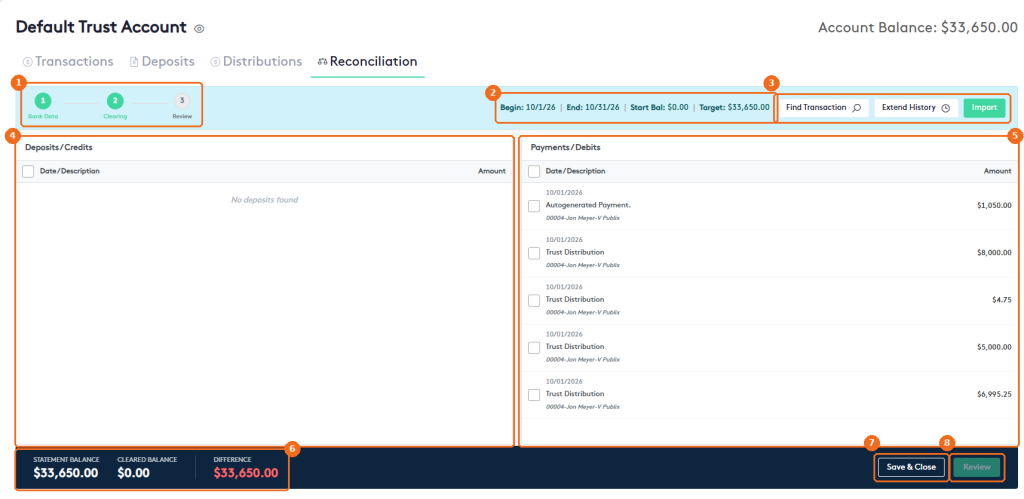
- The steps at the top show where you are: Bank Data, Clearing and Review.
- The summary shows the statement period (Begin and End), the starting balance (Start Bal) and the ending balance you entered (Target).
- Find Transaction opens a search bar: enter the Amount or the Ref/Check # and click Search. It searches all transactions that aren’t reconciled yet. Extend History opens Load Older Transactions: choose + 1 Month back, + 3 Months back, + 6 Months back or + 1 Year back. Import opens Import Transactions: click Choose File under Select Bank File, select a CSV, QBO, OFX or QFX file, and click Upload & Process.
- Deposits / Credits lists the money that came into the account during the period. Select the check box of each transaction that appears on your bank statement.
- Payments / Debits lists the money that went out. Select the check box of each transaction that appears on your bank statement. The check box in the header selects all transactions in the list.
- The bar at the bottom shows the Statement Balance, the Cleared Balance of the selected transactions and the Difference between them.
- Click Save & Close to save your progress and finish later.
- When the Difference is $0.00, click Review.
Note. Review stays grayed out until the Difference is $0.00. If you can’t get the difference to zero, check for transactions missing in Maatdesk or on the statement, and check the balances you entered.
Review and finish the reconciliation
The Review step shows Reconciliation Balanced! when the period is balanced and ready to be locked.
- Click Preview Report to open the reconciliation report as a PDF in a new tab.
- Select the check box I certify that I have reviewed the transactions and the bank statement.
- Click Finish & Lock Period. The message Reconciliation finished successfully. appears. To make changes first, click Back to Clearing.
Warning. Finish & Lock Period permanently locks the period. The transactions you selected become reconciled: in the Transactions tab, their orange P (pending) badge changes to R and their Cleared Date is set to the completion date.
The finished reconciliation appears in Reconciliation History with a green Balanced badge and the status Finalized. Click its download icon to get the report. Select it to see its Reconciliation Details, including Completed On. To undo it, click the arrow at the start of the row and click Revert. Start Reconciliation is available again for the next period.
Resume or discard a draft
A reconciliation you saved with Save & Close stays in Reconciliation History as a draft:
- The reconciliation appears with an orange Draft badge. Generated On shows In progress.
- Select it to see its Reconciliation Details: the Period, the Beginning Balance, the Ending Balance and the Balance Status, which is Unbalanced while the difference isn’t $0.00.
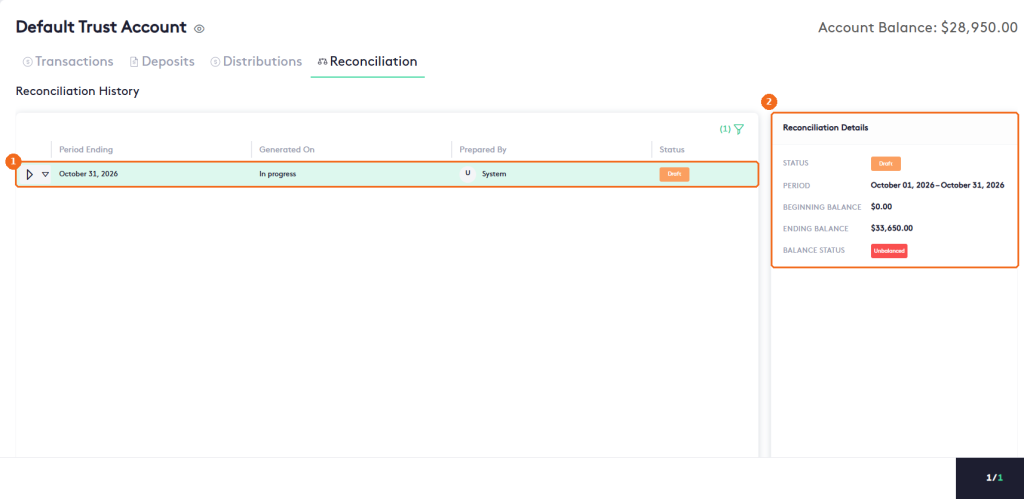
While a draft exists, Start Reconciliation isn’t available. To work on the draft or remove it:
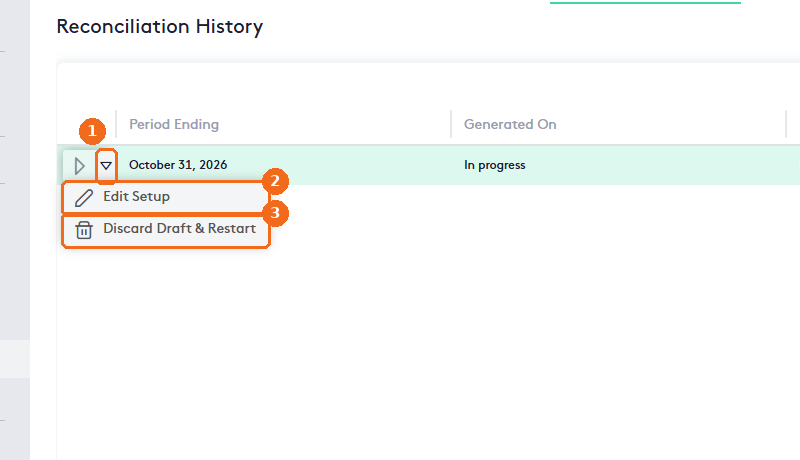
- Click the play button at the start of the reconciliation row to resume clearing. The transactions you selected are kept.
- Or click the arrow next to it to open the actions.
- Click Edit Setup to change the Statement Start, Statement End, Beginning Balance or Ending Balance, then click Save Changes.
- Click Discard Draft & Restart to delete the draft, then click Yes, Discard. This can’t be undone.