
The Activities module lists all the time entries, expenses and flat fees recorded in your firm, shows their totals, and lets you manage the categories you assign to them.
Table of contents
- The Activities tab
- Activity actions
- Quick Edit
- Resume the timer on a time entry
- The activity summary
- The Categories tab
The Activities tab
In the left menu, click Activities.
- The module has two tabs: Activities and Categories.
- Use Add Time, Add Expense and Add Flat Fee to record a new activity.
- Select Quick Edit to edit descriptions and amounts directly in the list, and Show full descriptions to show the description of every activity in a row below it.
- The filter button opens the filter panel, the columns button shows or hides columns, and the help button opens the help. The number next to the filter button shows how many filters are active.
- At the start of each row, the arrow shows or hides the description, the pencil edits the activity, and the arrow next to the pencil opens more actions.
- For time entries, the Duration column has a timer button you can use to keep tracking time on the entry (see Resume the timer on a time entry below).
- The summary at the bottom shows the totals of the activities in the list.
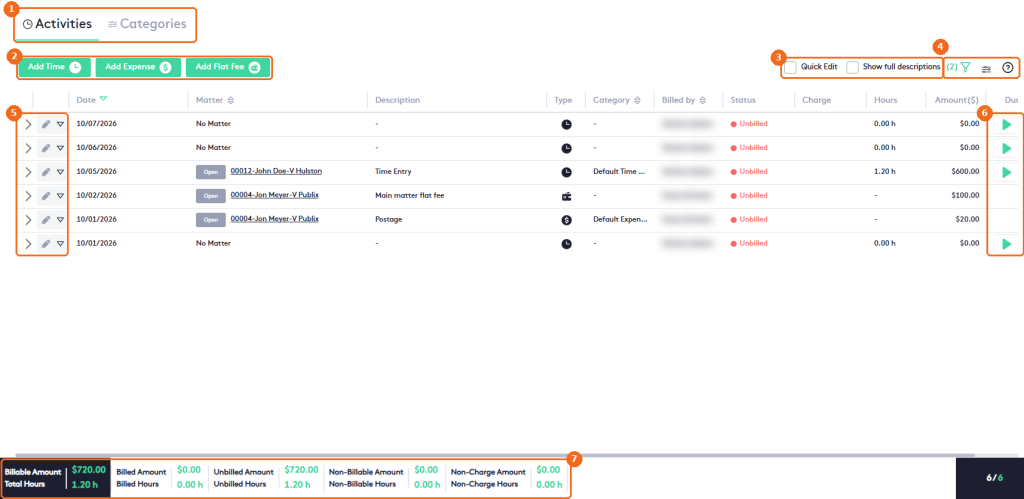
The list shows each activity’s Date, Matter (with the matter status and a link to the matter), Description, Type (an icon for time entry, expense or flat fee), Category, Billed by, Status (Unbilled, Billed or Non-Billable), Charge, Hours, Amount($) and Duration. Activities not linked to a matter show No Matter. Time entries created from a note show a Note label before the matter.
By default, the list shows the unbilled activities of the current month. Open the filter panel to change the Date range or filter by Matter, Type, Billed By, Status (All, Non-Billable, Billed or Unbilled) or Client Name. Click More for more filters and Clear to remove them. To learn more, read Filtering in Maatdesk.
Activity actions
- Click the arrow at the start of a row to show or hide the activity’s description.
- Click the pencil to edit the activity.
- Click the arrow next to the pencil to open the actions: Edit and Delete.
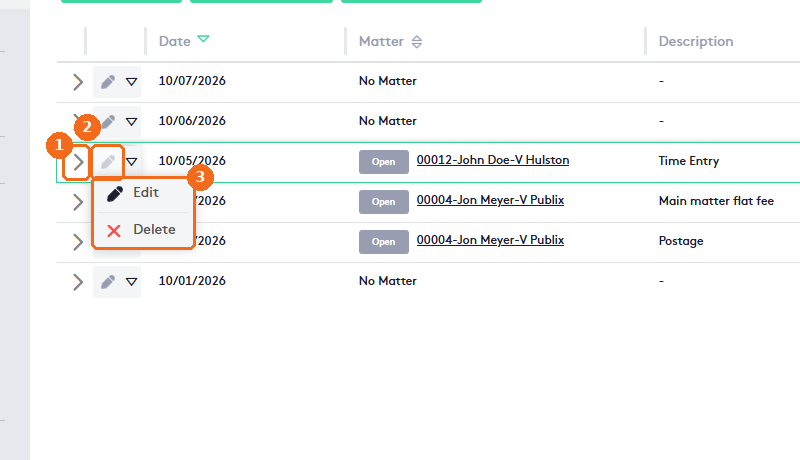
Note. Only Unbilled and Non-Billable activities can be edited or deleted from the list. On Billed activities, the pencil and the Edit and Delete actions are grayed out.
Quick Edit
- Select Quick Edit. Each activity that isn’t billed opens with its fields below it.
- Change the Description. For time entries, this is the only field you can change.
- Click Save on that activity.
- For expenses and flat fees, you can also change the Amount.
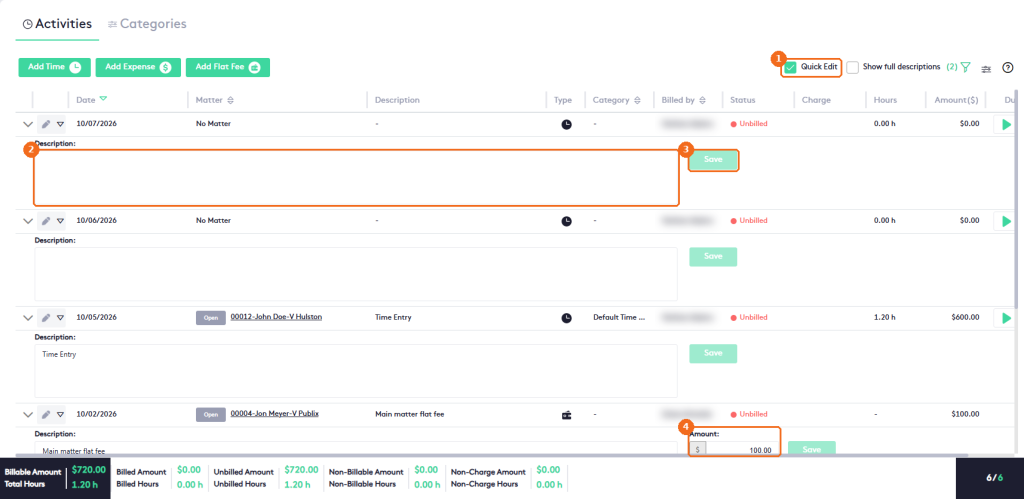
Billed activities show only their details (description and who created and last modified them), which you can’t change. Clear Quick Edit to return to the normal list.
Resume the timer on a time entry
- In the Duration column of a time entry, click the play button. The timer in the top bar starts from the entry’s current duration, and the row button turns into a red stop button.
- Click the stop button when you finish. The added time is saved on the entry and its Amount is updated.
Note. The play button is disabled on Billed time entries.
The activity summary
The summary at the bottom changes with the filters you apply:
| Total | What it includes |
|---|---|
| Billable Amount | Billed and unbilled amounts. |
| Total Hours | Billed, unbilled and non-billable hours. |
| Billed Amount / Billed Hours | Activities already billed. Non-charge activities count as $0.00 but their hours are included. |
| Unbilled Amount / Unbilled Hours | Activities not billed yet. Non-charge activities count as $0.00 but their hours are included. |
| Non-Billable Amount / Non-Billable Hours | Non-billable activities linked to matters and activities with No Matter. Activities with No Matter count as $0.00. |
| Non-Charge Amount / Non-Charge Hours | Billable activities marked as non-charge, billed or unbilled. |
Note. A non-charge activity appears on reports and invoices with its dollar value, to show how much the firm is giving the client, but counts as $0.00 in the totals. Its time still counts, for tracking. Check the Charge column to find non-charge activities.
The Categories tab
Categories help you classify your activities. Click the Categories tab:
- The Categories tab.
- The categories are grouped by type of activity: Time Entry, Expense and Flat Fee.
- Add Category creates a category for the selected type.
- The filter button searches the categories, and the help button opens the help.
- At the start of each row, the pencil opens the category’s edit panel (for example, Edit Flat Fee Category, with Name, Amount and Permissions), and the arrow opens the Edit and Delete actions. When you delete a category, the Delete Activity Category dialog asks you to confirm: click Yes to delete it or No to cancel.
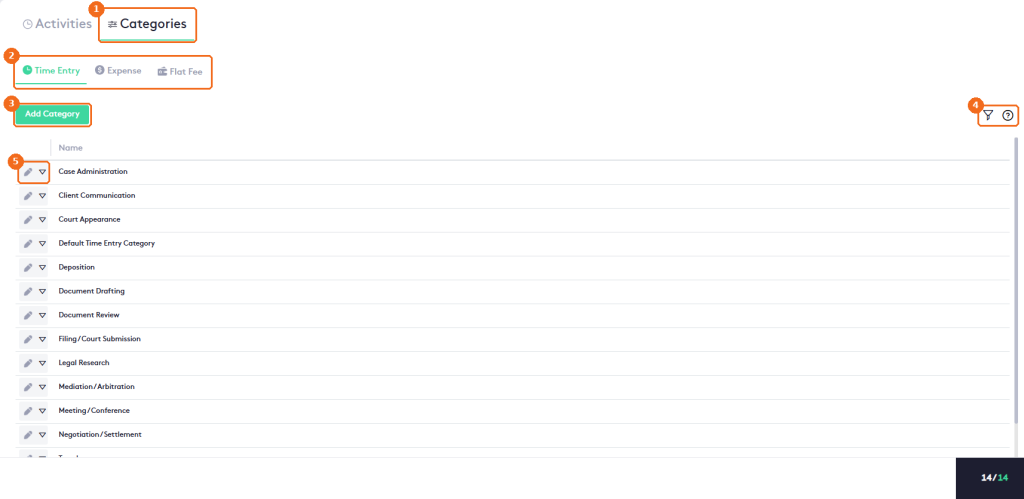
To learn how to manage categories, read How to work with Activity categories.