
A flat fee entry charges a fixed amount for a service, such as a consultation or a document, regardless of the time spent, so you can bill it to the client.
Table of contents
Add a flat fee
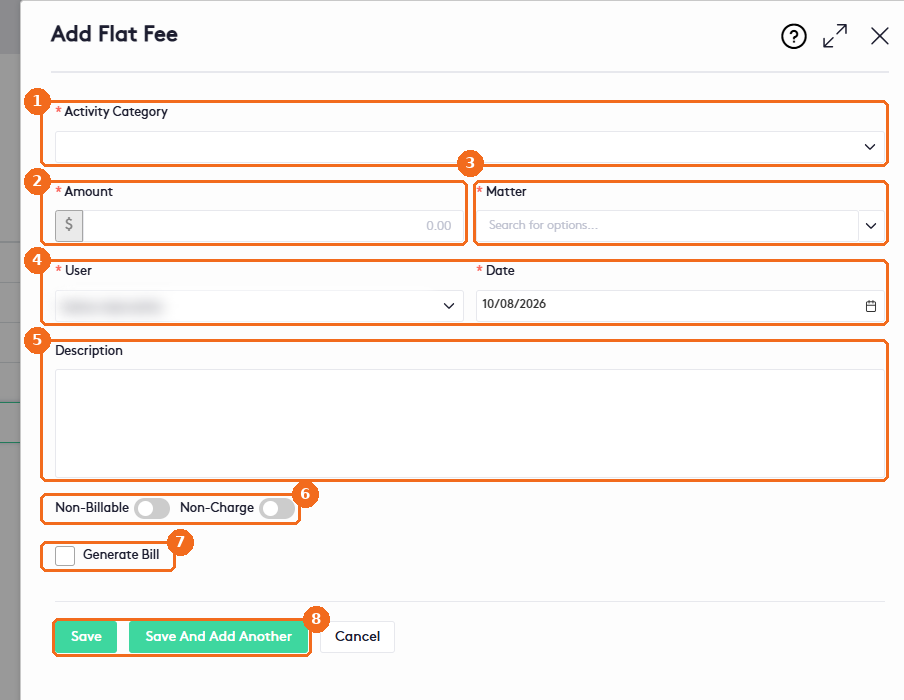
To open the Add Flat Fee panel, click Add Flat Fee in the Activities module or in the Activities tab of a matter dashboard. You can also click the arrow at the end of a matter row in the Matters list and click Add Flat Fee, click + next to Flat Fees in the UnBilled Balances section of a matter dashboard, or add one while you create or edit a quick bill.
- Select the Activity Category (required). If the category has an amount, Maatdesk fills in the Amount. If the category you need isn’t listed, create it first.
- Check the Amount (required) and change it if needed.
- Select the Matter (required). When you add the flat fee from a matter, the matter is already selected and can’t be changed. After you select the matter, Matter Participant appears.
- Check the User who bills the flat fee and the Date (today by default).
- In Description, enter a short note about the flat fee.
- Turn on Non-Billable if the flat fee won’t be billed. It’s on by default when the matter isn’t billable, such as a Pro Bono matter. Turn on Non-Charge to show the flat fee on the invoice without charging the client. When Non-Billable is on, Non-Charge and Generate Bill are hidden.
- Select Generate Bill to create a bill for the flat fee when you save it. The options are the same as for expenses: read Getting started with Expenses.
- Click Save, or click Save And Add Another to save and start a new flat fee.
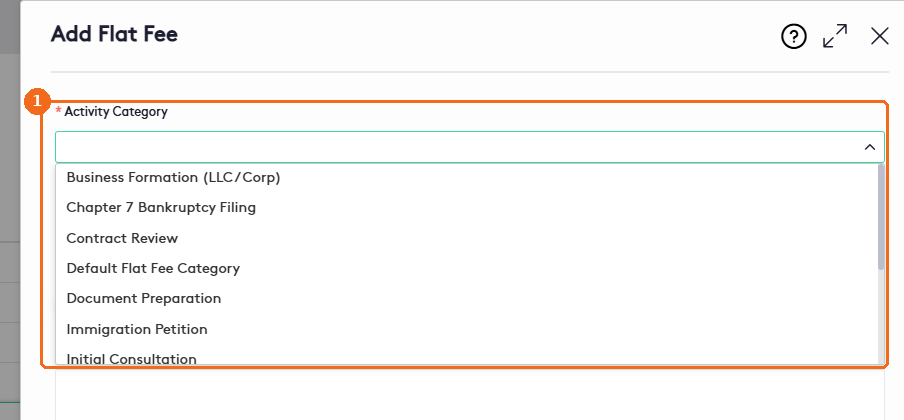
The Activity Category list shows the flat fee categories of your firm. To add one, read How to work with Activity categories.
The flat fee is saved with the status Unbilled, or Non-Billable if you turned that option on, and the matter’s flat fee balance is updated.
Note. Maatdesk also creates a flat fee automatically when you create or edit a matter whose billing method is Flat Fee (in Billing Preferences you enter the Fee Recipient and Amount). This flat fee has no Activity Category. To edit it, select a category first: otherwise Save shows Category is required.
Add a flat fee from a quick bill
When you add a flat fee while creating or editing a quick bill, enter the Amount yourself: you can’t select an activity category or mark the flat fee as Non-Charge. The flat fee is saved when you save the bill, with the status Billed, and you can change it only by editing the bill while it’s a draft.
Edit or delete a flat fee
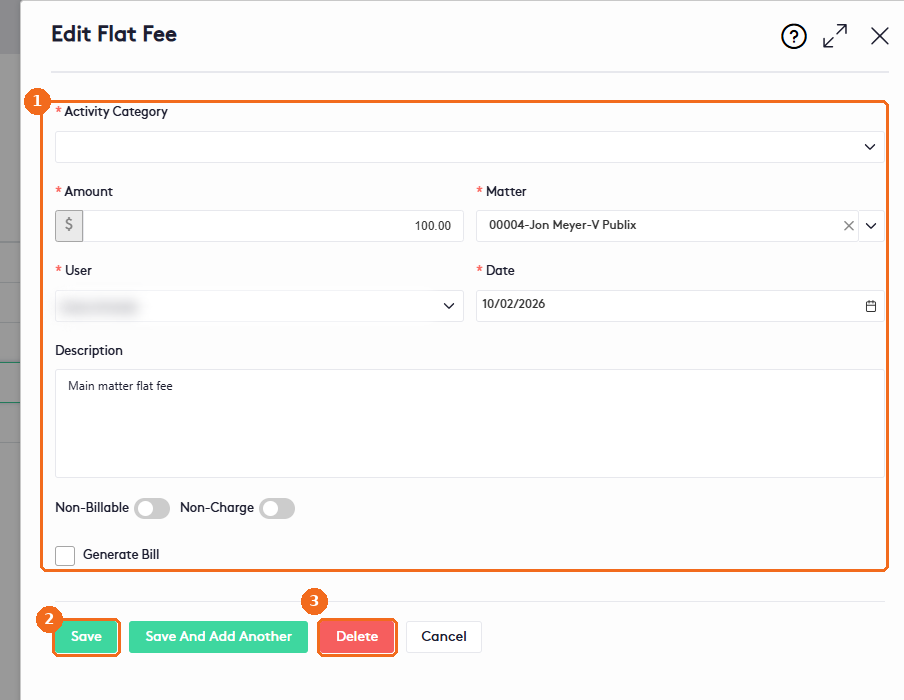
- In the Activities module or the Activities tab of a matter dashboard, click the pencil at the start of the flat fee row, or click the arrow next to it and click Edit. In the Edit Flat Fee panel, change the fields as needed. If you change the Activity Category, the Amount changes too, and you can overwrite it.
- Click Save.
- To delete the flat fee, click the red Delete button. In Delete Flat Fee (Are you sure that you want to delete this Flat Fee?), click Yes. You can also delete it from the actions menu of the flat fee row.
Note. You can edit or delete only Unbilled and Non-Billable flat fees of matters that aren’t closed. On billed flat fees, the pencil, Edit and Delete are disabled. On a closed matter, saving shows The matter status is closed, you cannot edit this flat Fee. To change a billed flat fee, edit the draft bill that contains it. Removing a flat fee from a quick bill doesn’t delete it: it becomes available for another bill.