
The Billing module is where you create, find and follow up on the bills (invoices) of your firm. It has three tabs: Billing, Billable Clients and Monthly/Retainer Fee.
To open it, click Billing in the left menu.
Table of contents
Billing tab
The Billing tab lists the bills of your firm.
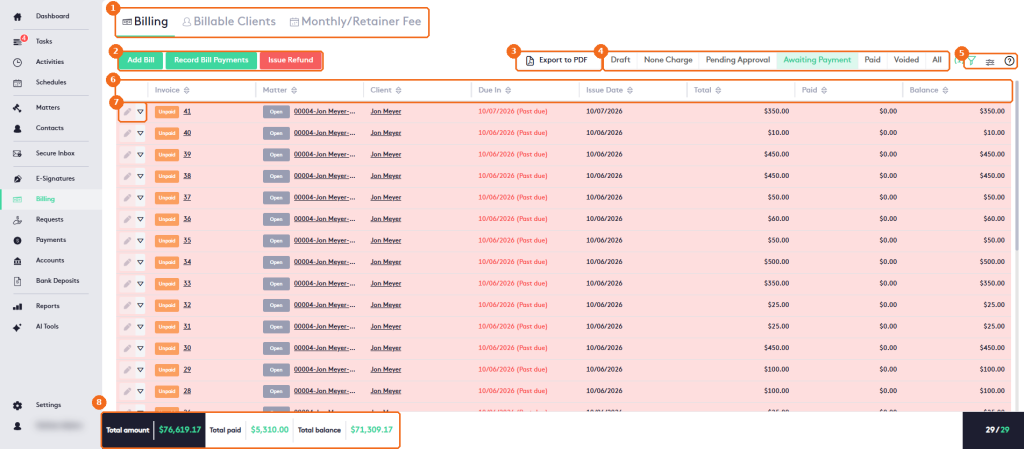
- The module tabs: Billing, Billable Clients and Monthly/Retainer Fee.
- Add Bill creates a quick bill, Record Bill Payments records payments for one or more bills and Issue Refund refunds a payment.
- Export to PDF exports the list of bills with the current filters. The message Generating PDF… appears, and the PDF opens in a new browser tab.
- The status filters: Draft, None Charge, Pending Approval, Awaiting Payment (selected by default), Paid, Voided and All.
- The filter panel, the column selector and help.
- The table columns: Invoice, Matter, Client, Due In, Issue Date, Total, Paid and Balance. Click a column header to sort the list.
- The edit button and the actions arrow of each bill.
- The summary of the listed bills: Total amount, Total paid and Total balance, plus the number of bills.
In the Invoice column, the badge shows the payment state of the bill (for example Unpaid, Paid or Void) and the underlined number opens the Billing Details window. A green P. Plan badge next to the number means the bill has a payment plan. The Matter and Client links open the matter and contact dashboards. Due In shows the due date and, when it has passed, (Past due).
Bill actions
Click the arrow next to the edit button of a bill to see its actions.
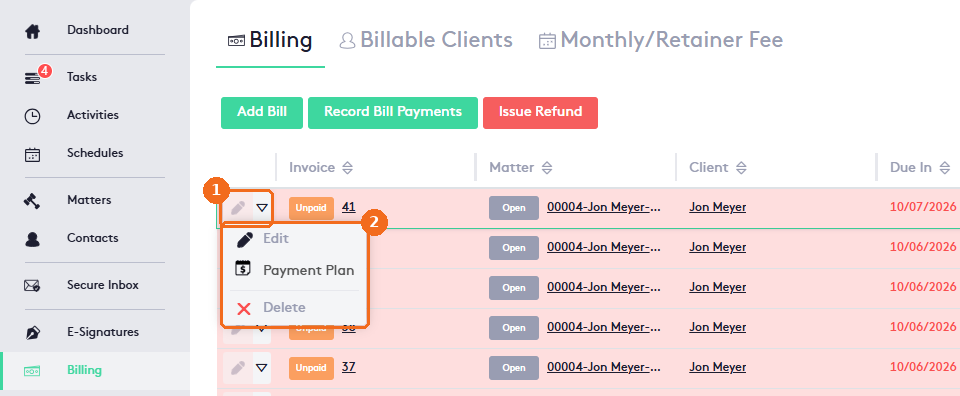
- The edit button and the actions arrow.
- The actions: Edit, Payment Plan and Delete. The actions that don’t apply to the status of the bill are disabled. See Invoice statuses Overview.
Record payments and issue refunds
Record Bill Payments opens a panel where you select the Client, the Source and the Destination account (all required), and enter the Payment Date and a Reference. The Invoices box shows the client’s Total Balance Owed and the open bills. Enter the Amount To Record and click Allocate to spread it across the bills, or enter the Payment of each bill. Click Save payment.
Issue Refund works the same way: select the Client, the Account and the Refund Method (all required), and enter the Date and a Reference. The Invoices box shows the Refundable amount. Enter the Amount To Refund and click Allocate, or enter the Refund of each bill. Add a Description if needed and click Refund.
Billable Clients tab
The Billable Clients tab lists the clients with unbilled activities. A client becomes billable when you save a time entry, expense or flat fee without generating its bill, or when a bill with its activities is voided.
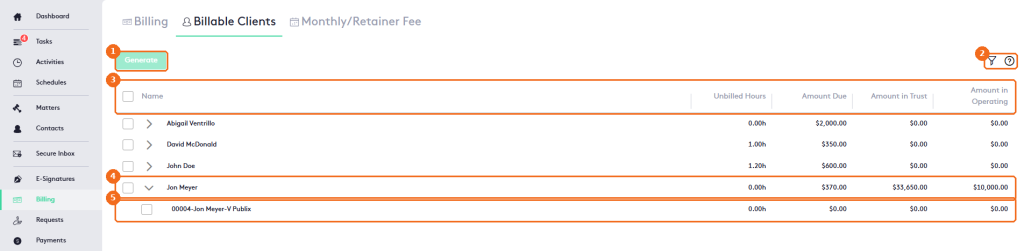
- Generate creates the bills of the selected clients or matters. It’s enabled when at least one is selected.
- The filter panel and help.
- The table columns: Name, Unbilled Hours, Amount Due, Amount in Trust and Amount in Operating.
- A client row. Click the arrow to show its matters. Selecting a client selects all its matters.
- A matter row of the client.
See Generating Bills for Billable Clients.
Monthly/Retainer Fee tab
The Monthly/Retainer Fee tab lists the matters with the Monthly/Retainer Fee billing method that are ready for their next bill, with the Amount Due of each one.
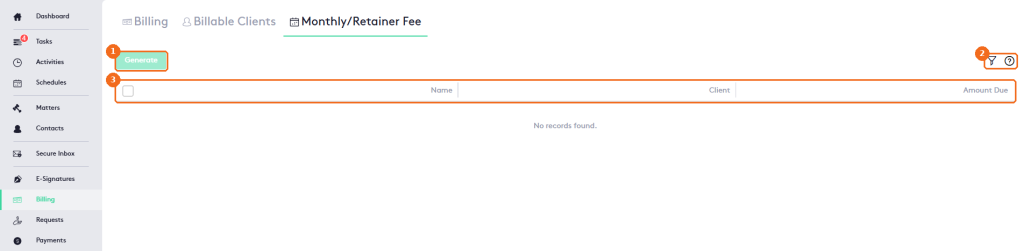
- Generate creates the bills of the selected matters.
- The filter panel and help.
- The table columns: Name (matter), Client and Amount Due.
See Generating Bills for Monthly/Retainer Fee matters.