
The Billable Clients tab lists the clients with unbilled activities. From there you can generate the bills of one or more clients, or of specific matters, in one step.
Select the clients or matters
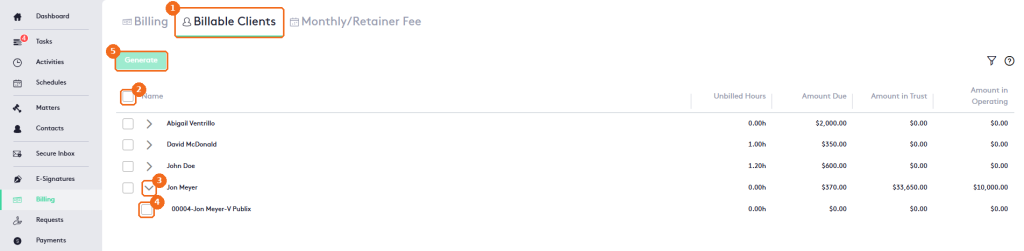
- Go to Billing > Billable Clients.
- To bill all clients, select the checkbox in the header.
- To bill only some matters of a client, click the arrow next to the client to show its matters.
- Select the matters to bill. Selecting a client selects all its matters.
- Click Generate. It’s enabled when at least one client or matter is selected.
The table shows the Unbilled Hours, Amount Due, Amount in Trust and Amount in Operating of each client and matter.
Generate the bills
The Generate Bills panel opens. Its settings apply to all the bills you generate.
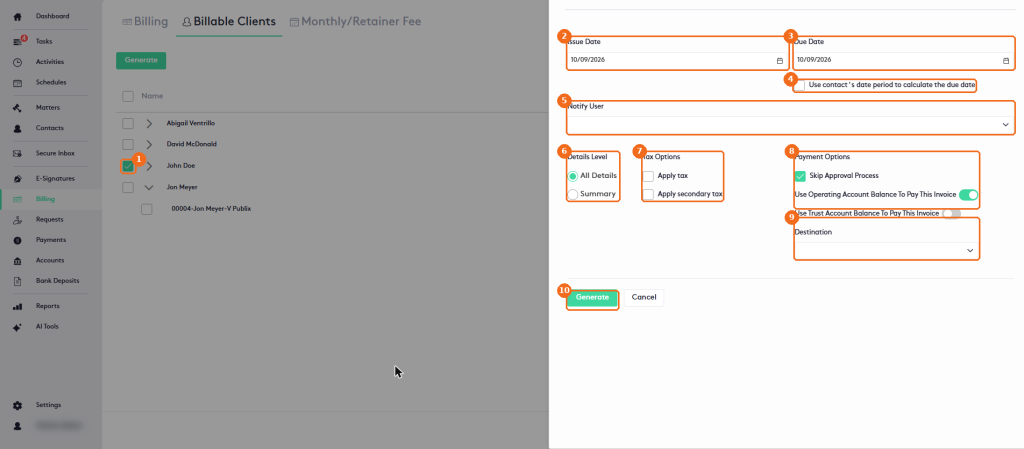
- The selected client.
- Check the Issue Date (today by default).
- Check the Due Date.
- Or select Use contact’s date period to calculate the due date to use the payment period of each client.
- In Notify User, select the firm users to notify. Each user is listed with their email address.
- Choose the Details Level: All Details or Summary.
- Under Tax Options, select Apply tax and/or Apply secondary tax.
- Under Payment Options, keep Skip Approval Process selected to approve the bills right away (clear it to create them as drafts, which can’t be paid). Turn on Use Operating Account Balance To Pay This Invoice and/or Use Trust Account Balance To Pay This Invoice to pay the bills with the client’s balances.
- Select the Destination account.
- Click Generate.
The new bills appear in the Billing tab. A client that has no unbilled activities left no longer appears in the Billable Clients list.
Note. A client appears in Billable Clients when you save an activity without generating its bill, or when a bill with its activities is voided.