
A credit note reduces the amount a client owes on a bill, for example to give a discount or correct a mistake, without editing the bill.
Table of contents
Create a credit note
You can create credit notes only for Approved bills.
Open the bill: click its underlined number in the Billing tab.
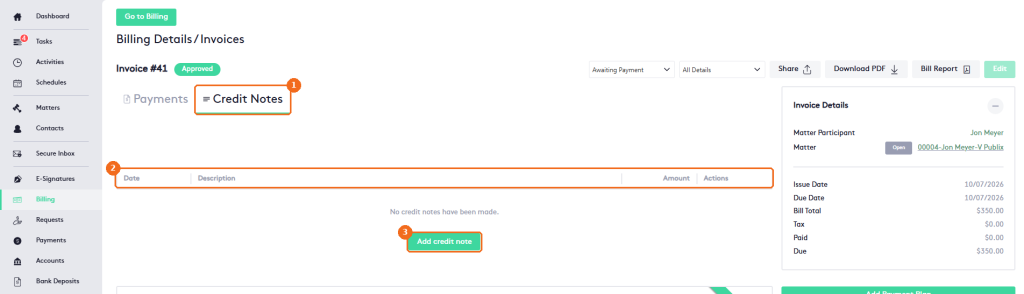
- Click the Credit Notes tab.
- The credit notes of the bill: Date, Description, Amount and Actions.
- Click Add credit note.
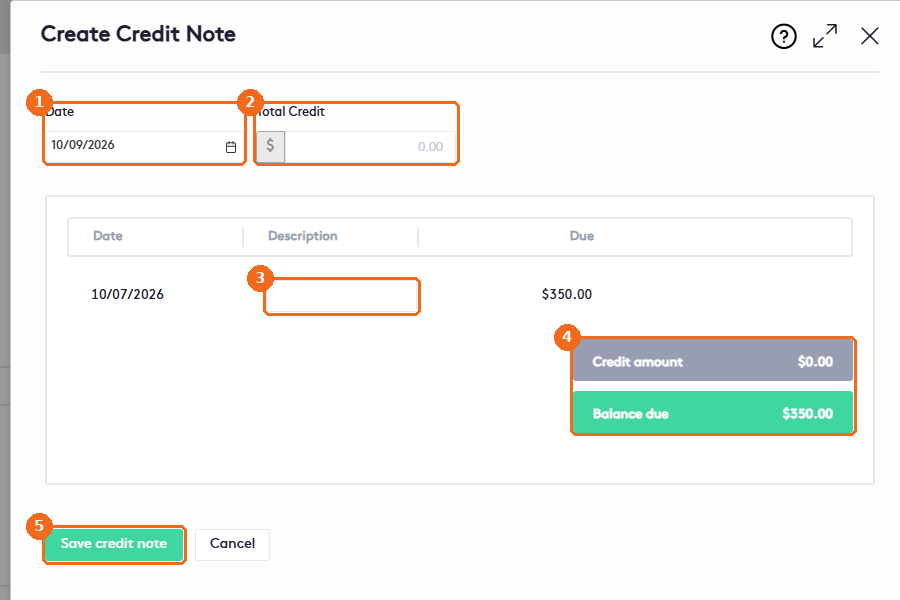
- Check the Date (today by default).
- Enter the Total Credit. If it’s greater than the amount due, Maatdesk changes it to the amount due when you leave the field.
- Enter a Description.
- In the table of bill items (Date, Description, Due), check the Credit amount and the new Balance due.
- Click Save credit note. The message Credit Note created successfully. appears.
For example, a credit note of $100 on a bill of $500 leaves a balance due of $400.
Note. When a credit note covers the full amount due, the bill’s status changes to Paid and its amount due becomes $0.00.
Edit a credit note
You can edit credit notes of Approved or Paid bills.
- In the Credit Notes tab, click the pencil icon of the credit note.
- Make your changes in the Edit Credit Note panel. It has the same fields as when you create a credit note.
- Click Save credit note.
Delete a credit note
You can delete credit notes of Approved or Paid bills.
- In the Credit Notes tab, click the red X of the credit note.
- In Delete credit note., click Yes to confirm.