
The Contact dashboard brings together everything about one contact: their details, matters, transactions, notes, bills, requests, payments, activity feed and documents.
To open it, click the underlined name of a contact, for example in the Contacts list.
General tab
The General tab opens first and summarizes the contact.
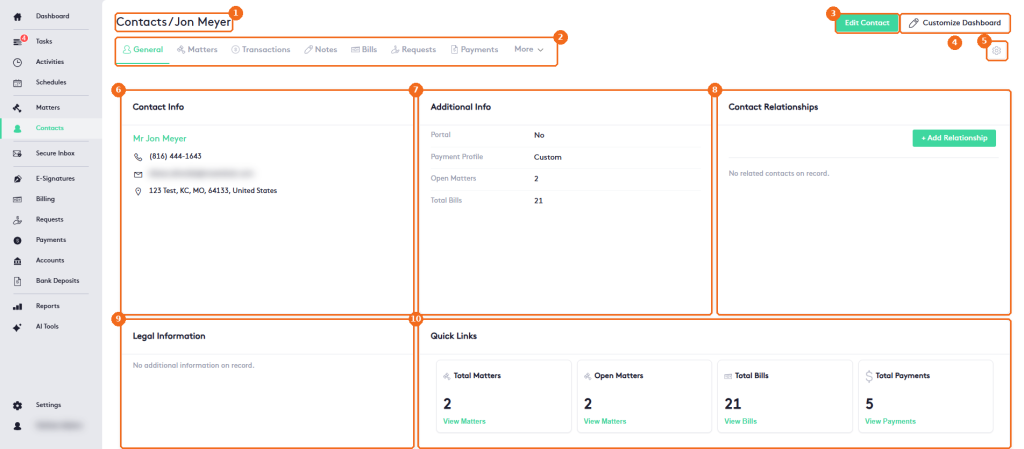
- The breadcrumb shows the contact you are viewing.
- The tabs: General, Matters, Transactions, Notes, Bills, Requests and Payments. More opens Feed and Documents.
- Edit Contact opens the contact form. See Getting started with Contacts.
- Customize Dashboard lets you move and resize the cards of the General tab. Click Done Editing to keep the changes or Cancel to discard them.
- The settings (gear) button opens Customize Contact Navigation, where you choose and reorder the tabs. Drag the tabs under Pinned Tabs (visible) (up to 12) to reorder them, use the pin icons to move tabs to or from the More menu, and click Save. General is always first. Reset to Default restores the original tabs.
- Contact Info: name, phone, email and address.
- Additional Info: Client Portal access (Yes or No), payment profile, open matters and total bills.
- Contact Relationships: the contacts related to this one. Click View Network to see the relationships or + Add Relationship to add one. See Managing Contact Relationships.
- Legal Information: the legal details of a person, entered in Edit Person Legal Information: Date Of Birth, SSN Last 4, Driver License Number, Driver License State and Preferred Language. When nothing is entered, the card shows No additional information on record.
- Quick Links: Total Matters, Open Matters, Total Bills and Total Payments, each with a View link to the list.
Other tabs
The other tabs show the records of the contact and work like the matching modules.
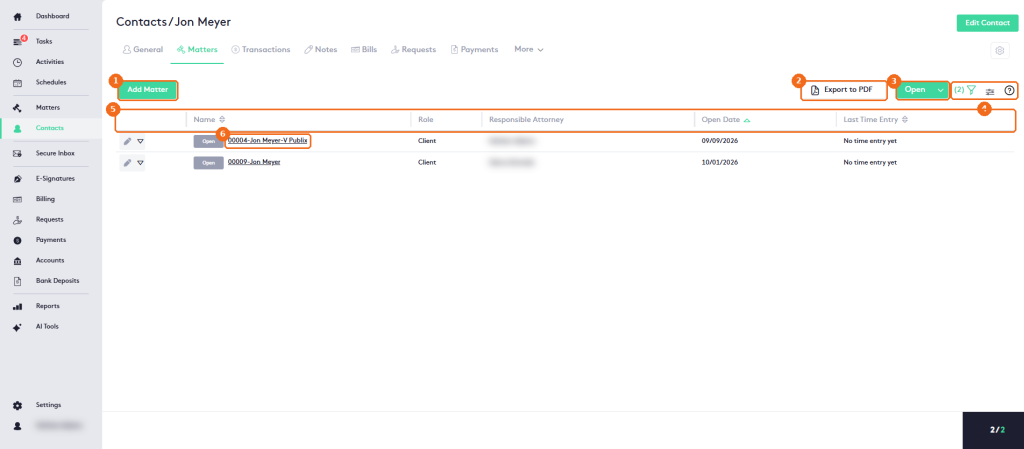
- Add Matter creates a matter for the contact.
- Export to PDF exports the list.
- The status filter (Open by default).
- The filter panel, the column selector and help.
- The columns: Name, Role, Responsible Attorney, Open Date and Last Time Entry.
- The matter name opens the matter dashboard.
| Tab | What it shows |
|---|---|
| Matters | The matters of the contact. Add, edit or delete matters, add activities and create quick bills. |
| Transactions | The account transactions of the contact. Select the Account and the From/To dates, and use Transfer Funds or New Transaction. The list shows funds in, funds out and the running balance, with totals. See How to work with Transactions, Transfers and Disbursements. |
| Notes | The notes of the contact. See How to work with Notes. |
| Bills | The bills of the contact, with the same buttons and status filters as the Billing module: Add Bill, Record Bill Payments, Issue Refund and Export to PDF. Columns: Invoice, Matter, Due In, Issue Date, Total, Paid and Balance. See Billing module Overview. |
| Requests | The funding requests made to the contact, with status filters and the Add Request, Record Request Payments and Issue Refund buttons. Columns: Request, Matter, To, Issue Date, Approved By, Due Date, Total, Paid and Balance. See Getting started with Requests. |
| Payments | Payments and refunds of the contact. Filter by Payment, Refund or All and by Bills or Requests, or use Record Bill Payments and Record Request Payments. Columns: Date, Source, Destination Account, Amount and Total Charged. |
| Feed (under More) | Dated entries of the activity on the contact and its related records, such as signatures and updated files. |
| Documents (under More) | The folders and documents of the contact. Use Create to add a folder or a standard or signature document, and Generate to generate a standard or signature document. Columns: Name, Signature Status, Description, Owner, Category and Date Received. See Document Management. |