
Notes keep track of calls, meetings and other information about a contact or a matter. You can add, edit and delete them from the Notes tab of a contact or matter dashboard.
Table of contents
Open the Notes tab
In a Contact dashboard, click the Notes tab. In a Matter dashboard, click More > Notes.
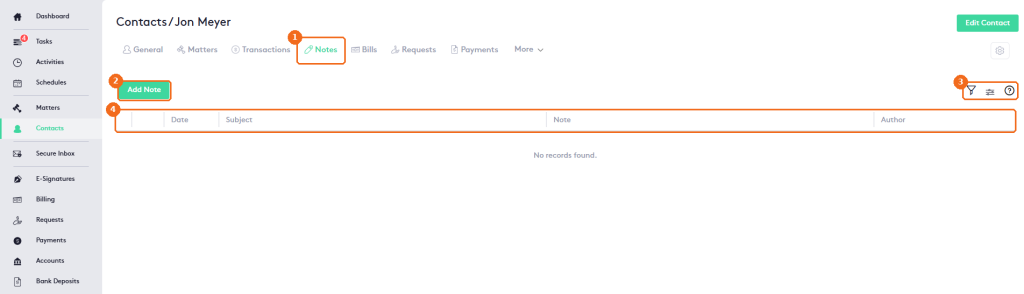
- The Notes tab.
- Add Note creates a note.
- The filter panel, the column selector and help.
- The columns: Date, Subject, Note and Author.
Add a note
In the Notes tab, click Add Note.
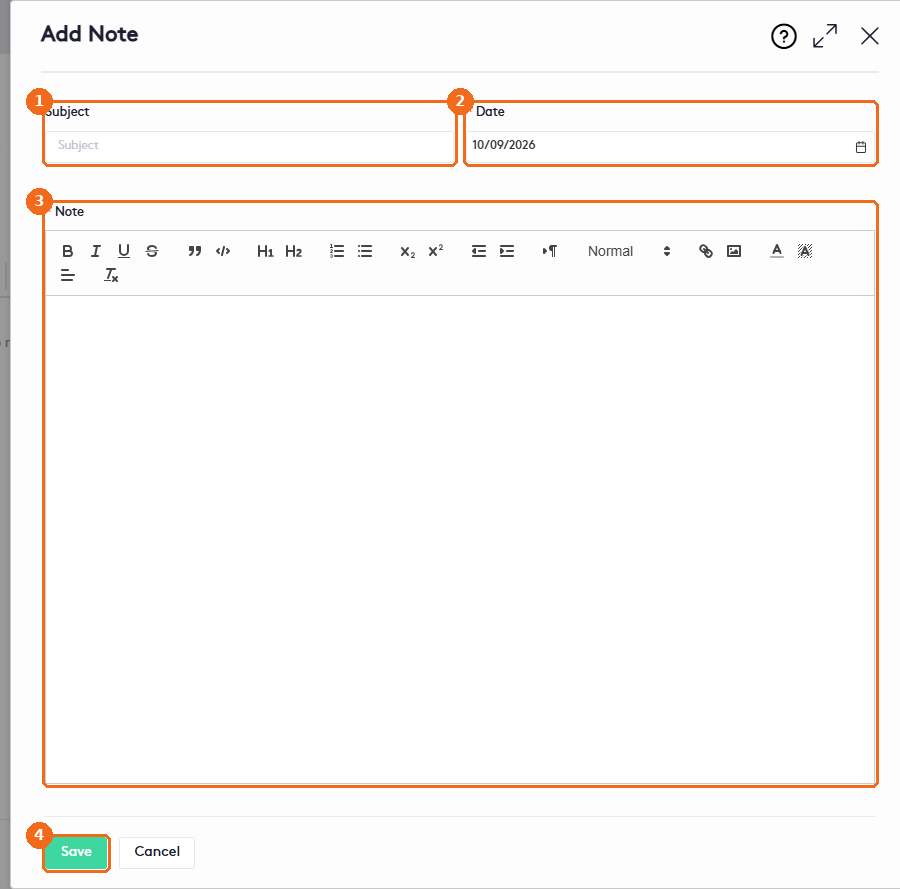
- Enter a Subject that tells what the note is about.
- Check the Date (required, today by default).
- Write the Note (required). Use the toolbar to format the text, add links or images.
- Click Save.
Notes of a matter
In a matter, the Add Note panel also has a Matter Participant field, where you search for and select a participant of the matter, and one more button.
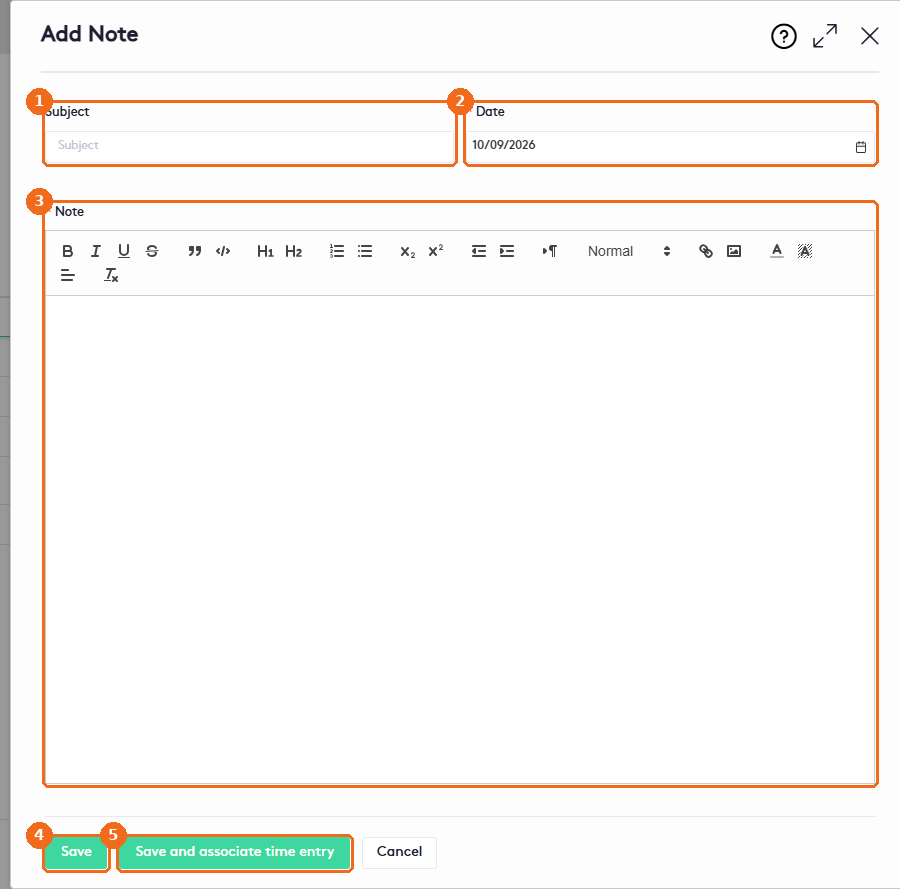
- Subject.
- Date.
- Note.
- Save.
- Save and associate time entry saves the note and opens Add Time Entry with the matter already filled in, so you can record the time you spent. For a closed matter, the panel shows only Save and Cancel.
Read a note
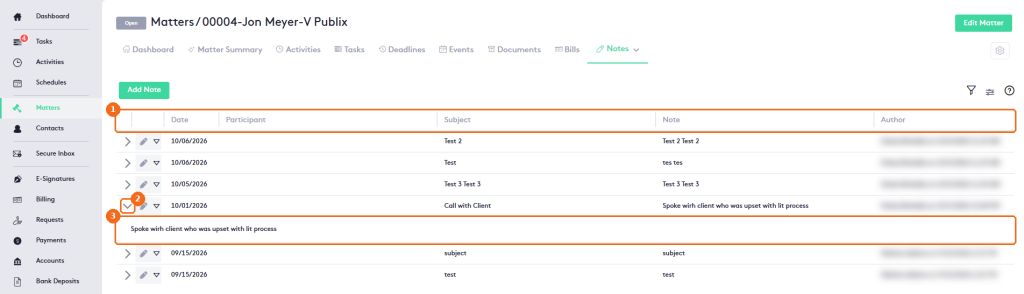
- The notes of a matter also show the Participant selected in Matter Participant. A clock icon marks notes that have an associated time entry.
- Click the arrow at the start of a row to expand the note.
- The full text of the note.
Edit or delete a note
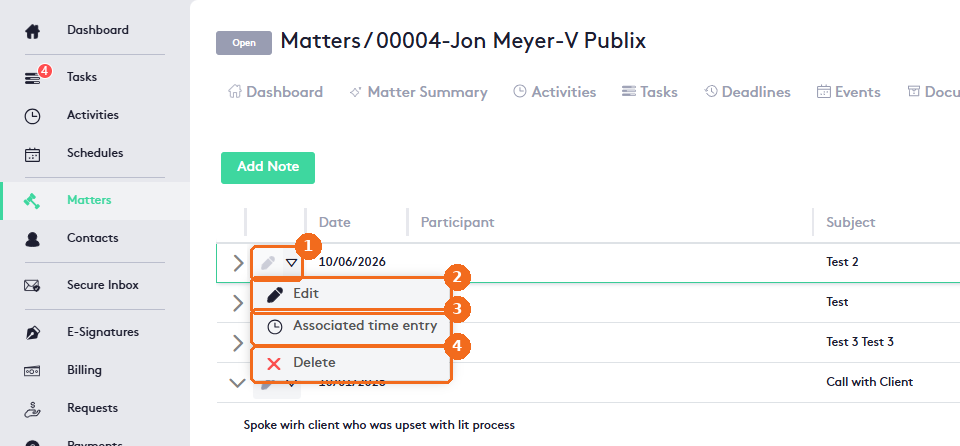
- Click the edit button of the note, or click the actions arrow.
- Edit opens Edit Note with Subject, Date and Note. Make your changes and click Save, or Save and associate time entry.
- Associated time entry opens the time entry linked to the note. If the note has none, it opens Add Time Entry with the matter filled in and locked. On a pro bono matter, the new time entry is Non-Billable.
- Delete opens Delete note, which asks Are you sure that you want to delete the Note followed by the note subject. Click Yes to confirm.
Note. You can’t delete a note that has an associated time entry. Delete stays available in the menu, but when you click Yes, Maatdesk shows a message that the note can’t be deleted because it has a time entry associated. Delete the time entry first.