
Contact relationships link a contact to other contacts, such as a spouse, an employer or a company the person represents, so you can see who is connected to whom.
You can add relationships while you create or edit a contact, or from the Contact Relationships card of the Contact dashboard. The list of relationships comes from your relation types. See Managing Relation Types.
Table of contents
- Add a relationship from the dashboard
- Add a relationship in the contact form
- Edit or delete a relationship
Add a relationship from the dashboard
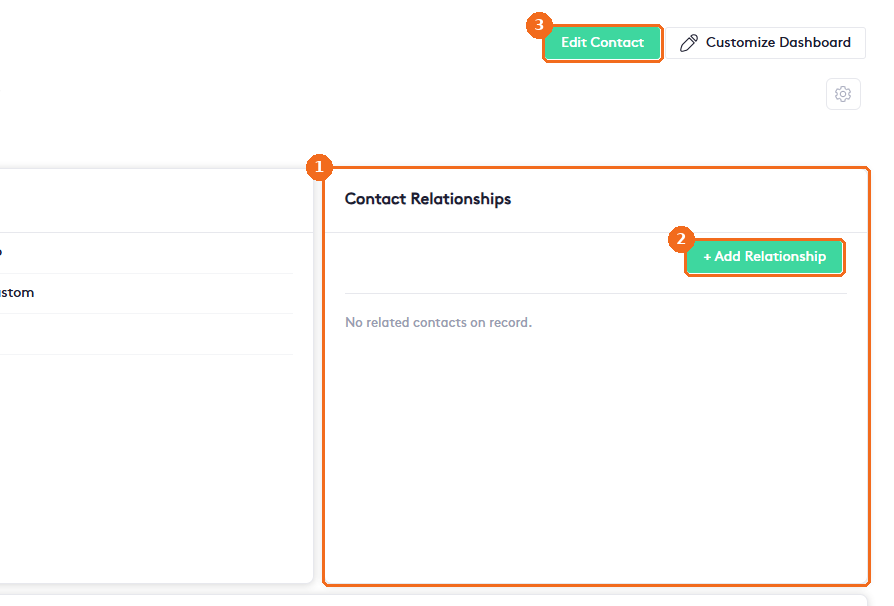
- Open the contact and, in the General tab, find the Contact Relationships card.
- Click + Add Relationship.
- You can also click Edit Contact and use the Related Contacts section of the form.
The Add Related Contact panel opens.
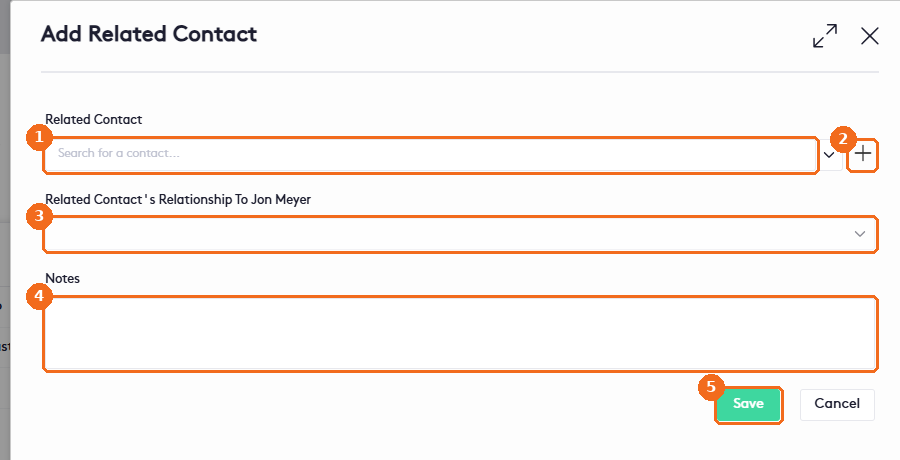
- Search for the Related Contact.
- Or click + to create a new contact. The Add Contact panel opens with the Person and Company tabs.
- In Related Contact’s Relationship To (followed by the name of the contact you are viewing), select the relationship.
- Add Notes, if needed.
- Click Save.
Add a relationship in the contact form
In the Add Person, Add Company or edit form, click Add Related Contact.
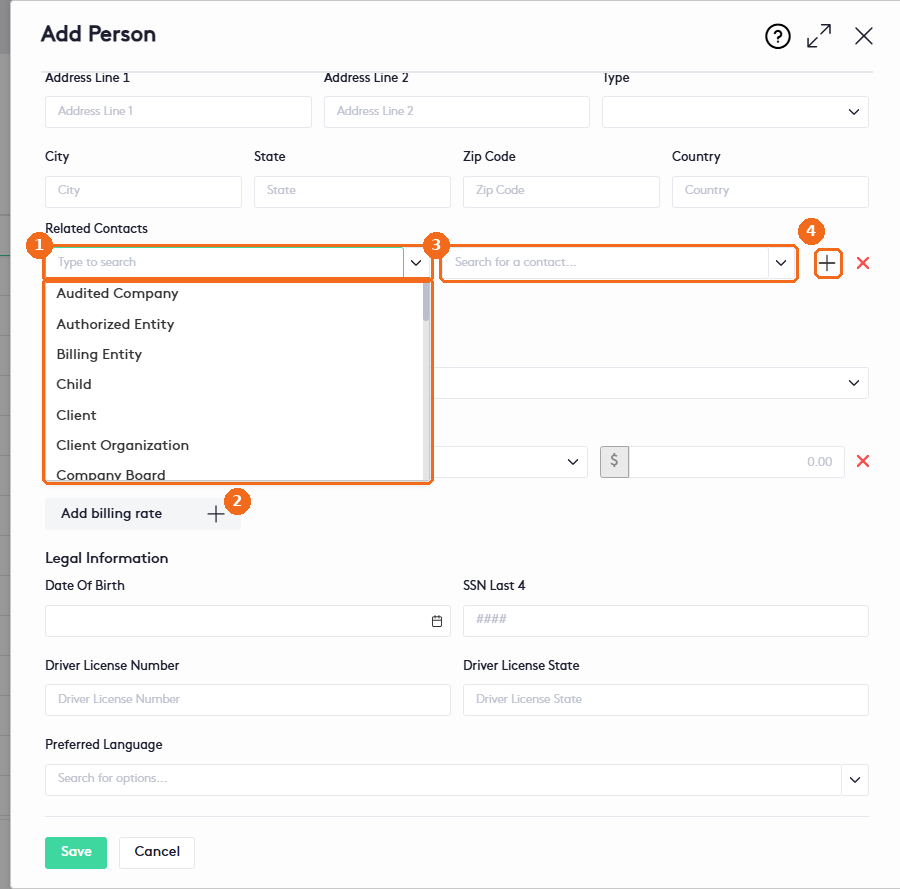
- Select the relationship type.
- The list includes types such as Child, Client, Employer, Emergency Contact, Parent, Spouse and many more.
- Search for the related contact.
- Or click + to create a new contact.
Click Add Related Contact again to add more relationships, and click × to remove one. Then save the contact.
Note. Maatdesk adds the reverse relationship to the other contact automatically. For example, if you add a contact as Child, that contact’s Contact Relationships card lists your contact as Parent.
Edit or delete a relationship
The Contact Relationships card lists each relationship with its Contact Name, Contact Type and Relationship. The card also has a View Network button.
- To edit a relationship, click its pencil under Actions, make your changes and click Save.
- To delete a relationship, click the arrow next to the pencil and select Delete.