
Record a payment when a client pays one or more bills or requests. Payments can be recorded only for Approved invoices.
Table of contents
Where to record payments
- Payments module: Record Bill Payments or Record Request Payments.
- Billing module and the Bills or Payments tab of a matter or contact: Record Bill Payments.
- Requests module: Record Request Payments.
- The Billing Details window of an Approved bill: click Record new payment to open the Record Bill Payment panel with the client already selected. You can also record a payment from the Request Details window.
Record bill payments
Click Record Bill Payments. The Record Bill Payments panel opens.
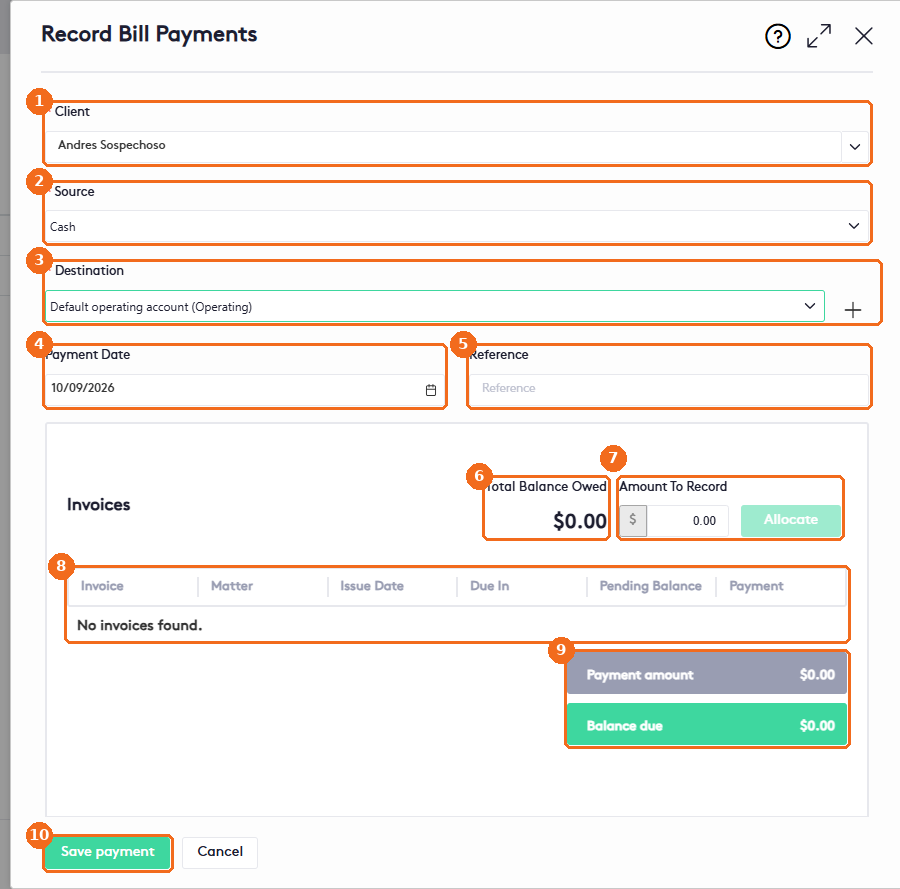
- Select the Client who pays (required). When you start from a matter, contact or bill, the client is already selected.
- Select the Source (required): a bank account balance the client has on a matter, or the payment method the client used. See Payment sources below.
- Select the Destination: the bank account that receives the money (required). Click + to add an account.
- Check the Payment Date. It defaults to today; change it to the date the client paid.
- Enter a Reference, for example a check number (optional).
- Total Balance Owed shows what the client owes on the listed invoices.
- Enter the Amount To Record and click Allocate to spread it across the invoices.
- The client’s open invoices: Invoice, Matter, Issue Date, Due In, Pending Balance and Payment. You can also type the amount for each invoice in the Payment column.
- Payment amount and Balance due update as you enter amounts.
- Add a Description if needed and click Save payment.
If the invoices have a payment plan, its status updates automatically. See Managing Payment Plans.
Note. If the Amount To Record is more than the client owes, click Allocate and a Deposit … into section appears for the extra amount, with the message “You have $X left to allocate. You must allocate all payment funds.” Click Add account to choose where to deposit the rest. You can’t save until all the funds are allocated.
Payment sources
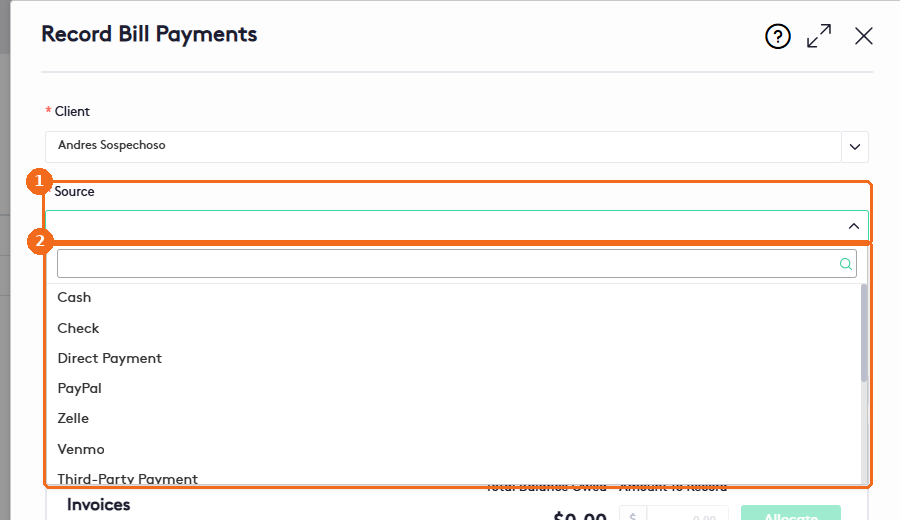
- Click the Source field.
- The list starts with the client’s matter bank balances, each with the account type, the available amount and the matter. Select one to pay with those funds. Below them, select the payment method, for example Cash, Check, Direct Payment, PayPal, Zelle, Venmo, Third-Party Payment, Store Credit, Cashier’s Check, Money Order, ACH, Wire Transfer or Other.
The payment methods of your firm are set up in Settings. See Managing Payment Methods.
Record request payments
Click Record Request Payments. The panel works the same way, but lists the client’s open requests.
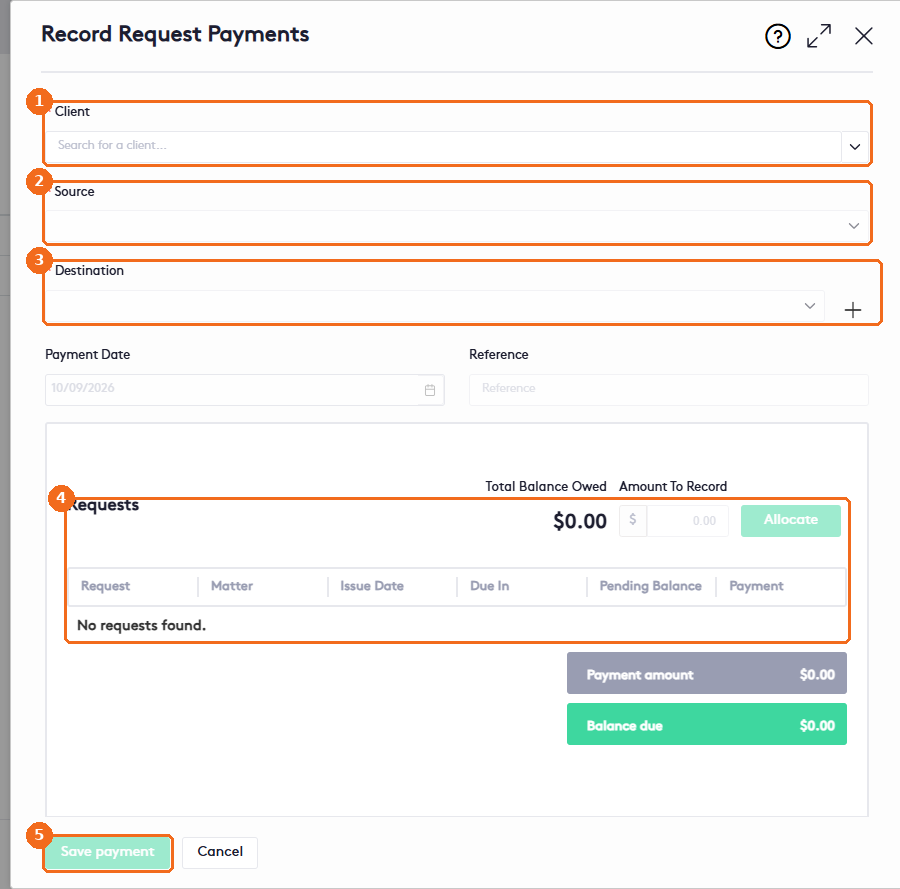
- Select the Client.
- Select the Source.
- Select the Destination account.
- Enter the amounts in the Requests table, or use Amount To Record and Allocate.
- Click Save payment.
Delete a payment
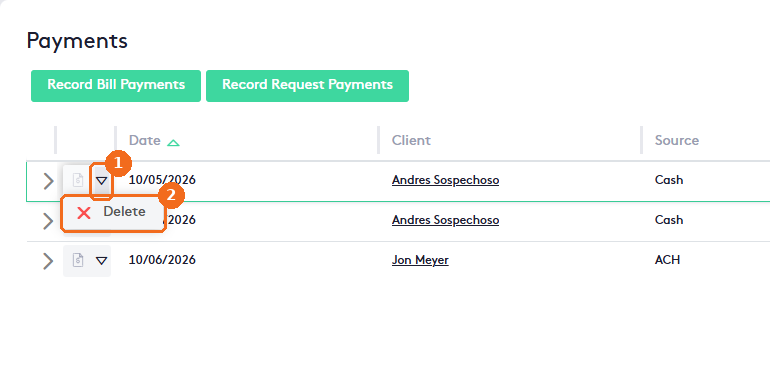
- In the Payments list, click the actions arrow of the payment.
- Click Delete and confirm.
You can also delete a payment from the Payments tab of the Billing Details window. If the invoices have a payment plan, its status updates automatically.