
After you record a payment or issue a refund, you can get its receipt as a PDF or send it by email.
From the Payments list
Go to Payments, or to the Payments tab of a matter or contact.
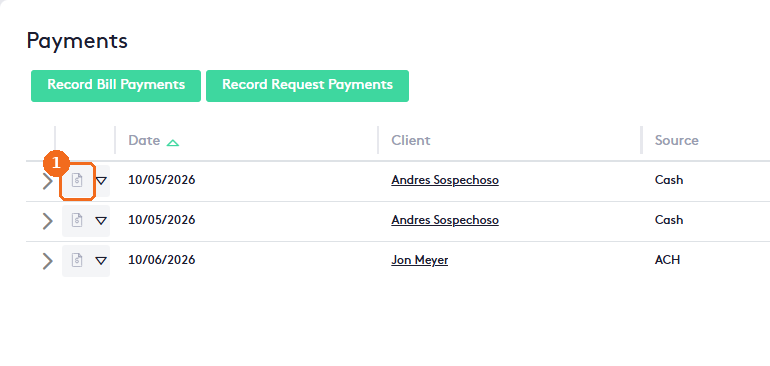
Click the receipt button of the payment or refund. The Payment receipt window opens (Refund receipt for a refund) and asks you to Choose How You Want Your Receipt.
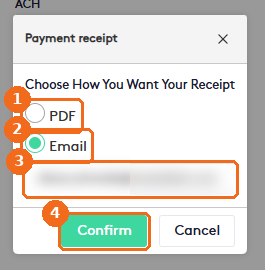
- Select PDF to open or save the receipt.
- Or select Email to send the receipt as a PDF attachment.
- Check the email address. It is filled in with the client’s primary email, and you can change it.
- Click Confirm.
Note. To open the PDF receipt, allow pop-up windows in your browser.
From the Billing Details window
Open the bill and stay on the Payments tab.
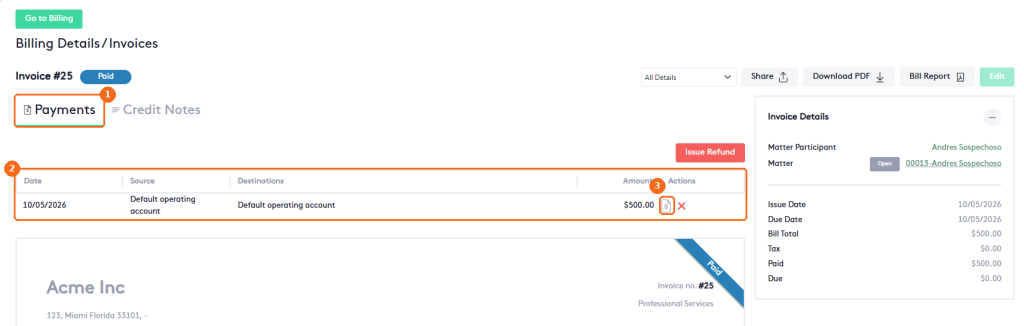
- The Payments tab.
- The payments and refunds of the bill.
- Click the receipt button in the Actions column.
Requests work the same way: in the Request Details window, click the Payment Receipt button of the payment in the Actions column of the Payments tab.