
Issue a refund to return money a client paid on a bill or request. You can refund invoices in the Approved or Paid status that have at least one payment.
Table of contents
Start a refund
Go to Payments and click Refund.

- Click Refund.
- Click Issue Refund.
You can also click the red Issue Refund button on the Billing tab, next to Add Bill and Record Bill Payments, or start a refund from the Payments tab of a bill (see below) and from the Bills and Payments tabs of a matter or contact.
Fill in the refund
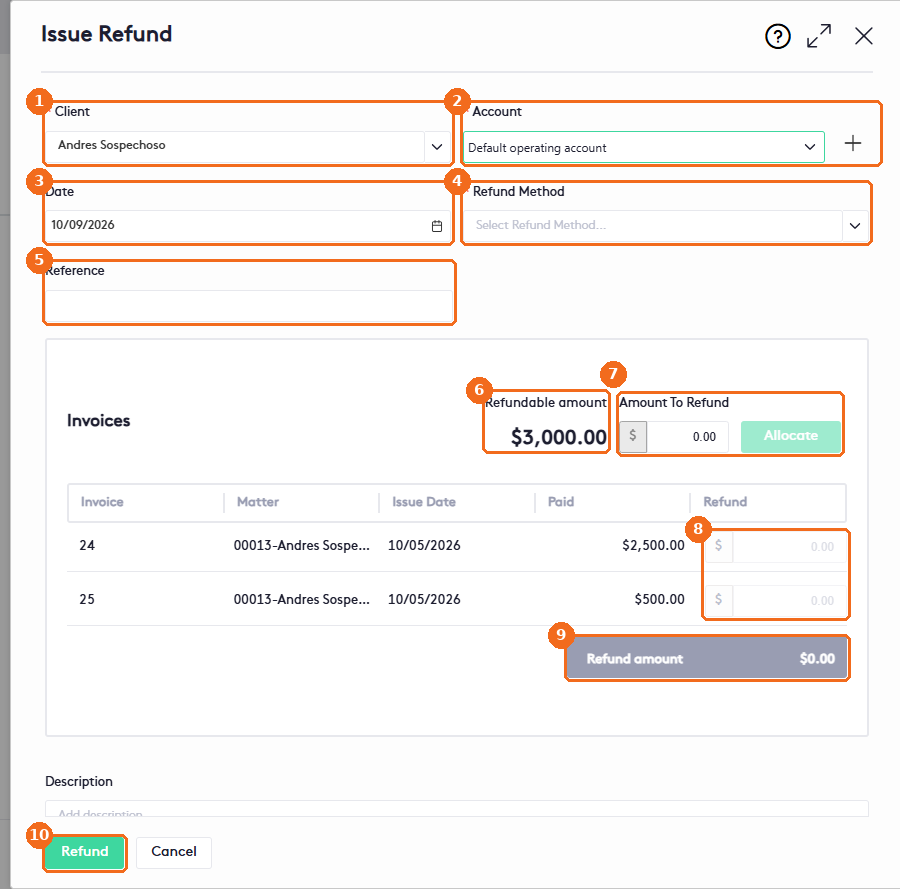
- Select the Client who gets the money back (required). The client’s refundable invoices are listed with their Invoice, Matter, Issue Date, Paid and Refund columns.
- Select the Account the money comes from (required). Click + to add an account.
- Check the Date. It defaults to today.
- Select the Refund Method (required). It’s available after you select the client. The options are Cash, Credit Card, Check, Debit Card, Apple Pay, Google Pay, PayPal, Zelle, Venmo, Third-Party Payment, Store Credit, Cashier’s Check, Money Order, ACH and Wire Transfer.
- Enter a Reference, for example a check number (optional).
- Refundable amount shows the total the client paid on the listed invoices. Credit notes are not included.
- Enter the Amount To Refund and click Allocate to spread it across the invoices.
- Or type the amount to refund for each invoice in the Refund column.
- Refund amount shows the total of the refund.
- Add a Description if needed and click Refund.
If the invoices have a payment plan, its status updates automatically.
Refund from a bill
Open a bill in the Approved or Paid status. On the Payments tab:
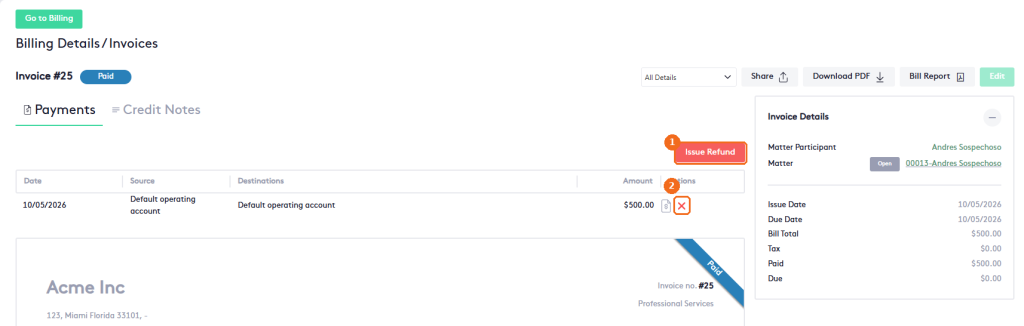
- Click Issue Refund to refund this bill.
- Click the red X in the Actions column to delete a payment or refund, and confirm.
Delete a refund
In the Payments list, click Refund, click the actions arrow of the refund and click Delete. Confirm to delete it.
Note. Paid trust requests can be refunded too, from the Request Details window. In that case the Account list shows the trust account the money was paid into.