
The Requests module lists the fund requests of your firm: requests that ask a client for a deposit, an advance or a top-up of funds. From here you can create requests, record their payments and follow their balance.
Table of contents
The Requests list
Click Requests in the left menu.
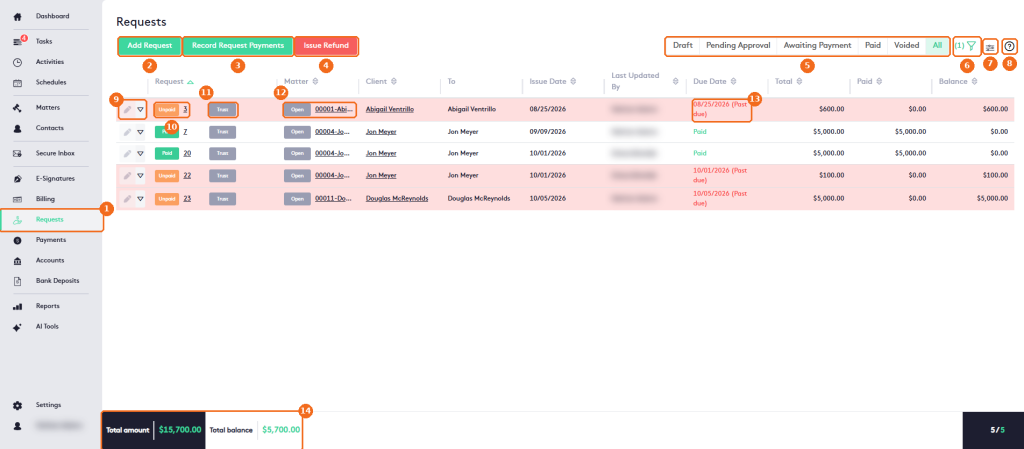
- Requests in the left menu.
- Add Request creates a request. See Getting started with Requests.
- Record Request Payments records payments for requests. See Getting started with Payments.
- Issue Refund refunds a request payment. See Issuing a Refund.
- The status filters: Draft, Pending Approval, Awaiting Payment, Paid, Voided or All. See Request status Overview.
- The filter button, with the number of active filters.
- The column selector.
- Help.
- The edit button and the actions arrow of each request.
- The payment badge and the request number. Click the number to open the Request Details window.
- The Trust badge marks requests for trust funds.
- The matter, with its status. Click it to open the Matter dashboard.
- The due date. Past-due requests are shown in red.
- Total amount and Total balance of the requests listed.
The table also shows the Client, who the request is addressed To, the Issue Date, a people column, and the Total, Paid and Balance. The people column changes with the status filter: Drafted By (Draft), Pending Approval Of (Pending Approval), Approved By (Awaiting Payment) or Last Updated By (All).
Request actions
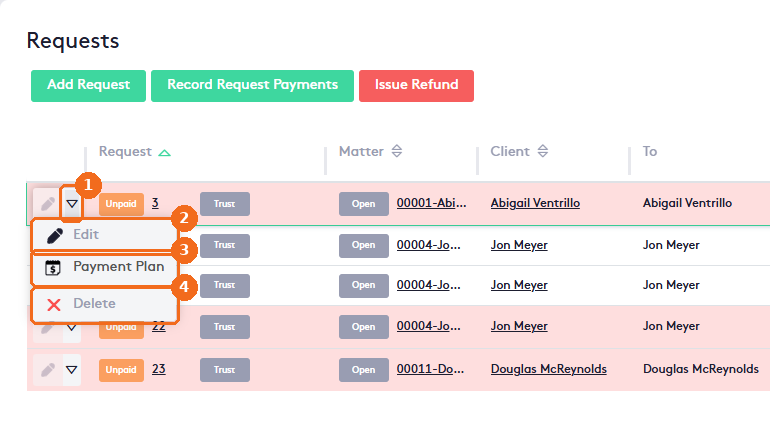
- Click the actions arrow of the request.
- Edit changes the request. Available for Draft requests only.
- Payment Plan splits the balance into installments. Available for requests in Awaiting Payment (unpaid) only. See Managing Payment Plans.
- Delete removes the request. Available for Draft requests only.
Filter the list
Click the filter button.
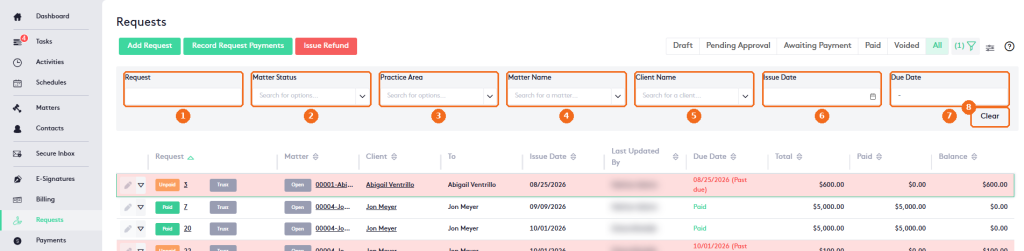
- Request number.
- Matter Status.
- Practice Area.
- Matter Name.
- Client Name.
- Issue Date.
- Due Date range.
- Clear resets the filters.