
Use a request to ask a client for funds, for example an initial deposit or a retainer top-up, and track its payment.
Table of contents
Where to create a request
- Add Request in the Requests module, or in the Requests tab of a matter or contact.
- Request Funds in the Account Balance card of the matter’s Dashboard tab.
- Add Request in the Billing Preferences of a matter, when you add or edit a billable matter with the Hour billing type.
Create a request
Click Add Request. The New Request panel opens.
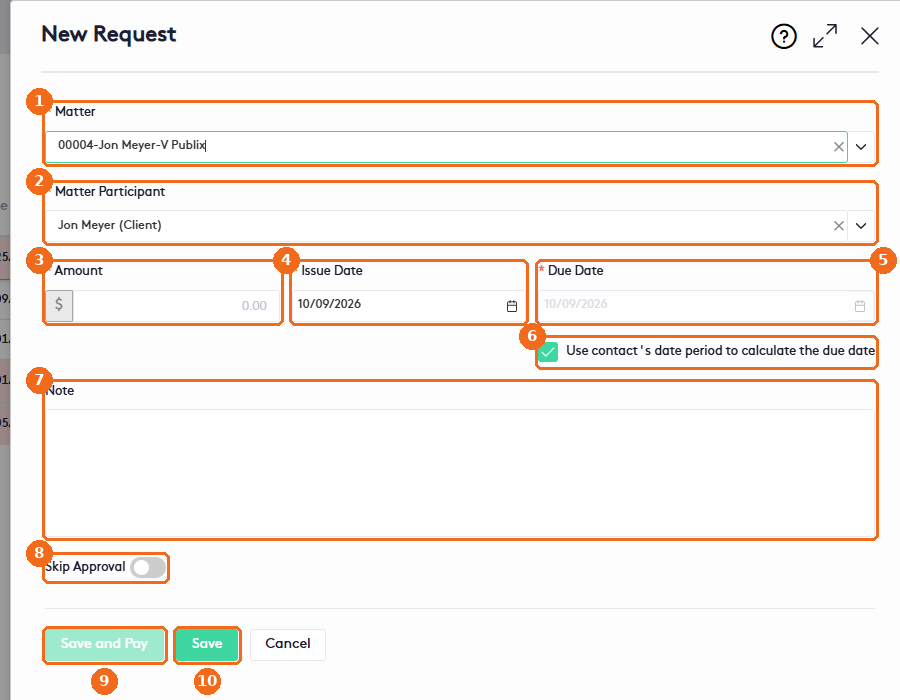
- Select the Matter (required). When you start from a matter, it is already selected.
- Select the Matter Participant who receives the request (required). The client is selected by default.
- Enter the Amount (required).
- Check the Issue Date. It defaults to today.
- The Due Date is calculated from the contact’s grace period.
- To pick another due date, clear Use contact’s date period to calculate the due date.
- Add a Note with the reason for the request.
- Turn on Skip Approval to approve the request right away. Leave it off to save it as Draft.
- Save and Pay saves the request and opens the payment form. It is available only with Skip Approval on.
- Or click Save.
Edit or delete a request
You can edit or delete a request only while it is in the Draft status.
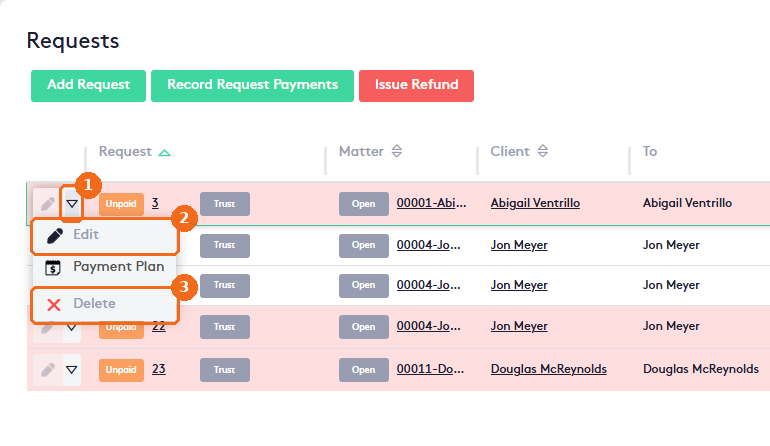
- Click the actions arrow of the request.
- Click Edit to change it, then click Save.
- Or click Delete and confirm.
You can also click the edit button at the start of the row, or Edit in the Request Details window.