
Calendars group your events. Besides your own calendar and the system calendars, you can create calendars, share them with other users, and integrate your Google or Outlook calendars.
Table of contents
Calendar groups
In Schedules, open the Calendars panel with the menu button at the top right.
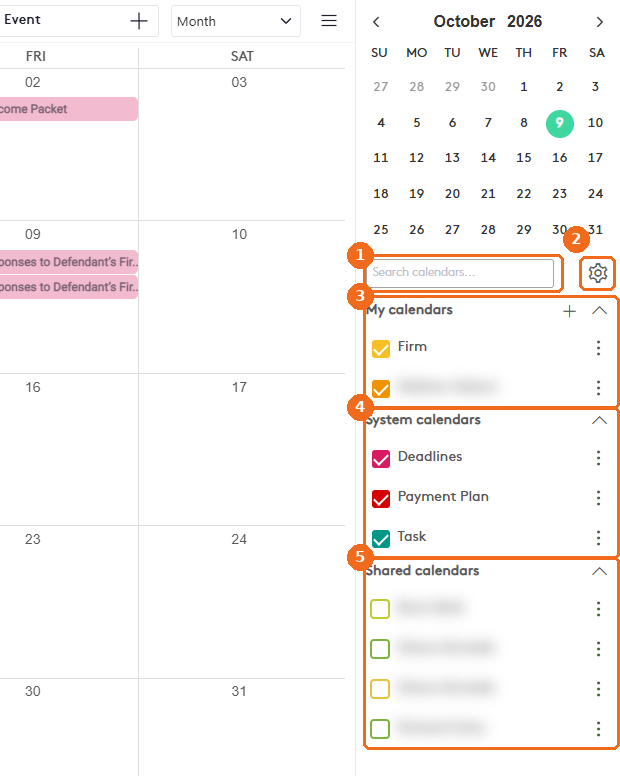
- Search calendars finds a calendar by name.
- The calendar settings button. It has three options: Hide unchecked calendars, Show invitations only and Show only active calendars (selected by default).
- My calendars: your user calendar, the Firm calendar and the calendars you create.
- System calendars: Deadlines, Payment Plan and Task. Maatdesk adds their events automatically.
- Shared calendars: calendars other users share with you. What you can do depends on the permission they gave you.
Create a calendar
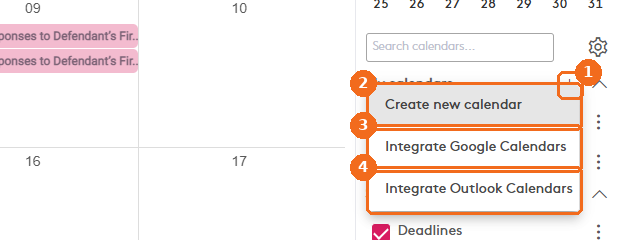
- Click + next to My calendars.
- Create new calendar creates a calendar in Maatdesk.
- Integrate Google Calendars connects your Google account.
- Integrate Outlook Calendars connects your Outlook account.
Click Create new calendar. The Add Calendar panel opens.
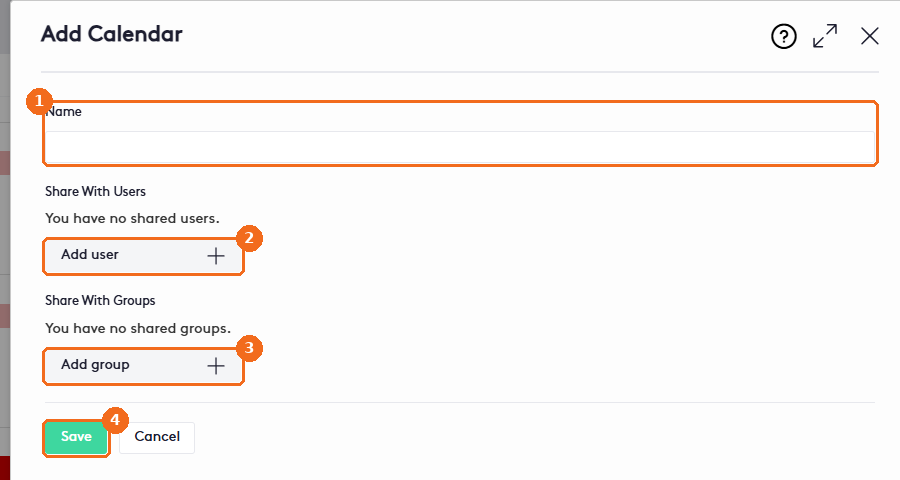
- Enter the Name of the calendar.
- Under Share With Users, click Add user +. In Share with user, select the user in Select User, select the Permission and click Share.
- Under Share With Groups, click Add group + to share it with a group.
- Click Save. Maatdesk shows Calendar <name> created successfully.
| Permission | What the user can do |
|---|---|
| Viewer | See the events. |
| Editor | See, edit and delete the events. |
| Free/Busy | See only when you are busy, without the event details. |
| Booking | Create events, and edit or delete only the events they created. You choose whether double booking is allowed. |
Calendar options
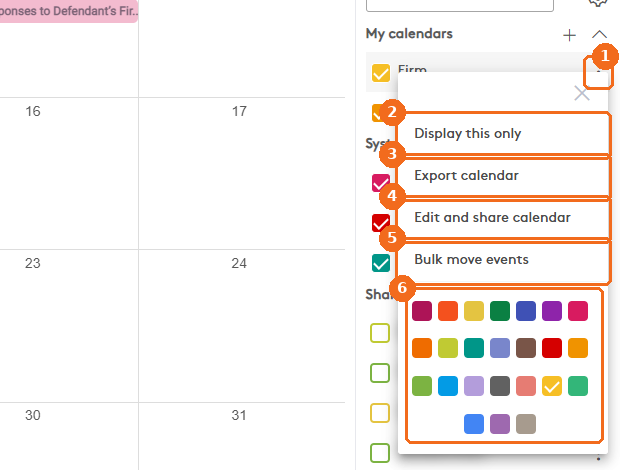
- Click the three dots next to the calendar.
- Display this only hides all the other calendars.
- Export calendar saves the calendar as a file for other calendar apps.
- Edit and share calendar changes the name and the sharing.
- Bulk move events moves events to another calendar.
- Click a color to change the calendar color.
Calendars you created also have Merge into another calendar, Transfer ownership and Delete this calendar. Deleting a calendar deletes its events.
Move events to another calendar
Bulk move events opens the Move Events To Another Calendar page. Only the calendar of the events changes; all other event details stay the same.
- In Select & Filter Events, check the Source Calendar and select the Destination Calendar (required).
- Set the Date Range (required, the current year by default). To narrow the list, select a Matter, an Event Type or Created By. Clear filters resets them.
- Click Preview Events and check the events in Preview Results.
- Click Next: Confirm & Move and confirm the move.
Integrate Google or Outlook calendars
Click + next to My calendars and select Integrate Google Calendars or Integrate Outlook Calendars. Sign in to your account and allow access. Your events then appear together with your Maatdesk events.
Note. Removing an integrated calendar removes it only from Maatdesk. The calendar and its events stay in your Google or Outlook account.