
The Tasks module lists the to-dos of your firm: what has to be done, for which matter, by whom and by when. From here you can create tasks, complete them and find overdue work.
Table of contents
The Tasks list
Click Tasks in the left menu. The number on the icon shows your open tasks.
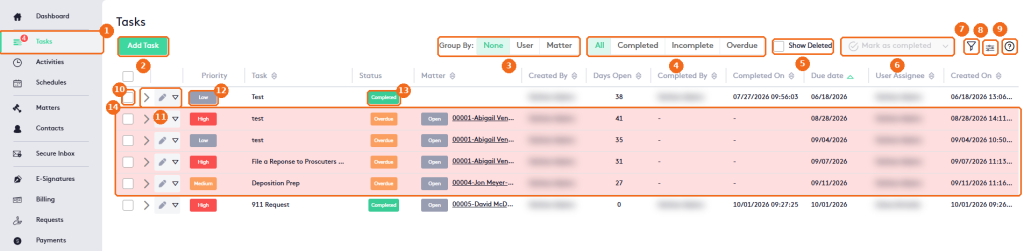
- Tasks in the left menu.
- Add Task creates a task. See Getting started with Tasks.
- Group By: None, User or Matter.
- The status filters: All, Completed, Incomplete or Overdue.
- Show Deleted lists only the deleted tasks.
- The bulk action button: click Mark as completed, or open its arrow and click Mark as incomplete or Delete. Options that don’t apply to the selected tasks are grayed out.
- The filter button.
- The column selector.
- Help.
- Select a task for a bulk action.
- The expand arrow, the edit button and the actions arrow of the task.
- The Priority: Low, Medium or High.
- The Status of the task, for example Completed.
- Overdue tasks are shown in red.
The table also shows the Matter, who created the task, the Days Open, Completed By and Completed On for completed tasks, the Due date, the User Assignee and the creation date.
Task actions
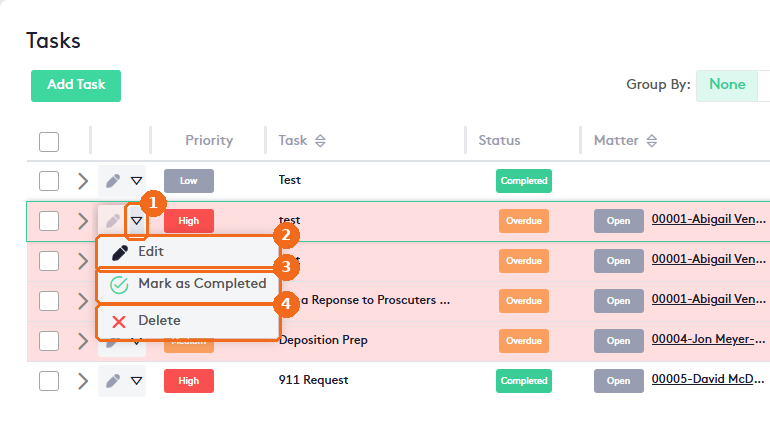
- Click the actions arrow of the task.
- Edit changes the task.
- Mark as Completed (or Mark as Incomplete for a completed task) changes its status.
- Delete deletes the task. In Delete task, click Yes. Delete is grayed out for completed tasks.
Note. Deleted tasks can’t be restored or changed. In the Show Deleted view, they show the status Deleted and their actions and the bulk action button are grayed out.
Task description
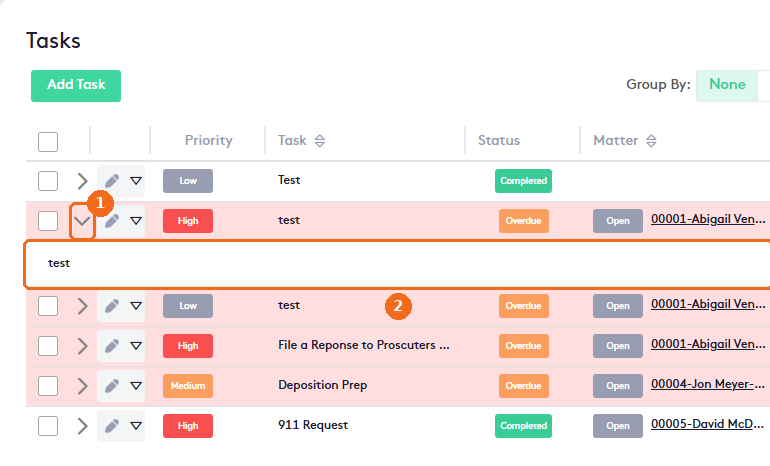
- Click the expand arrow of the task.
- The task description appears below the row.
Filter the list
Click the filter button.
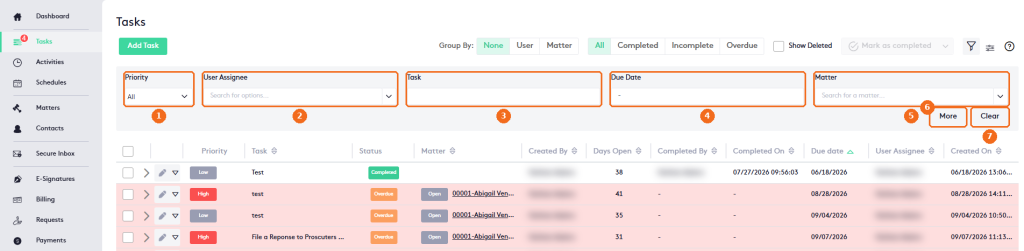
- Priority.
- User Assignee.
- Task name.
- Due Date range.
- Matter.
- More adds the Created By filter. Less hides it again.
- Clear resets the filters.