
Create tasks to assign work to your team, link them to a matter, and get reminders before they are due.
Table of contents
Create a task
Click Add Task in the Tasks module, or in the Tasks tab of a matter or contact. The Add Task panel opens.
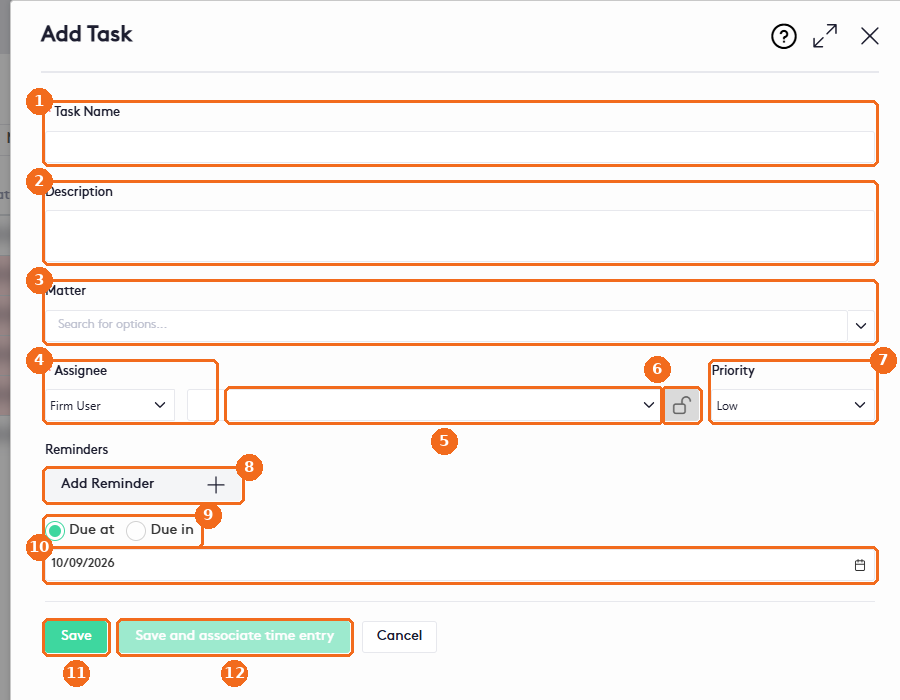
- Enter the Task Name (required).
- Add a Description.
- Select the Matter (optional). When you start from a matter, it is already selected.
- Select the type of Assignee: Firm User or, when a matter is selected, Matter Team (the default for matter tasks).
- Select the person the task is assigned to (required).
- Click the lock to make the task private. Only you, the assignee and administrators can see a private task.
- Select the Priority. The default is Low.
- Click + next to Add Reminder to notify a firm user or a contact before the due date. See the reminder fields below.
- Select Due at for a fixed date, or Due in to set the date relative to another task of the matter. Due in is available only when a matter is selected.
- Select the due date, or complete the Due in fields described below.
- Click Save.
- Or click Save and associate time entry to also record the time spent. It is available only when a matter is selected.
Reminder fields
| Field | What to enter |
|---|---|
| Recipient type | Contact or Firm User. |
| Recipient | The person to notify. |
| Number | How long before the due date. |
| Unit | minutes, hours, days or weeks, followed by Before. |
Click the X of a reminder to remove it.
Due in fields
- Enter a number.
- Select the period: Calendar Days, Calendar Weeks, Calendar Months or Calendar Years.
- Select After or Before.
- Under Tasks in Matter, select the task the date is based on. The list shows each task’s due date.
The task appears in the Tasks tab of its matter or contact, in the Task calendar of the Schedules module, and in the My Tasks card of the assignee’s Dashboard.
Edit, complete or delete a task
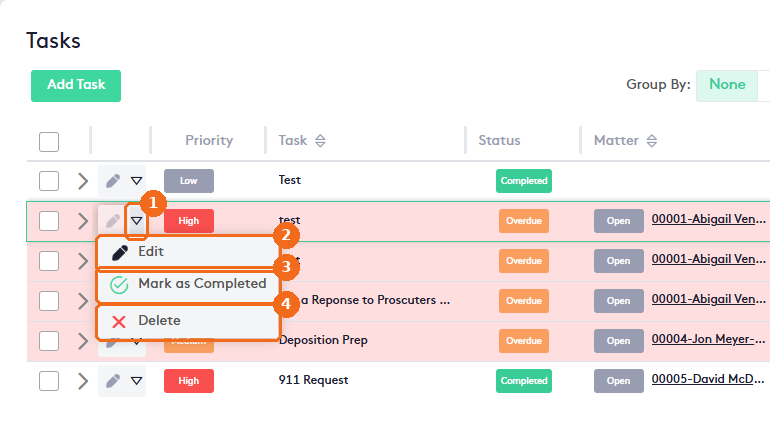
- Click the actions arrow of the task.
- Edit opens the task. Make your changes and click Save.
- Mark as Completed completes the task. For a task with an open matter and no time entry, you can also add a time entry.
- Delete deletes the task. In Delete task, click Yes.
You can also complete or delete a task from the My Tasks card of your Dashboard, and edit or delete it from its event in the Schedules module.
Update several tasks at once
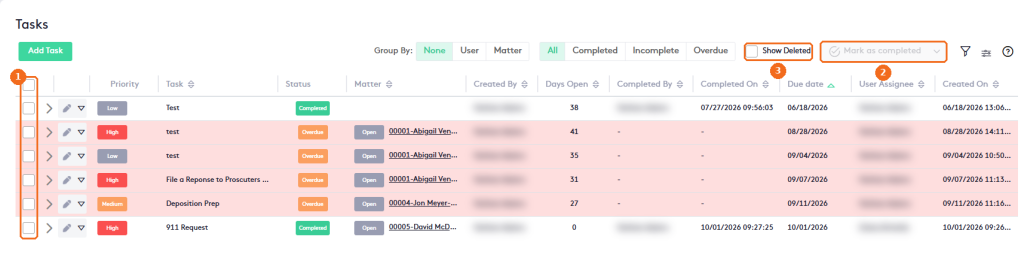
- Select the tasks.
- Click Mark as completed, or open its arrow and click Mark as incomplete or Delete.
- To see deleted tasks, check Show Deleted. Deleted tasks can’t be restored or changed.
Note. Completed tasks and tasks with a time entry can’t be deleted. Editing a completed task makes it incomplete again.