
Professional roles describe the job of each user of your firm, such as Attorney or Paralegal. They are used when you assign users to a matter team.
Go to Settings and, in the Practice & Legal group, click Professional Roles.
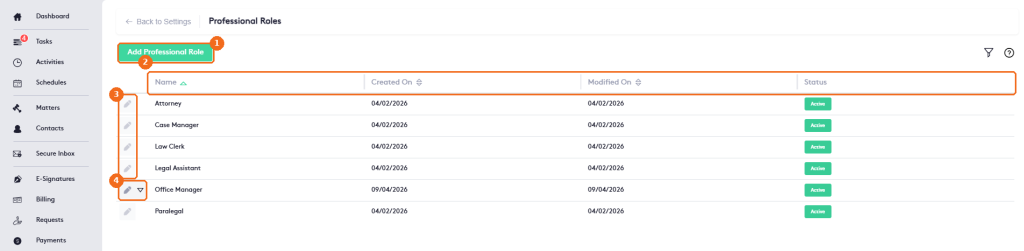
- Add Professional Role creates a role.
- The columns: Name, Created On, Modified On and Status.
- Built-in roles: Attorney, Case Manager, Law Clerk, Legal Assistant and Paralegal. They can’t be edited or deleted.
- Roles you created have an actions arrow.
Add a role
Click Add Professional Role.
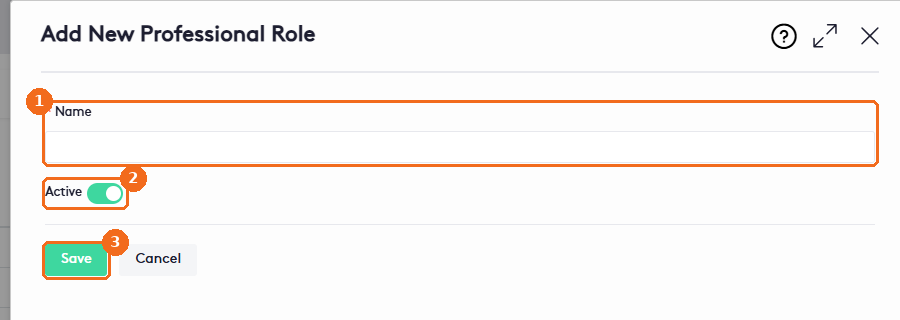
- Enter the Name, for example “Office Manager”.
- Keep Active on.
- Click Save.
Edit or delete a role
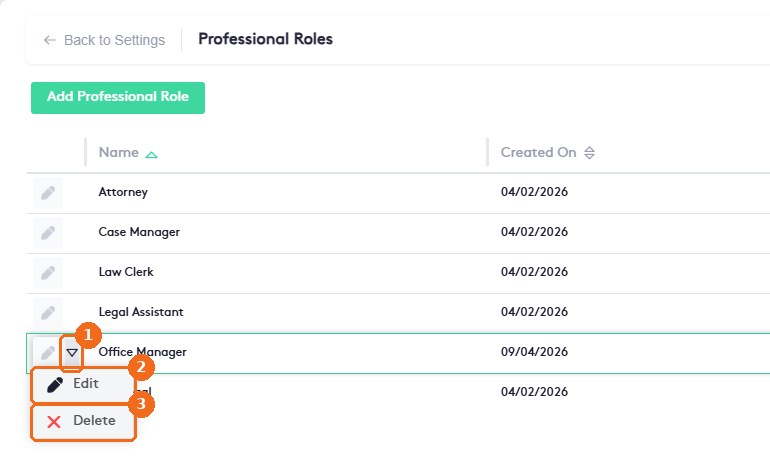
- Click the actions arrow of the role.
- Edit renames the role. The change applies to every user with this role.
- Delete removes the role. Confirm to delete it.
To assign roles to a user, go to Settings > Manage Users, click the edit button of the user and select one or more roles in Professional Roles. The Users list shows each user’s roles in the Professional Roles column.
In the Matter Team tab of a matter, each member is listed with their Professional Role. Click the filter button to filter the team by User or Professional Role, or click Clear to reset it.