
Questionnaires let you send online forms to clients, such as an intake form, and collect their answers in Maatdesk. The forms are built in Jotform and linked to Maatdesk with their Form ID.
Table of contents
Before you start
- Your firm needs the Jotform integration set up. See Managing the JotForm Integration.
- Create and publish the form in Jotform, and copy its numeric Form ID (you can find it in the form URL or settings).
Add a questionnaire template
Go to Settings > Questionnaire Templates Management.
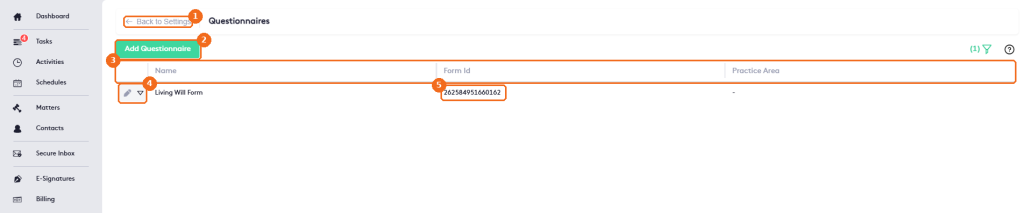
- Back to Settings returns to the Settings page.
- Add Questionnaire creates a template.
- The columns: Name, Form Id and Practice Area.
- The edit button and the actions arrow of each template.
- The Jotform Form ID linked to the template.
Click Add Questionnaire. The Add New Questionnaire panel opens.
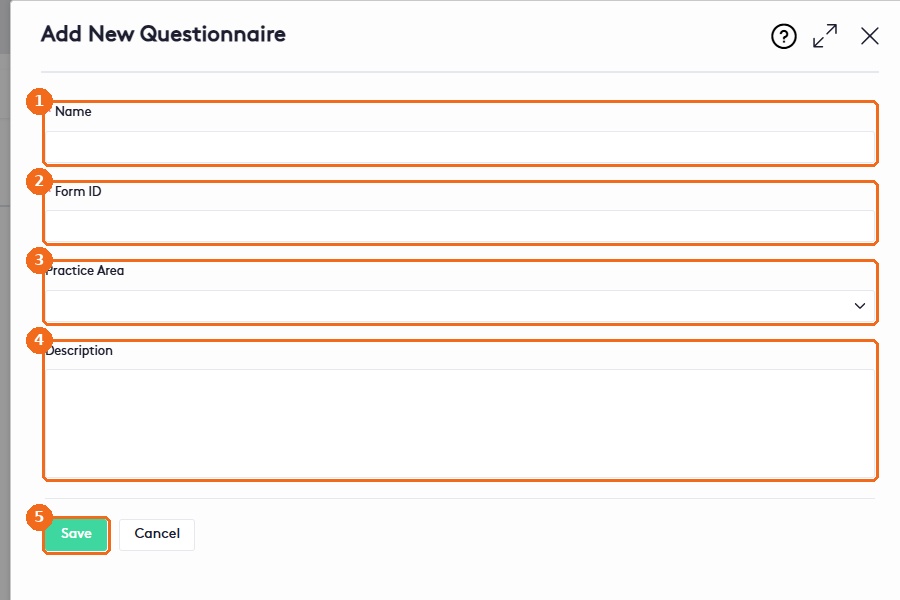
- Enter a Name (required), for example “Client Intake Form”.
- Enter the Jotform Form ID (required).
- Select the Practice Area the form is used for, if any.
- Add a Description for your team.
- Click Save.
Send a questionnaire from a matter
Open the matter and click More > Questionnaires.
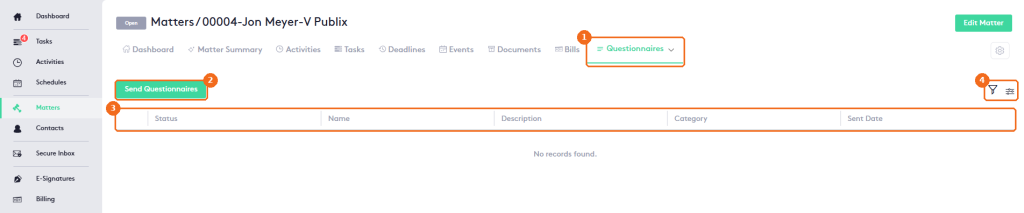
- The Questionnaires tab.
- Send Questionnaires opens the sending panel.
- The questionnaires sent for the matter: Status (Sent, Received or Completed), Name, Description, Category and Sent Date.
- The filter panel (Name, Category and Status) and the column selector.
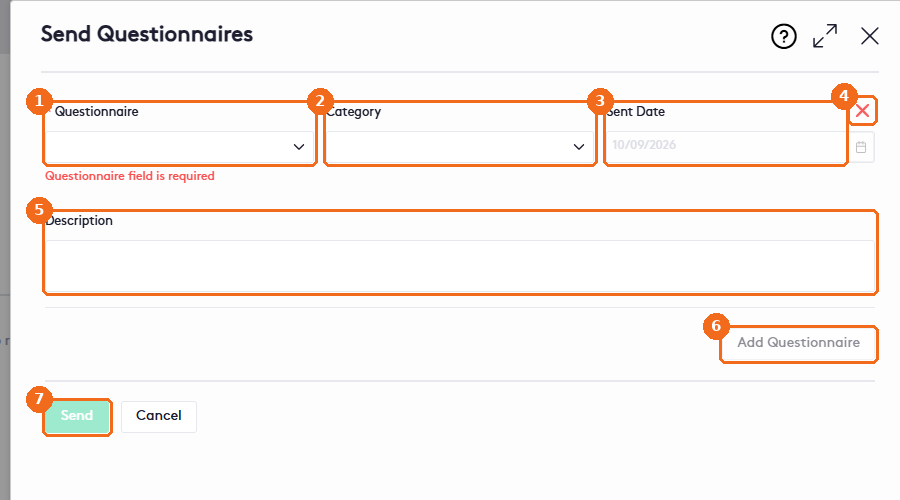
- Select the Questionnaire (required). You can’t type in this field: pick the questionnaire from the list.
- Select a Category the same way.
- The Sent Date is today and can’t be changed.
- Click × to remove the row.
- Add a Description with instructions for the client.
- Click Add Questionnaire to send more than one questionnaire at once.
- Click Send.
Maatdesk sends the questionnaires to the contacts of the matter.