
The Matters module lists the matters (cases) of your firm. From here you can create matters, find them with filters and open their dashboards.
To open it, click Matters in the left menu.
The Matters list
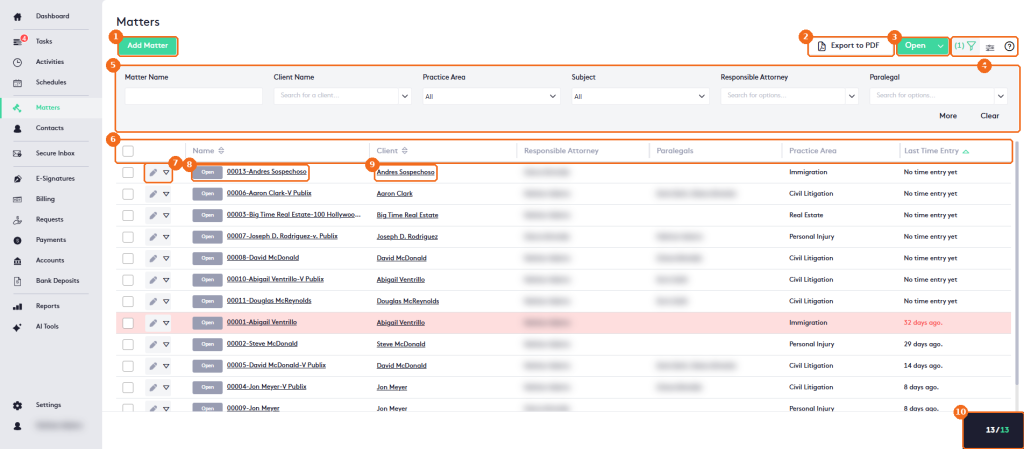
- Add Matter creates a matter. See Getting started with Matters.
- Export to PDF exports the list (allow pop-ups in your browser).
- The status selector, next to Export to PDF: All, Active, Hold or Closed. By default it shows Open and lists the active matters. Active in the selector and the Open badge on the rows are the same status.
- The filter button (with the number of active filters), the column selector and help.
- The filter panel: Matter Name, Client Name, Practice Area, Subject, Responsible Attorney and Paralegal. Click More to add Originating Attorney, Open Date, Closed Date, Pending Date, Last Time Entry, Office, Billable Type, Matter Type and Jurisdiction, and Less to hide them again. Click Clear to reset the filters.
- The columns: Name, Client, Responsible Attorney, Paralegals, Practice Area and Last Time Entry.
- The edit button and the actions arrow of each matter.
- The status badge and the matter name. Click the name to open the Matter dashboard.
- The client. Click it to open the Contact dashboard.
- The number of matters listed.
Last Time Entry shows how long ago time was recorded for the matter. Matters whose last time entry is more than about 30 days old are highlighted in red, so you can spot inactive matters. Matters with no time entry yet are not highlighted.
Matter actions
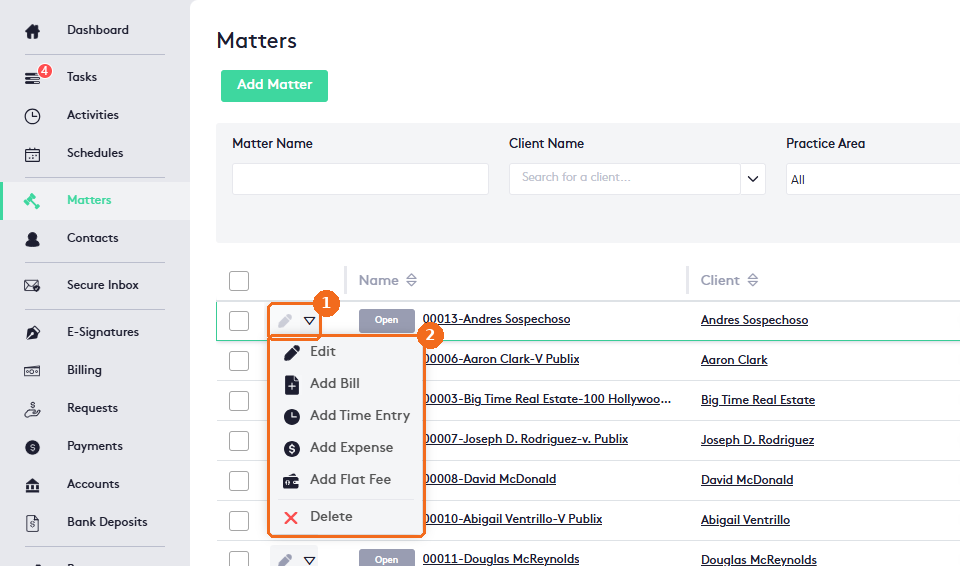
- Click the actions arrow of the matter.
- The actions: Edit, Add Bill, Add Time Entry, Add Expense, Add Flat Fee and Delete.
Note. On a closed matter, you can only change the status and a few other fields, or delete it. To work on the matter again, reopen it or change its status.