
Document templates let you generate documents for a matter, contact or request with their data filled in automatically, such as a fee agreement with the client’s name. You manage them in Settings.
Table of contents
Open the document templates
Go to Settings > Document Templates Management.
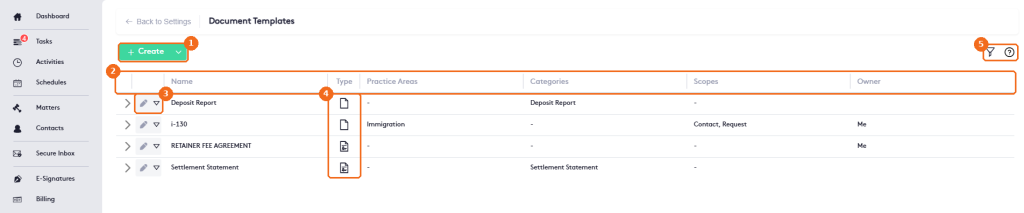
- Create creates a template.
- The columns: Name, Type, Practice Areas, Categories, Scopes and Owner.
- The edit button and the actions arrow of each template.
- The Type icon shows whether it’s a standard template or a signature template.
- The filter panel and help.
Create a template
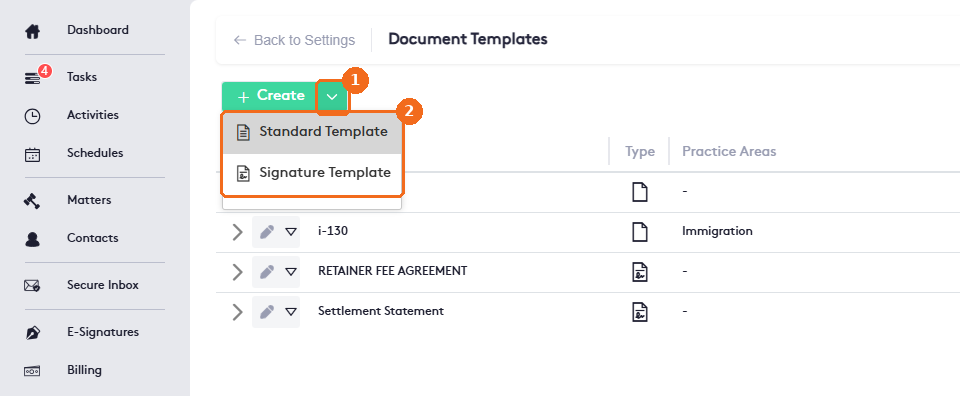
- Click the arrow next to Create.
- Select Standard Template or Signature Template (a document to be signed).
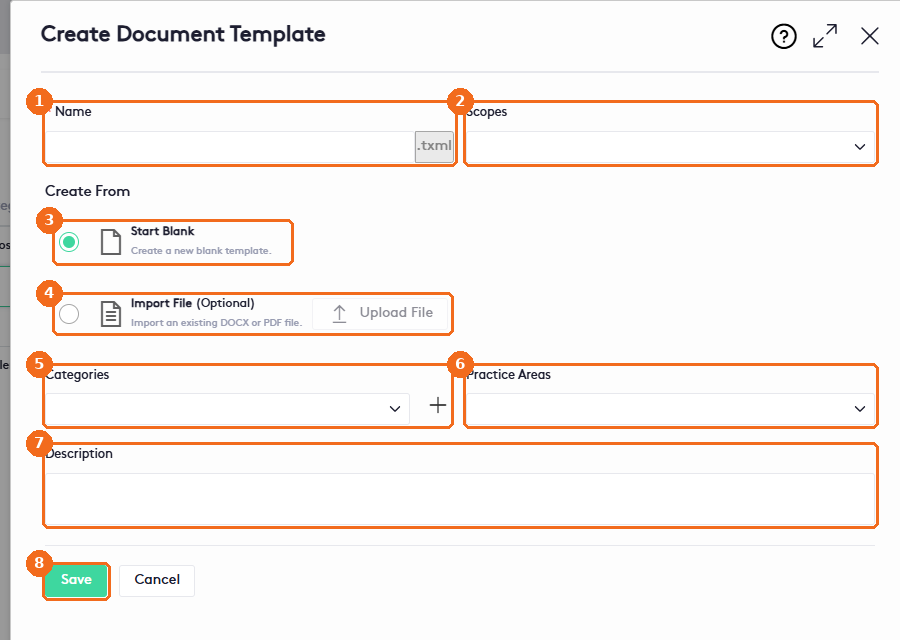
- Enter the Name (required).
- Select the Scopes: where the template can be used. You can select several: Bank Reconciliation, Bill, Contact, Deposit, Matter and Request.
- Select Start Blank to write the template in Maatdesk,
- or Import File (Optional) and click Upload File to start from a DOCX or PDF file.
- Select the Categories, or click + to add one.
- Select the Practice Areas the template applies to.
- Add a Description.
- Click Save.
In the template content, merge fields are replaced with the data of the matter, contact or record when you generate a document. In the editor they appear between angle quotes, for example «Firm Name» or «Contact Name».
Template actions
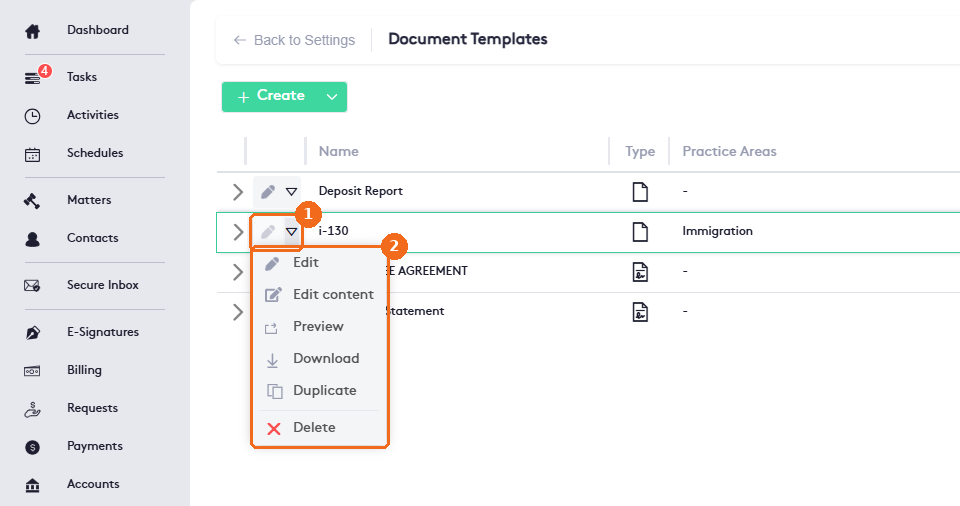
- Click the actions arrow of the template.
- The actions: Edit (name and settings), Edit content, Preview, Download, Duplicate and Delete.
Edit opens the Edit Document Template panel, with Name (required), Scopes, Categories, Practice Areas and Description. To generate a document from a template, see Document Management.
Edit the template content
- Click the actions arrow of the template and select Edit content. The template opens in a full-page editor similar to a word processor, with the Home, Insert, Page Layout, View, References and Form Fields tabs.
- Write or change the text.
- To add data that fills in automatically, open the Merge fields tab in the right panel. The fields are grouped by Deposit, Bank Reconciliation, Bill, Request, Settlement, Contact, Matter, General and Firm. Each group lists the fields you can add to the template. In a signature template, the Signers tab lists who signs the document, by default the Client and the Responsible Attorney. Click + Add Dynamic Signer to add a signer, and switch on Make Signers Sign In Order to have them sign one after the other. The Input fields tab adds input fields to the template; click Add to create one.
- Click Save. Autosave is selected by default.
- Click Close editor.
Note. If you close the editor with unsaved changes, the Unsaved content window asks whether to save them. Click Save and close, Close without saving or Cancel.